Kanban
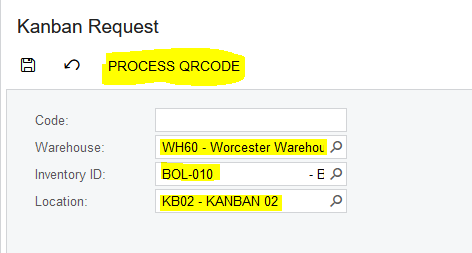
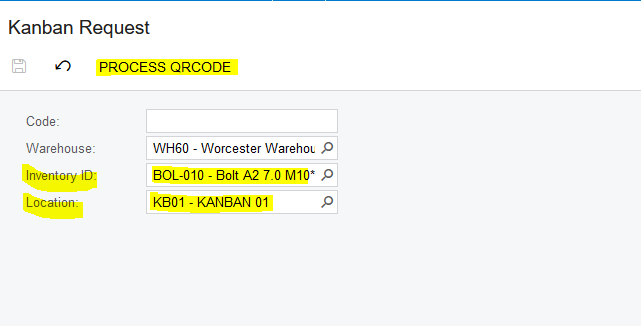
1. The End User selects or Scans via the Mobile App the relevant Warehouse, Inventory Item, Location and clicks on "PROCESS QRCODE". By clicking on "PROCESS QRCODE" the Code generates the QR code in the correct Format for scanning, for example "WH60|BOL-010|KB02". Kanban Requests can be done either on the Web or through the Mobile App.:
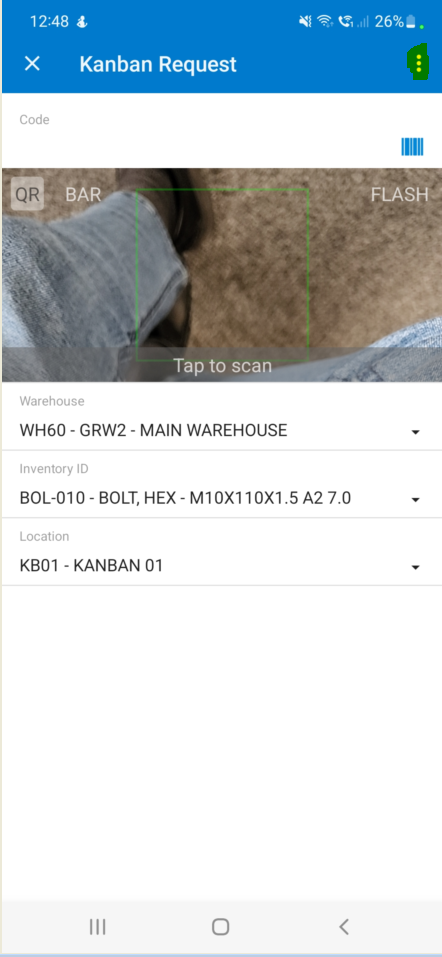
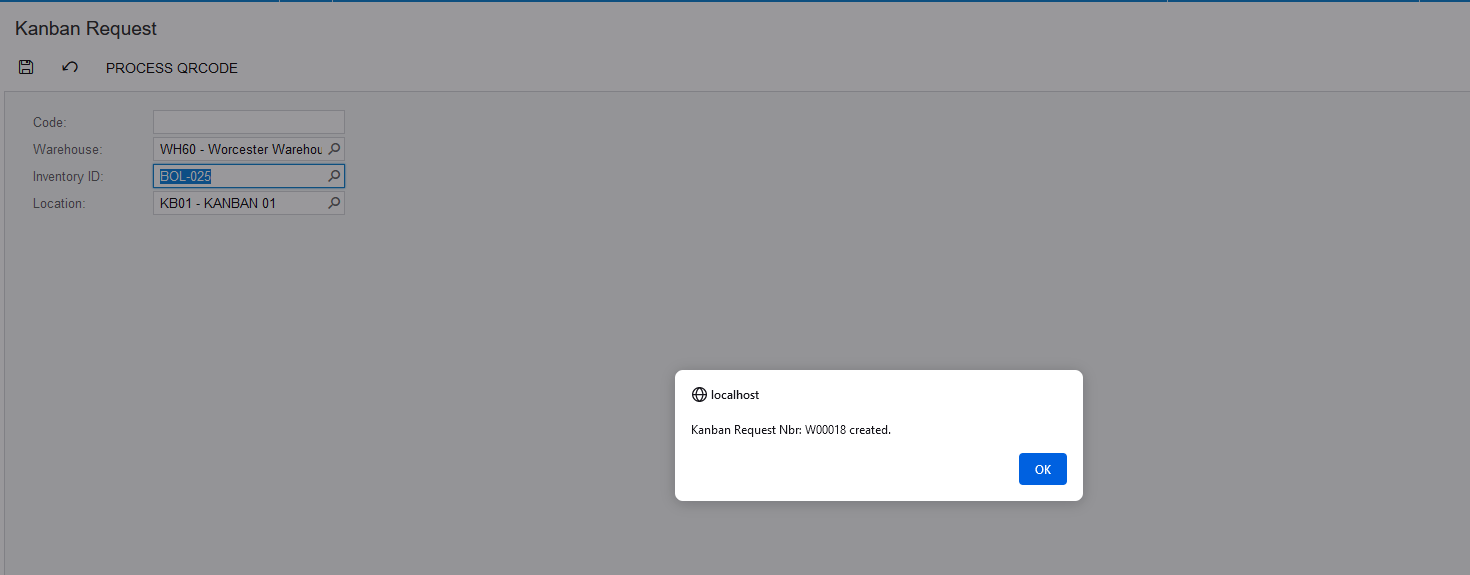
2. Once the End User clicks on "PROCESS QRCODE" a Pop Up Box will come up confirming that a Kanban Request was created along with the number. This then goes and create a Request on Acumatica, which now will enable the Warehouse End Users to see it when they create a new Pickingslip:
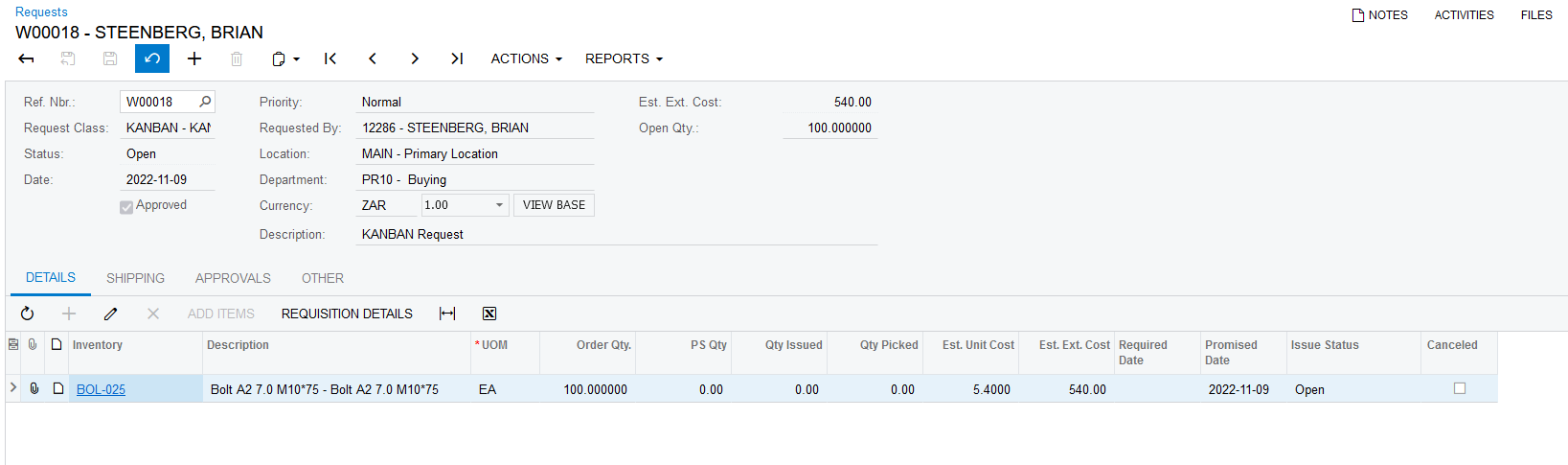
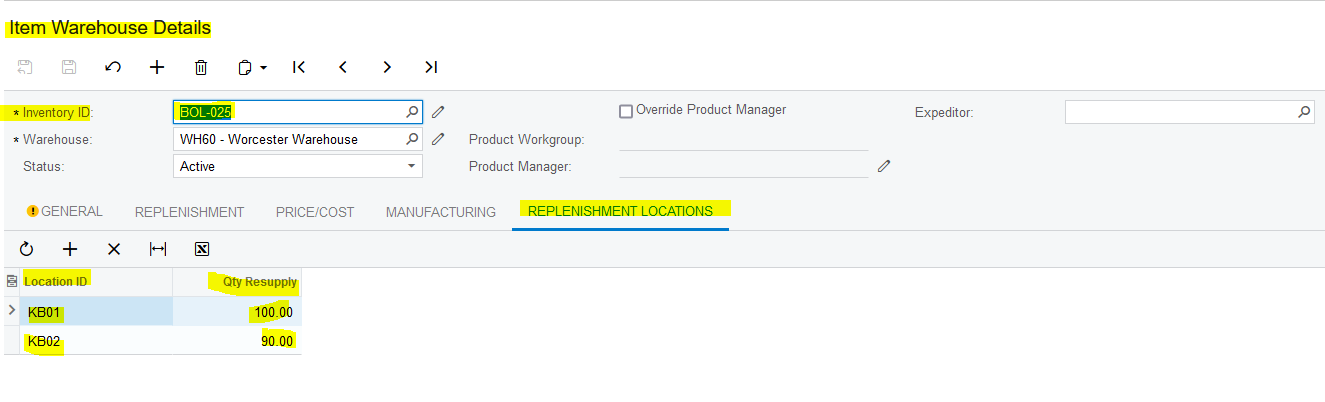
3. Only Stock Items that have Replenishment Locations setup on the Item Warehouse Details can be used to create Kanban Requests. The Quantity that you type in on the "Qty Resupply" is the Order Quantity that will be generated on a new Request:
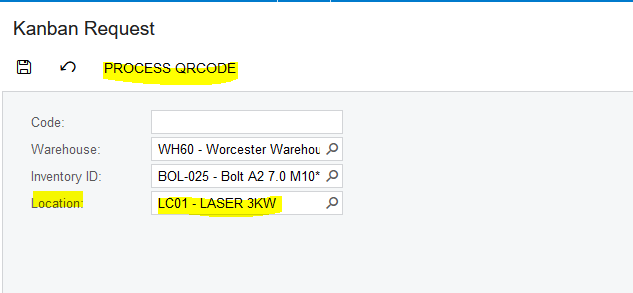
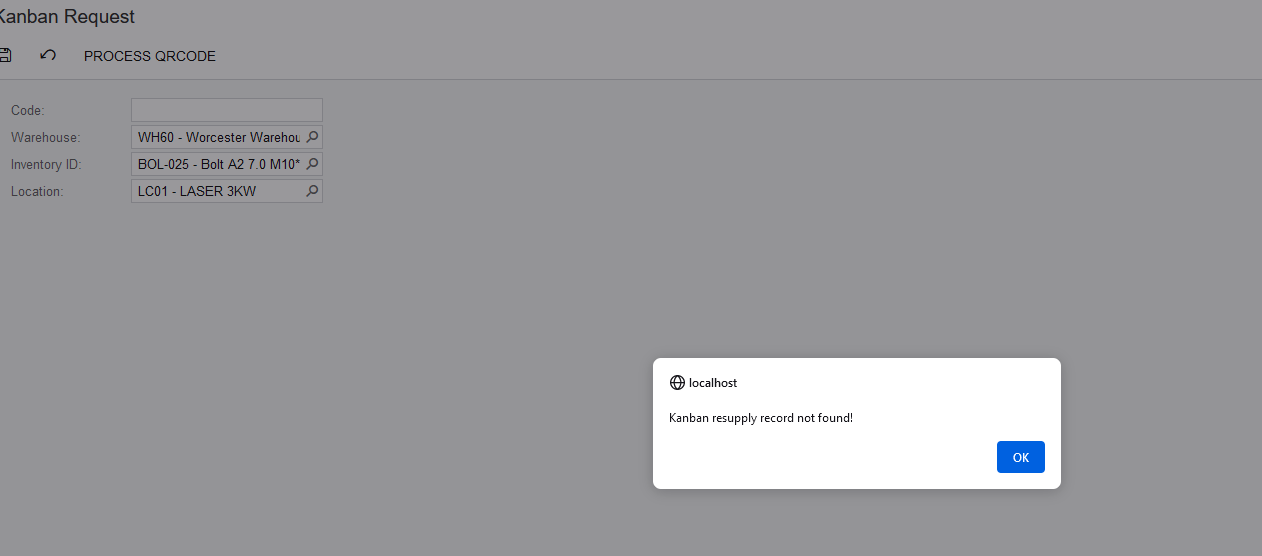
4. If the End User tries to create a Kanban Request using a different Location that is specified on the "REPLENISHMENT LOCATIONS", the following Error will come up in a Dialog Box:
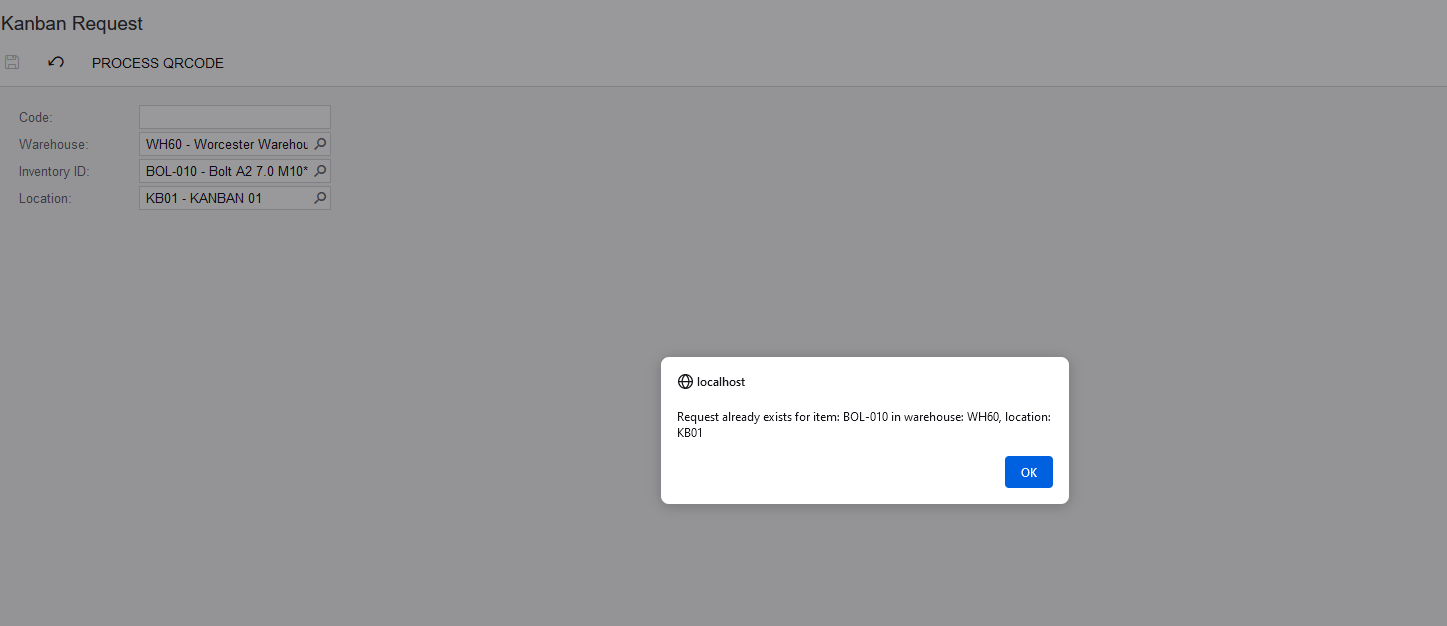
5. If the End User tries to create another Kanban Request for a Stock Item that has an already Open Request in that Location, the following Error will come up in a Dialog Box:
Created with the Personal Edition of HelpNDoc: Ensure High-Quality Documentation with HelpNDoc's Hyperlink and Library Item Reports