Issue
1. Once the Expeditor Picked the relevant Pickingslip Lines it will show on the Issue screen, each Expeditor will only see the Pickingslip lines that he or she Picked. Issuing can be done either on the Web or through the Mobile App. The information that are shown here is not grouped anymore, it shows all the Pickingslip Lines with the "Picked" status that are Allocated to the relevant Expeditor:
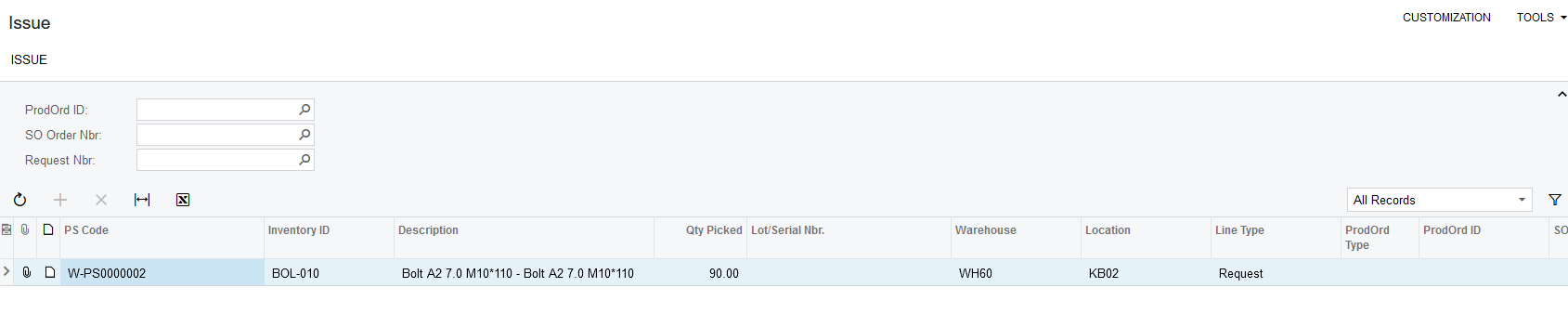
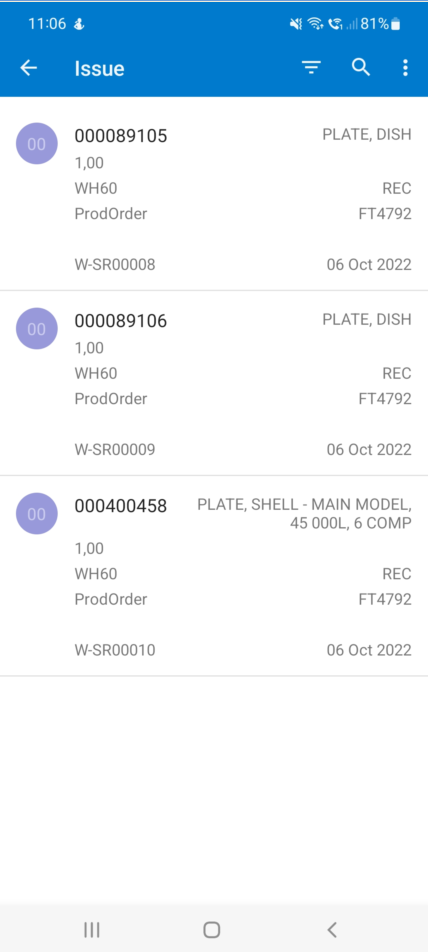
2. The End User selects the relevant line and click on "ISSUE".The Pickingslip Lines that were Picked also gets updated. The status changes from "Picked" to "Issued":
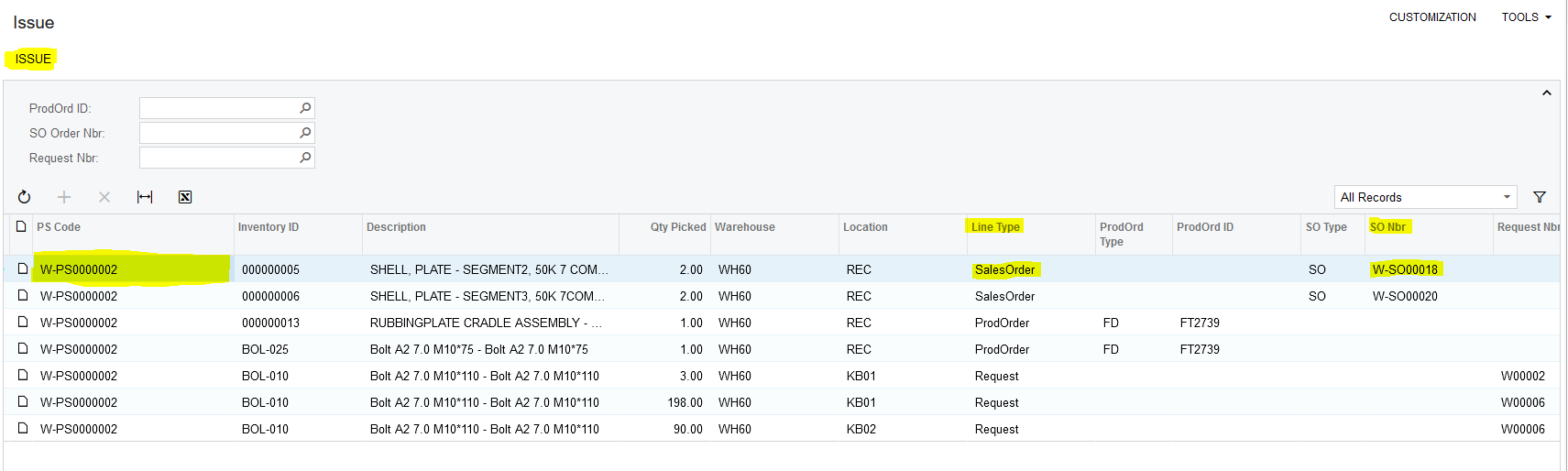
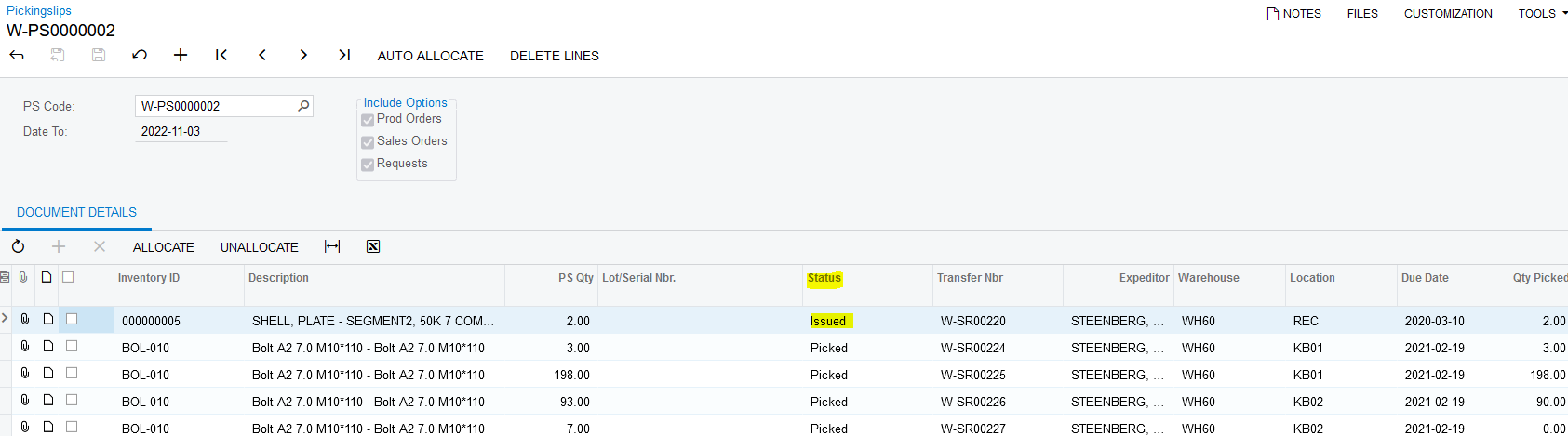
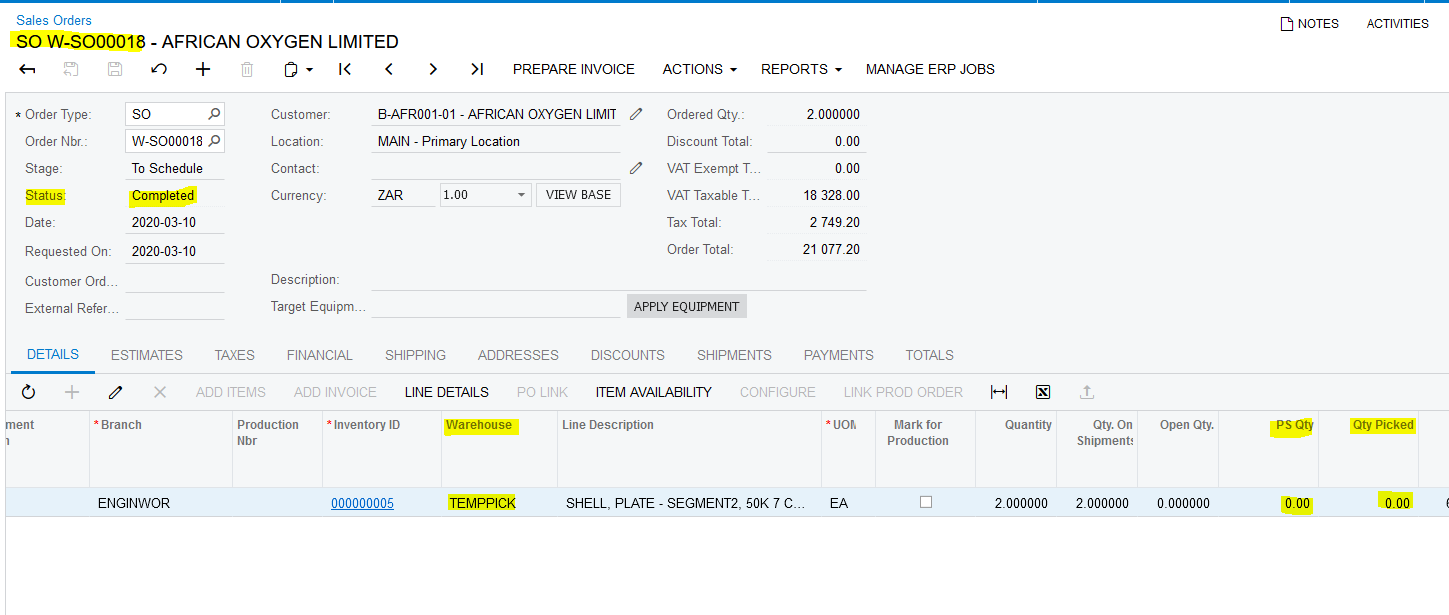
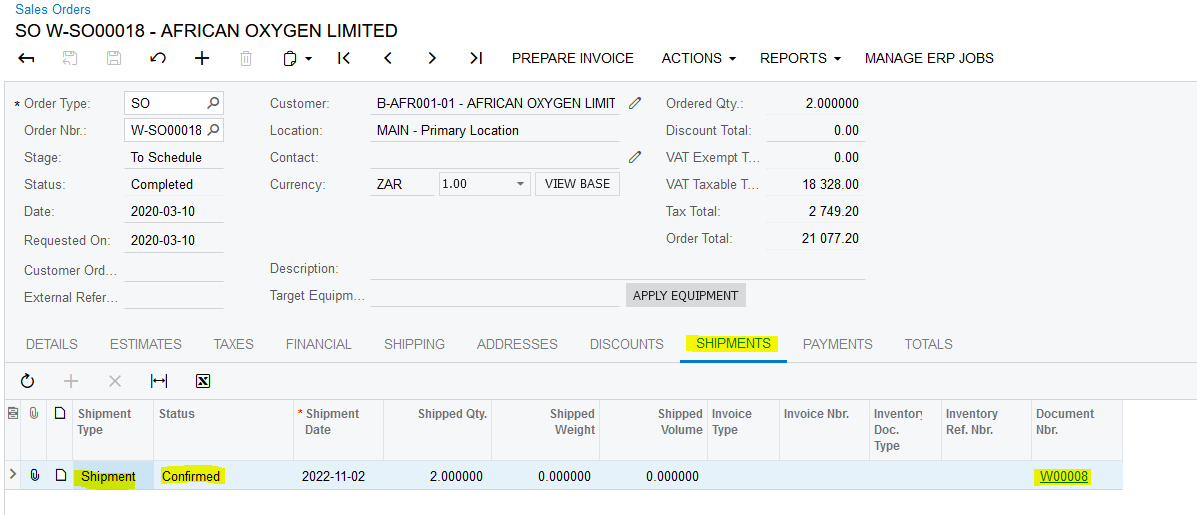
3. If the Pickingslip Line that was Issued has the Line Type "SalesOrder" the Sales Order that's linked to the relevant Pickingslip Line gets updated. The Quantity that was Issued, gets deducted from the "PS Qty" and "Qty Picked" fields. The "Warehouse" field gets changed to the "TEMPPICK" Warehouse, the Sales Order status changes to "Completed" if the Sales Order was completely Issued and a Confirmed Shipment gets generated:
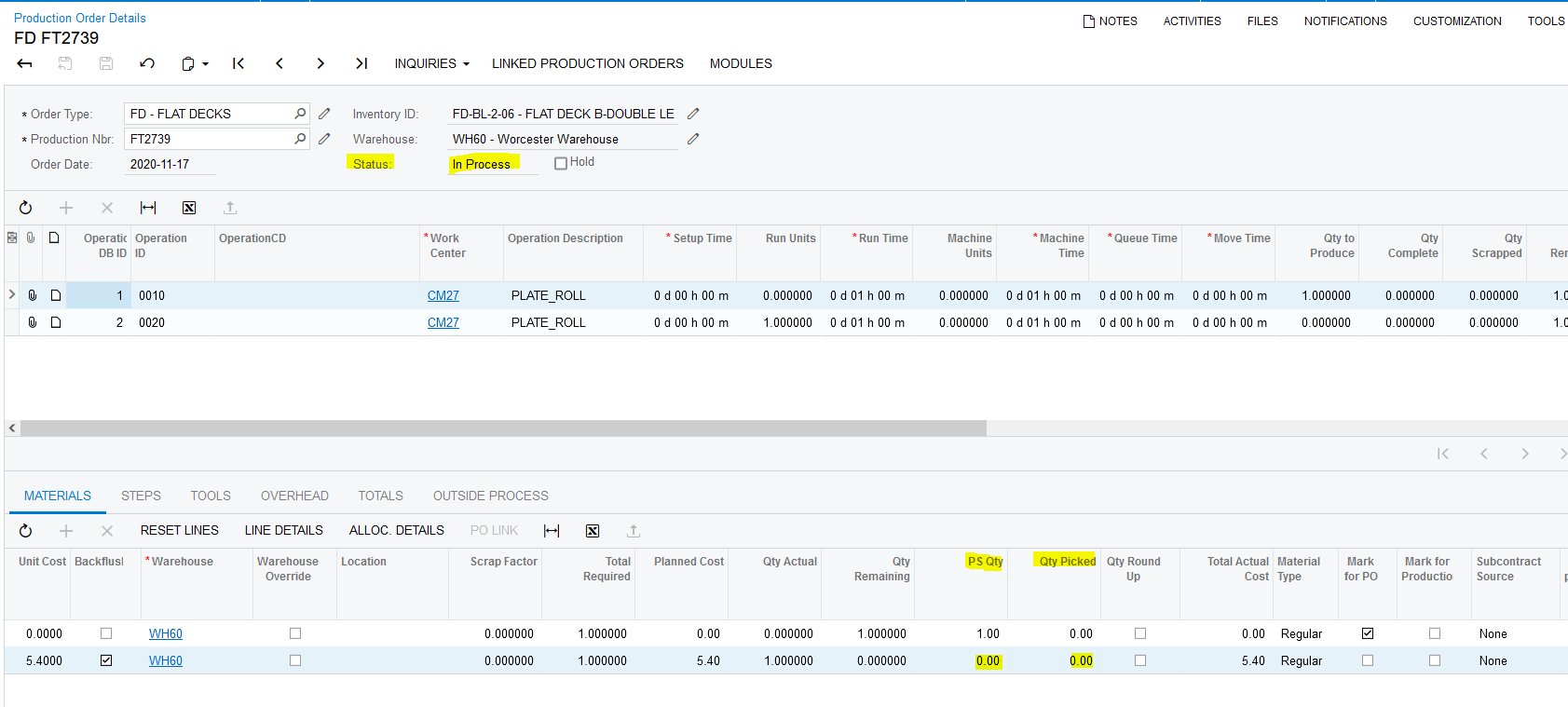
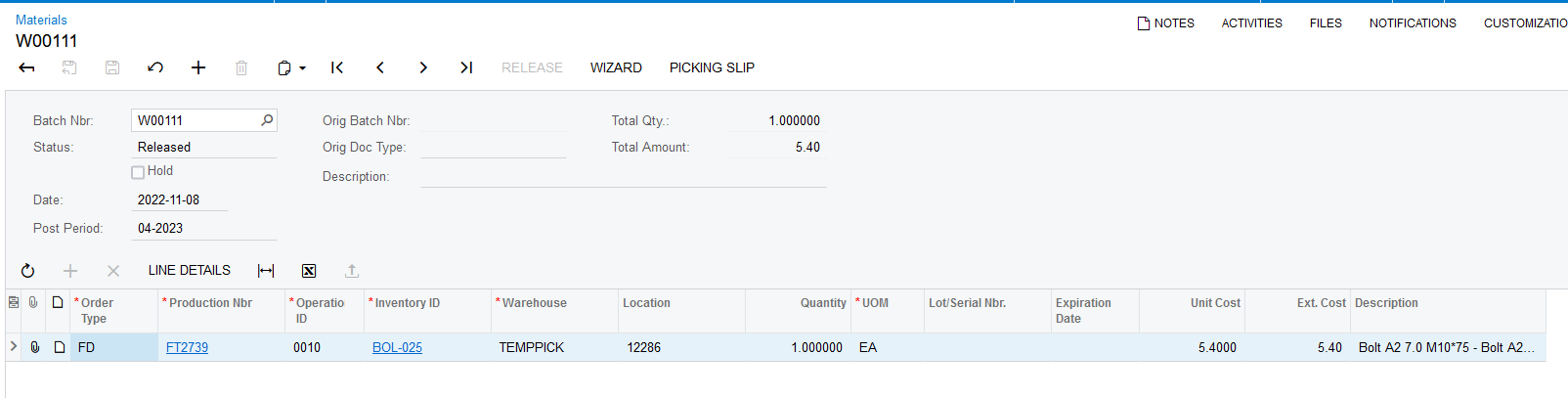
4. If the Pickingslip Line that was Issued has the Line Type "ProdOrder" the Production Order that's linked to the relevant Pickingslip Line gets updated. The Quantity that was Issued, gets deducted from the "PS Qty" and "Qty Picked" fields. The Production Order's status changes from "Released" to "In Process", if this was the first Issue on the Production Order. A Material Batch gets created and Released:
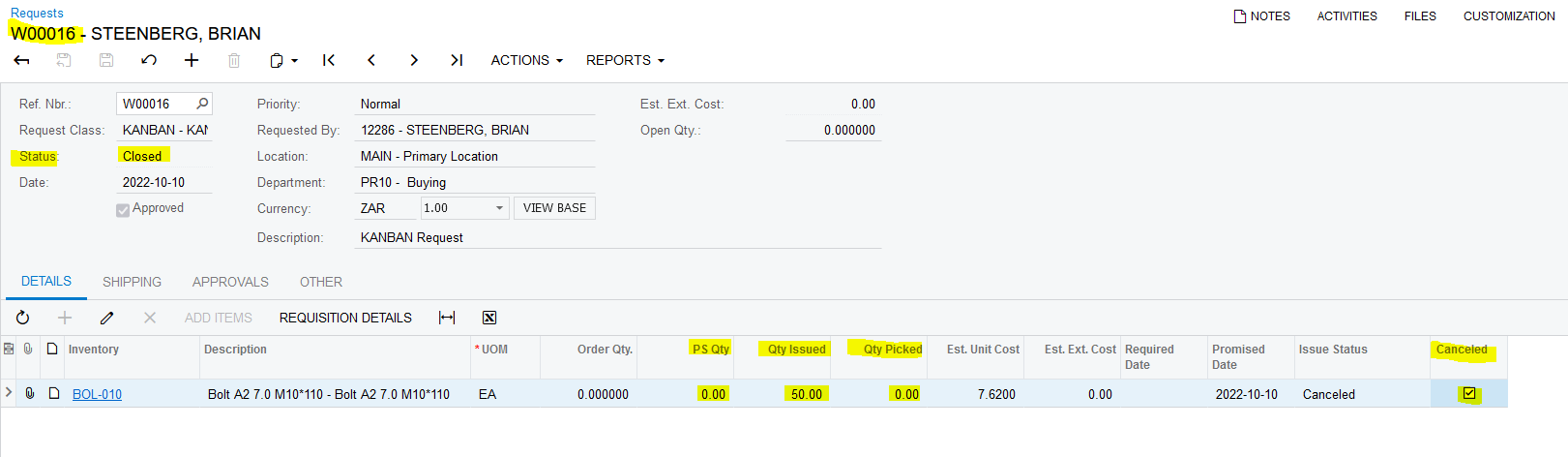
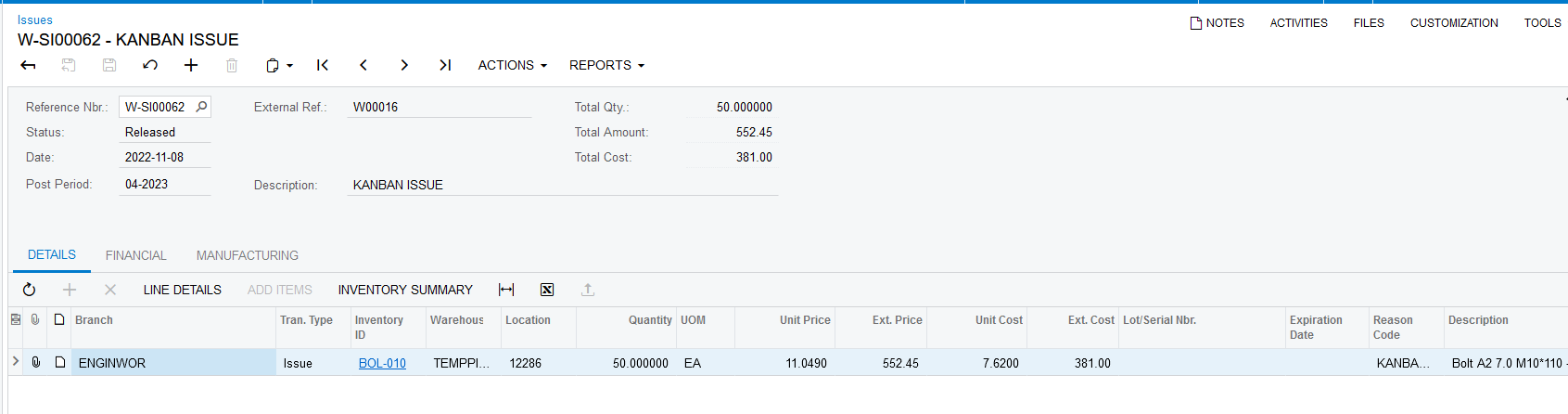
5. If the Pickingslip Line that was Issued has the Line Type "Request" the Request that's linked to the relevant Pickingslip Line gets updated. The Quantity that was Issued, gets deducted from the "PS Qty" and "Qty Picked" fields and the "Qty Issued" field gets updated with this Quantity. An Inventory Issue gets created and Released. The Request's status changes to "Closed" if the Request was completely Issued the line gets the "Canceled" flag:
Created with the Personal Edition of HelpNDoc: Transform Your Word Doc into a Professional-Quality eBook with HelpNDoc