How to run a stock take
1. Print a stock valuation before your start your stock take. This is for control purposes.
- Run a valuation report under stock inventory>reports to see that there is no stock item with zero cost.
- Always do an inventory validation before you start. This should process run extremely long and must be done a few days before the count.
- Run a valuation report under stock inventory>reports
- Print a trial balance.
- Make sure that you do a stock take for all the warehouses, you have to do one per warehouse.
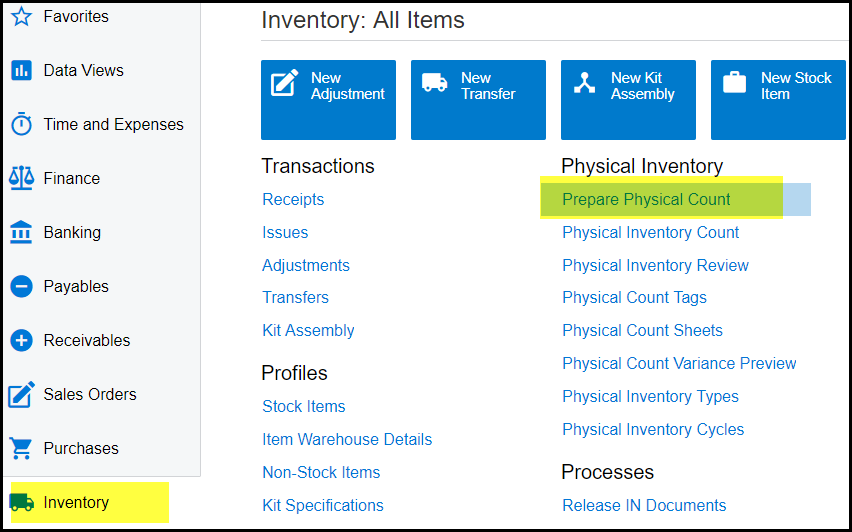
Click on Inventory>Prepare physical count
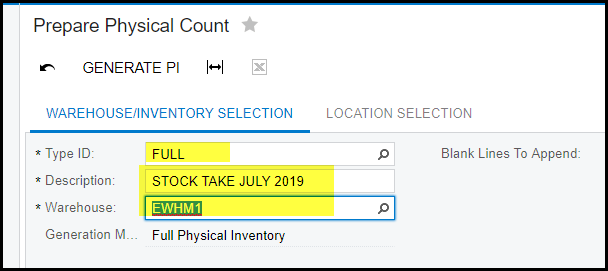
2. Select 'FULL' in the Type ID selection.
3. Description - fill in a proper description for your stock take.
4. Select the warehouse for your stock take.
5. Click on 'GENERATE PI', to generate your stock take.
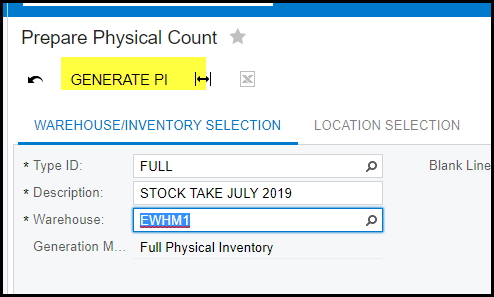
6. This will freeze your stock. No movement of stock will be allowed until your stock take is completed.
7. Go to 'Physical Inventory Review'
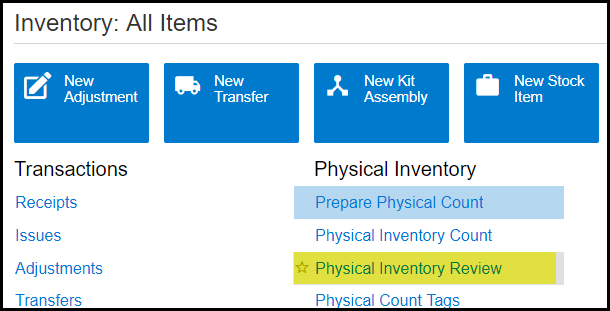
8. Click on your review and export it to excel. This can be used to fill in the counted quantities.
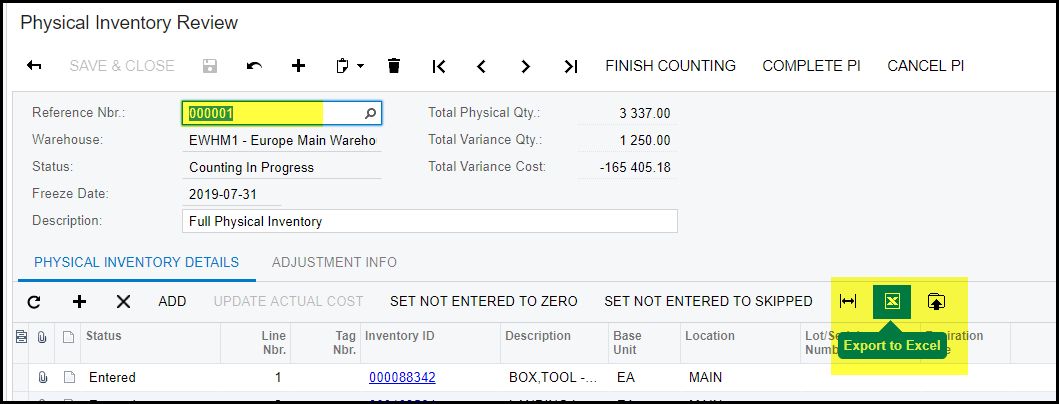
9. Once you have entered your quantities on the excel sheet you can import it. See below.
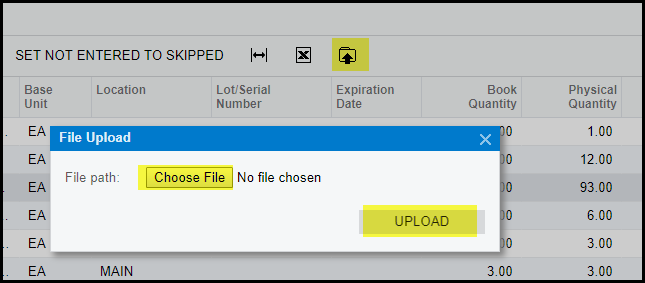
10. After your upload check your variance. When you are 100% sure everything is accurate follow these steps to complete your count. (for extra checks, please check the unit costs on your physical inventory preview with the unit costs of your stock valuation.
11. If there are line on your review which status is 'not entered', just click on 'SET NOT ENTERED TO SKIPPED' and SAVE.
12. Go to 'FINISH COUNTING'.
13. Click on 'COMPLETE PI'
14. Stock take is completed.
Created with the Personal Edition of HelpNDoc: Easily create EBooks