How to place a PO for stock
1. Go Purchases>Transactions - Purchase Orders
2. Click on the '+' for a new purchase order
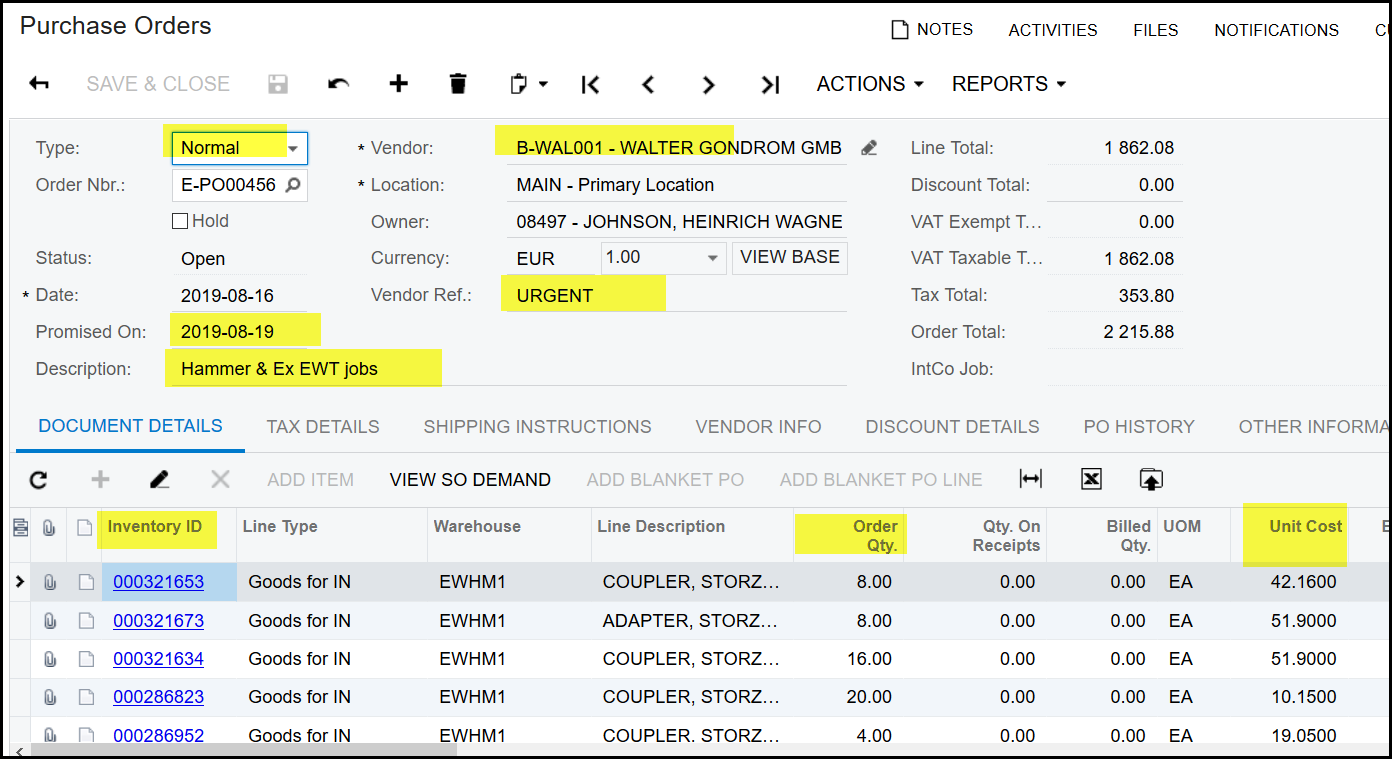
3. Your 'type' is Normal
4. Select your vendor/supplier
5. Promised on date can be selected if necessary
6. Vendor ref - is like a quote nr
7. Description - fill in relevant description that will be helpful for a search in future.
8. Under 'document details' click on the plus '+' to add a line.
9. Click on the search for inventory ID or type in the correct number
10. Use 'Tab' to move from the one cell to the next, it works better.
11. Select your Warehouse
12. Complete your order quantity and check your unit cost (the cost cannot be ZERO) (If the cost is zero contact your store manager. The price that prompt here is your std cost. Stock is valued at standard cost pricing so if the item does not have a std cost it will right at zero when the goods is received, although your purchase price was filled in on the purchase order.
13. The 'unit cost' remains the cost of your order, so please purchase at the best price.
14. When done with the Purchase order. Save
15. Always good to save after each line you add.
16. When you are satisfied with your pricing and qty take your order of hold.
17. The status change to 'OPEN'
18. Only order with the state 'OPEN' can be received.
19. If for any reason you want to cancel your order - do not delete your order.
20. Go to Actions>Cancel order
21. The status will change to 'cancelled'
Created with the Personal Edition of HelpNDoc: Streamline your documentation process with HelpNDoc's HTML5 template