How to create a new stock code
1. All stock codes are linked to item classes. They item classes have pre-selected attributes like the type of stock item(RM,CO,SI,SA) and UOM, VAT types etc.
2. Important to know that SA and CO is bases on standard costing. This mean that for all transactions will be processed at the standard cost of the item. If you puchase against another price, this will write variances when the receipt and invoice transaction is processed. So be careful of the price you insert.
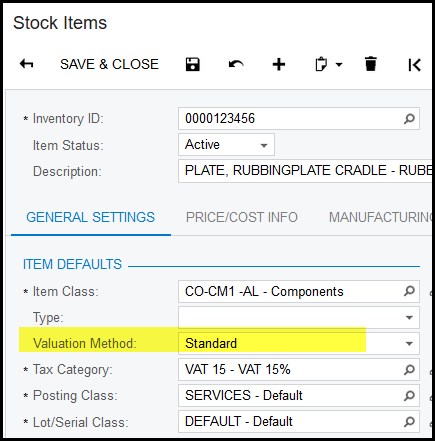
3. Std Cost - high lighted in yellow.
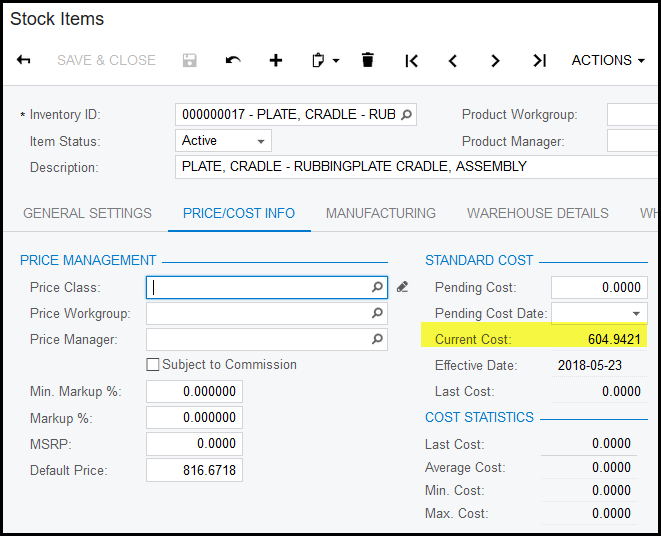
4. For all SI and RM the pricing of an item is bases on average cost.
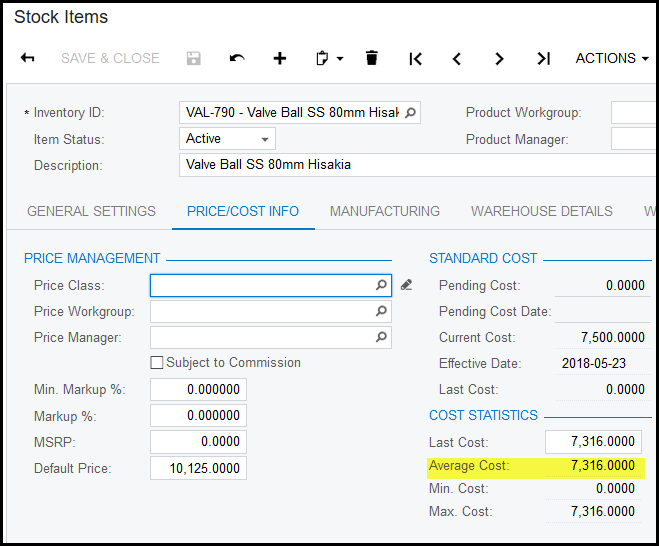
5. For average cost items the average cost is also calculated by each warehouse. Therefor to see what your warehouse average price is follow these steps.
How to see the price of an item WORKING DOCUMENT
6. The best way to create a new stock item is to copy a similar code.
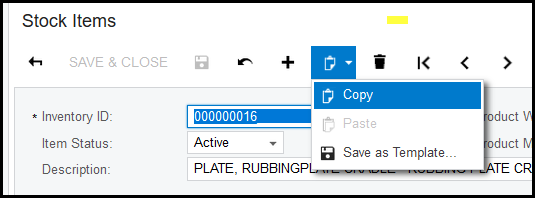
7. Open your similar code, click on the clipboard and copy.
8. Click on the + to add a new item.
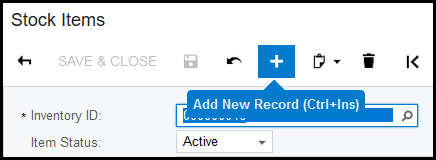
9. Type in your new code number.
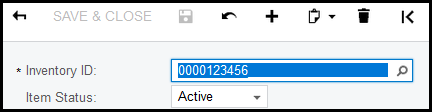
10. Go to the description line and Ctrl+V or Clipboard and paste, SAVE.
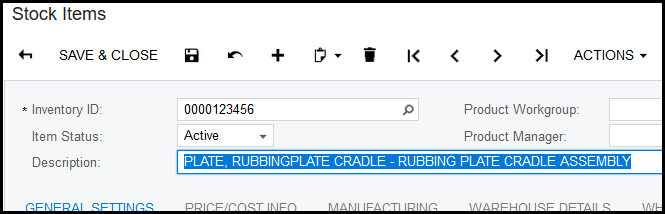
11. Now check the attributes, like UOM to see if all is correct, change if necessary and save. IMPORTANT - remember that also the cost price and selling price of the copied item will pull through to the new item. This have to be changed. Follow the next steps.
12. A standard cost item - is indicated in the general settings screen - Valuation Method - Standard
13. For new standard cost new items, you will add the price as follows.
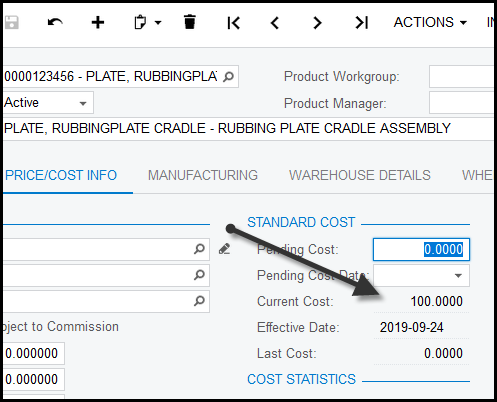
14. Go to price/cost info, insert the cost price in "pending cost", click on actions and update cost. This action will automatically save.
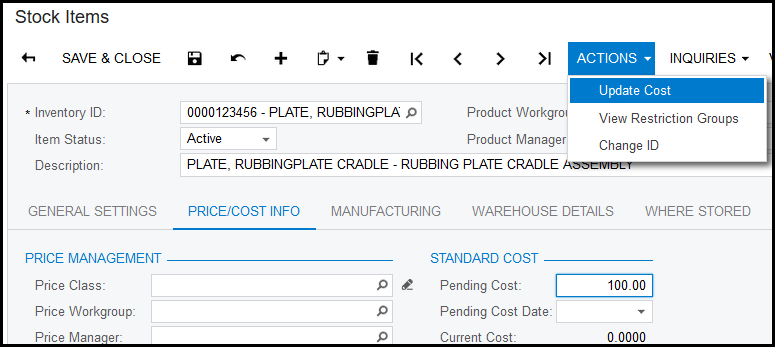
15. Your price will now show as current cost.
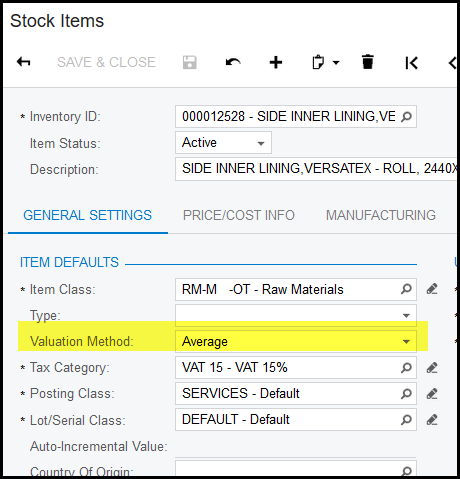
16. An average cost item - is indicated in the general settings screen - Valuation Method - Average
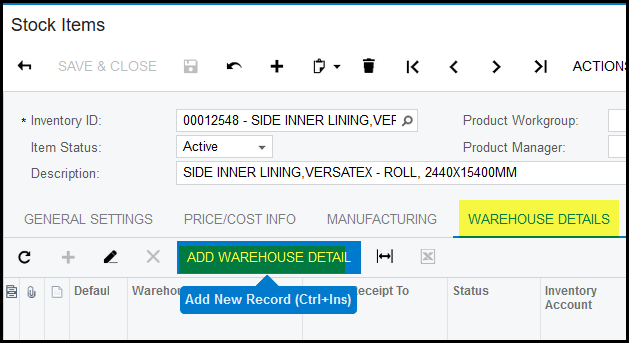
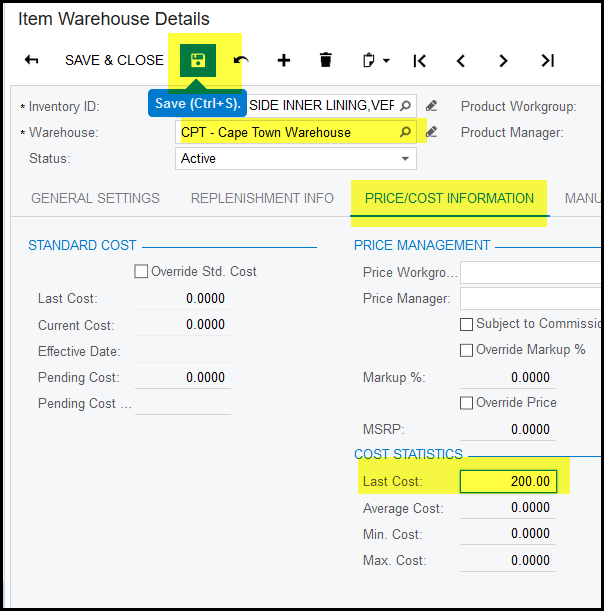
17. To add a cost to an average cost item, you will load a 'last cost' . Go to warehouse details of the item and click on 'add warehouse detail'
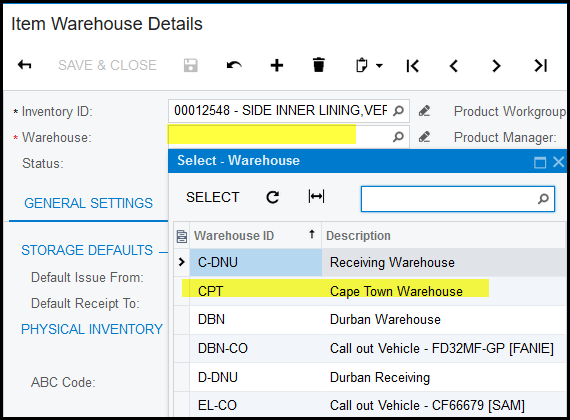
18. Add your warehouse in the search box.
19. Go to price/cost information - in the "last cost" field, add your cost price and SAVE.
If you warehouse shows but there is no last cost, you can just insert the price and SAVE.
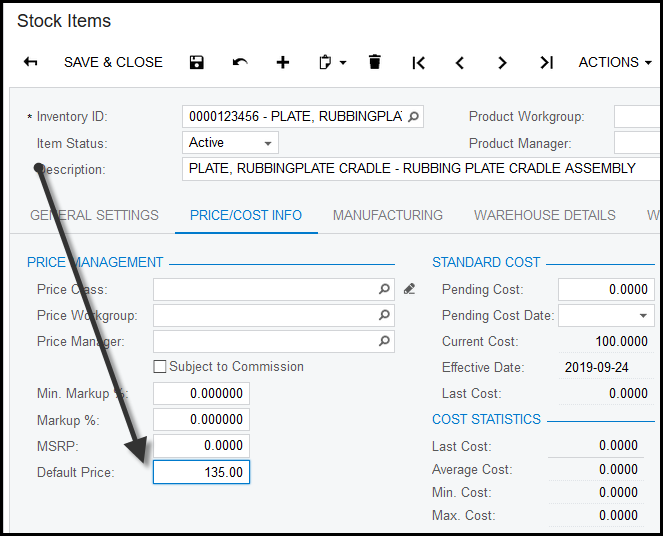
20. It is also necessary to add your selling price. Your selling price can be inserted in 'default price' and SAVE.
Created with the Personal Edition of HelpNDoc: Write eBooks for the Kindle