How to add a new employee
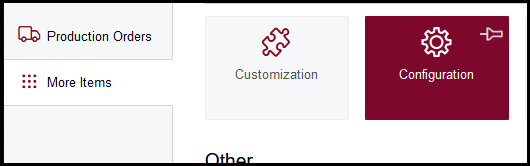
1. Go to configuration
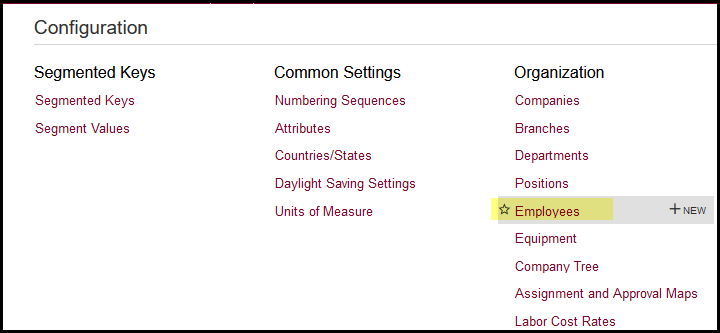
2. Click on employees
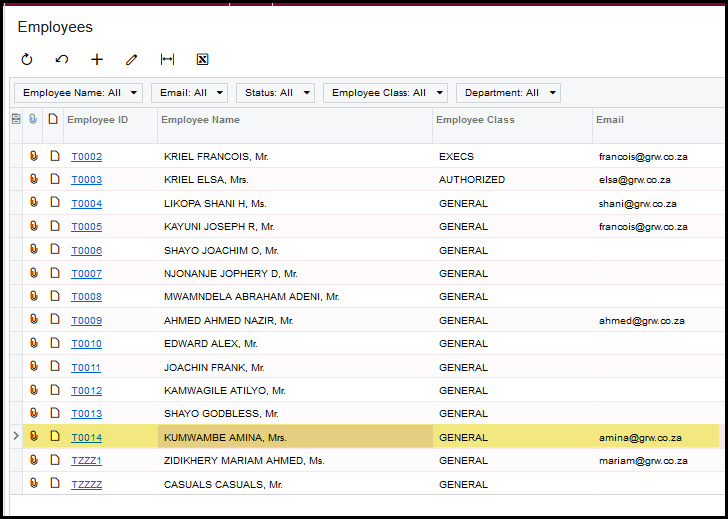
3. Open another employee that is the same employee class as the one you want to create. You will copy it to create the new employee.
4. Click on copy.
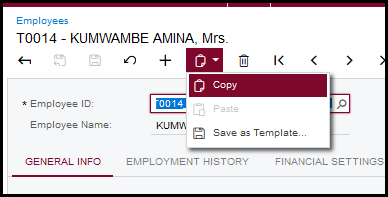
5. Click on the + to add new employee.
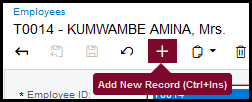
6. Type in the new employee's ID and 'tab'.
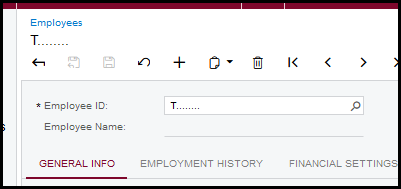
7. Stand in the next open field like first name and click on 'paste'.
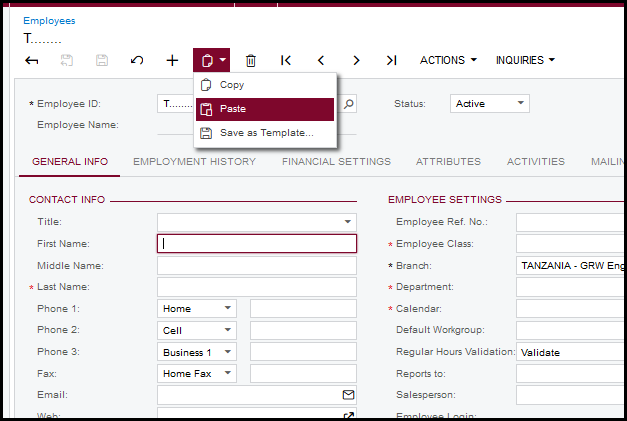
8. Change all the fields to your new employee like Title, First Name, Last Name, Phone 2, Email. It is not necessary to complete all the other fields because it was copied from the employee.
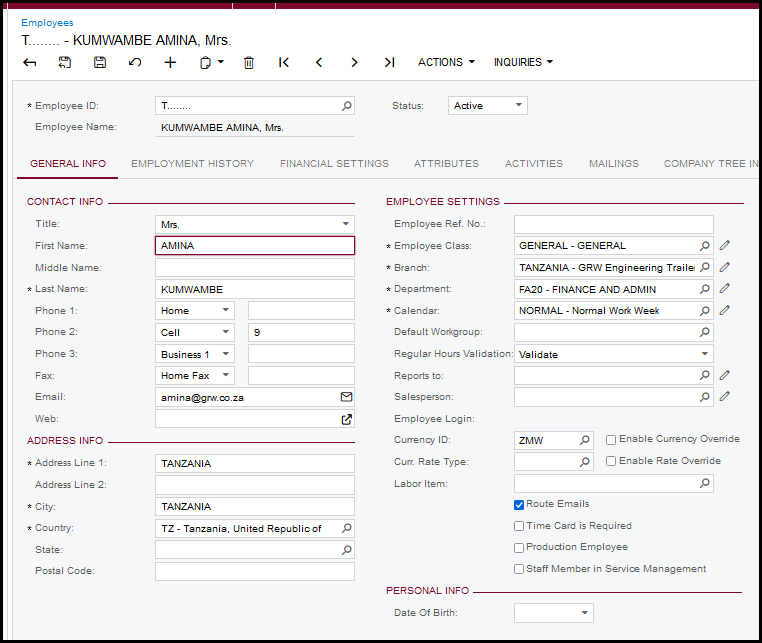
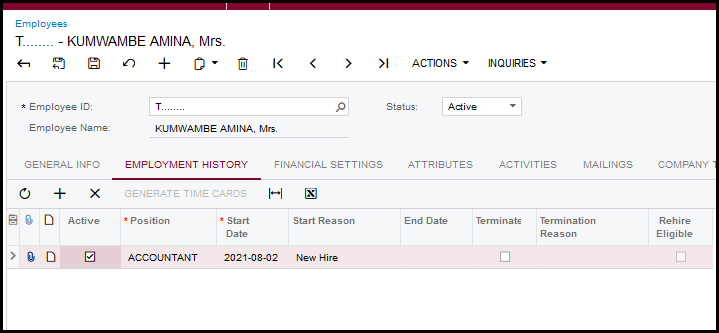
9. It is important to go to employment history to add the start date, make active and select position.
10. SAVE
Created with the Personal Edition of HelpNDoc: Experience the Power and Ease of Use of HelpNDoc for CHM Help File Generation