How to complete a leave application and the approval
1. Go to Leave
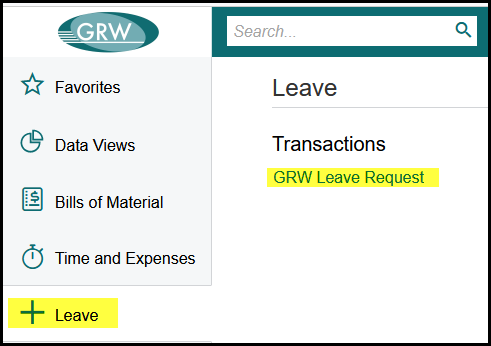
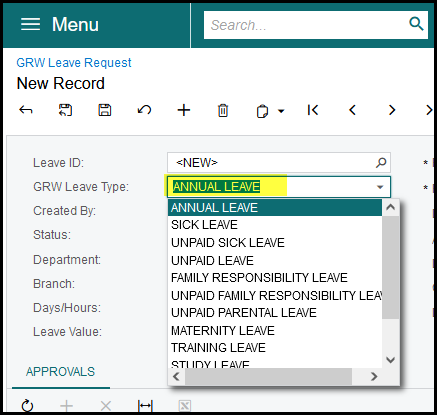
2. Click on the + to create a new leave application. Select the type of leave.
3. Complete the highlighted fields. Assign it to the first approver of your leave.
You can also add a short description to your application, but this is not
compulsory. This is nice if you want to add more details for reference.
- You can add days and hours/minutes see below.
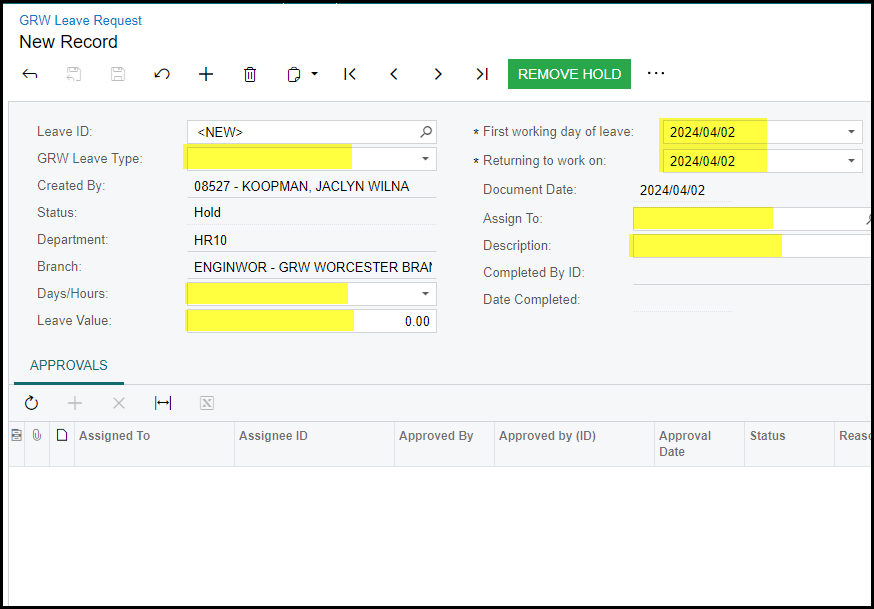
4. Once you are satisfied with the request take it off hold. Any documents or notes can be added to the
request like all other transactions in Acumatica.
- For example you can add your 'sick note' as an attachment.
5. A notification will be send to the approver that there is a leave application that needs approval.
6. The approver approve the document on the same approval page as requisition approvals.
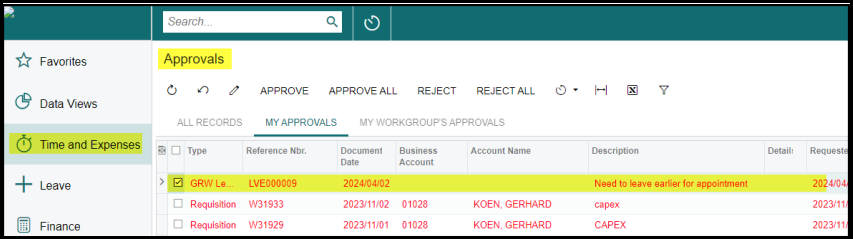
7. When the first approver has approved your leave is conditionally approved. In the approval section it will show 'pending' for HR.
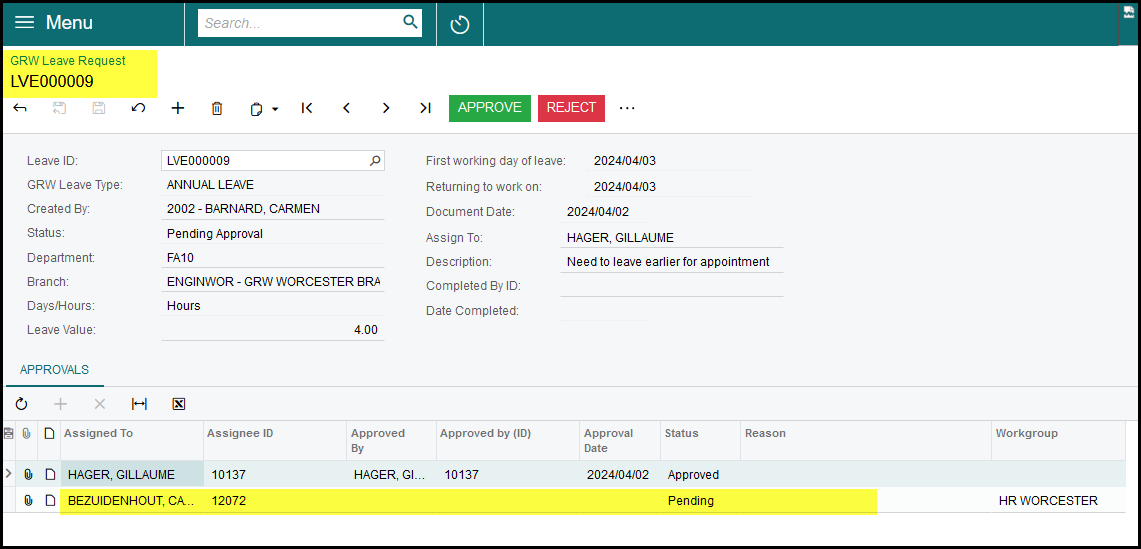
8. A notification will go to the HR (owner) to approve it. We will setup certain HR personnel linked to certain
branches. The person responsible for that branch will get an email that they have a request to approve.
But also anyone assigned to that group will be able to approve the document. In the example above it is
assigned to 'Bezuidenhout', but anyone in the HR Worcester Workgroup can approve it.
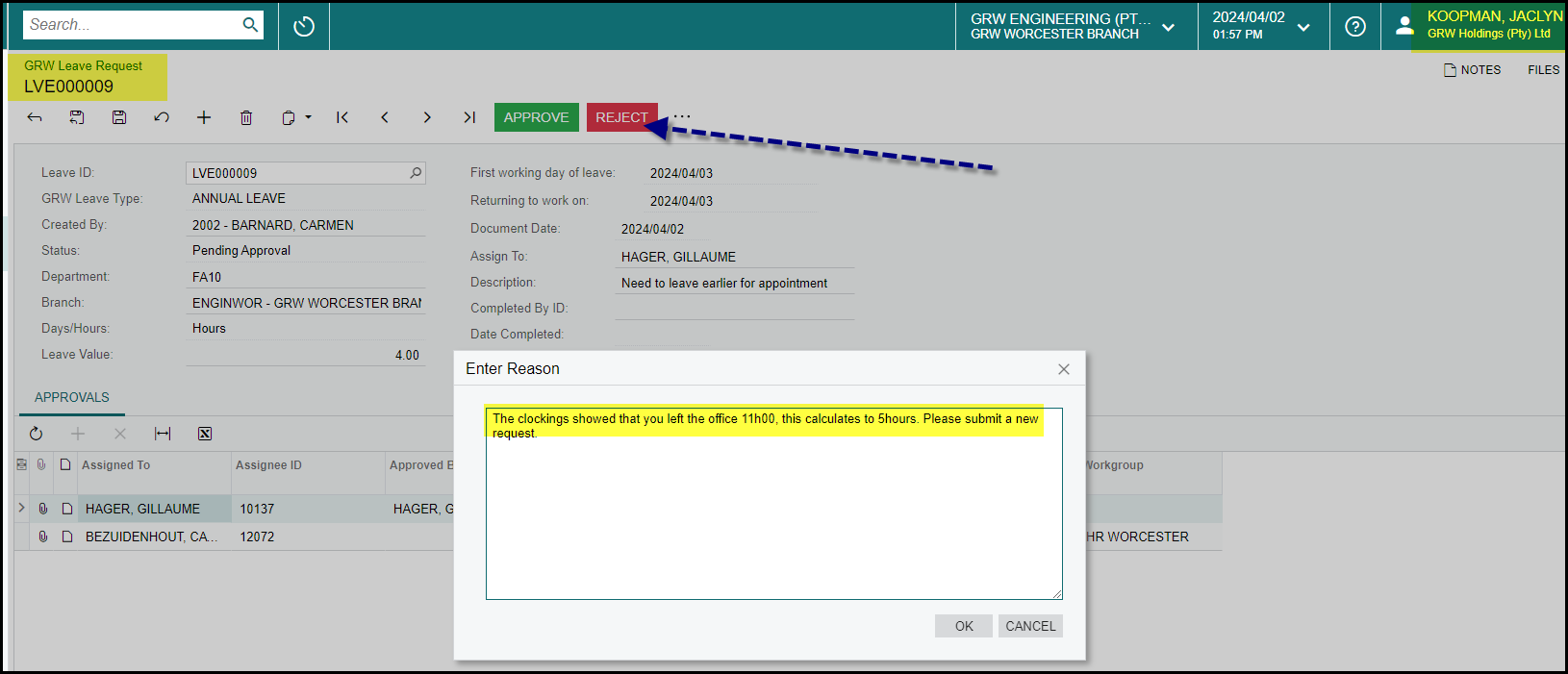
9. The HR person can approve or reject the document. If he rejects it he can add a reason. The reason is to assist
the employee why his leave was not approved for what every reason like incorrect hours or days specified according
to what is available or according to the clock.
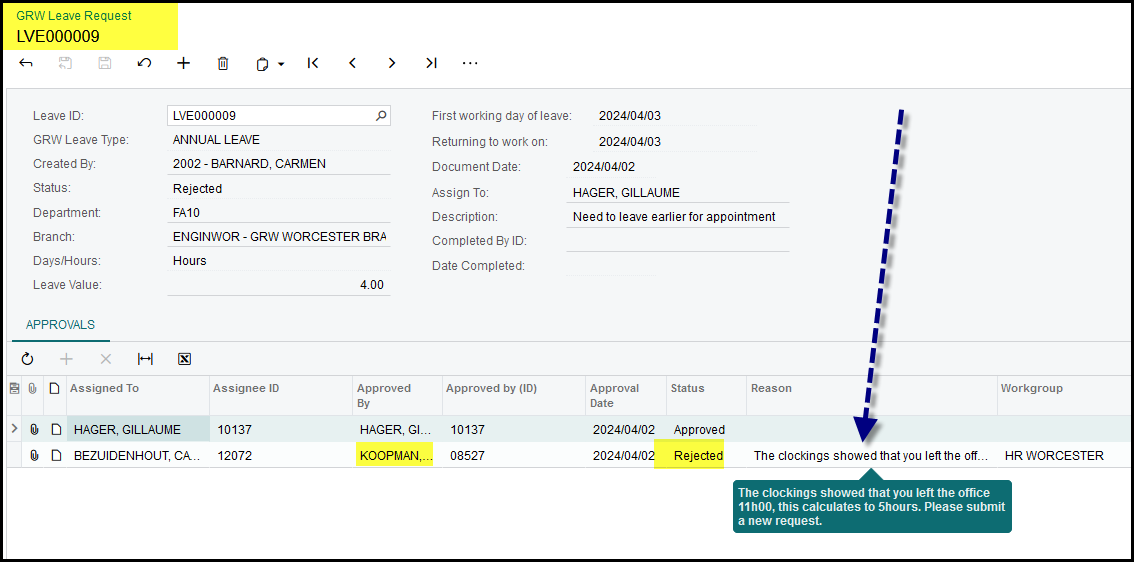
10. The status will show rejected with reflecting the reason. This leave request cannot be opened again.
The employee have to create a new application.
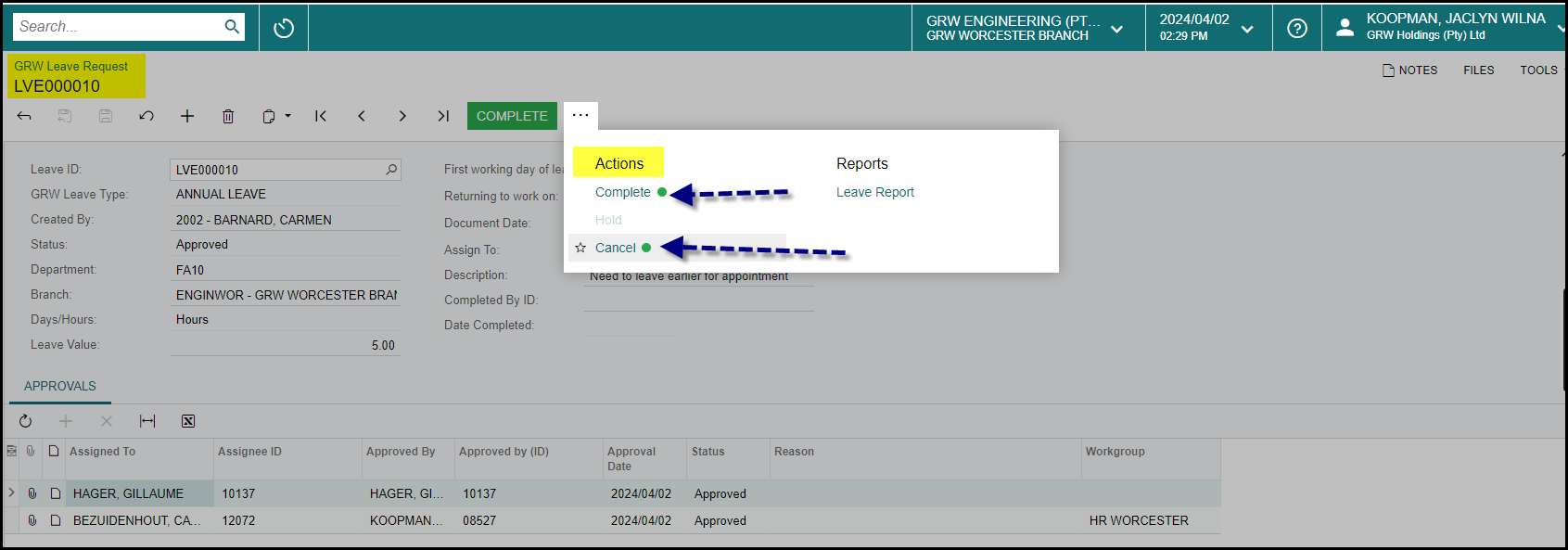
11. HR department will mark the leave request as complete when they have captured it on the
payroll program.
They can also cancel it if the employee did not go on leave or something else happened,
after it has been completed. So once the status is completed and something changed
please inform HR.
12. The employee cannot do anything with the request if it has been approved/completed or cancelled.
Created with the Personal Edition of HelpNDoc: Easily create CHM Help documents