Create pickingslips
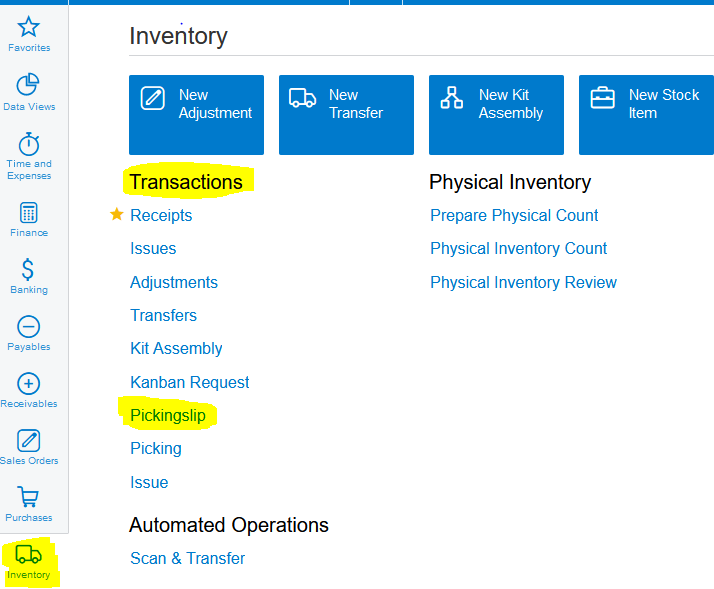
1. Click on Inventory>>>Transactions>>>Pickingslip:
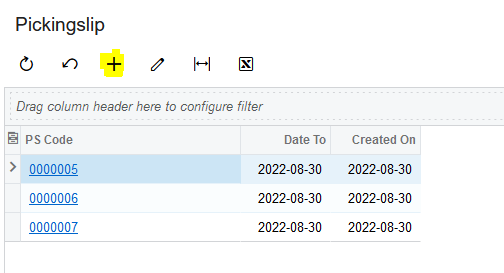
2. Click on the " + " (New Record) to create a new pickingslip:
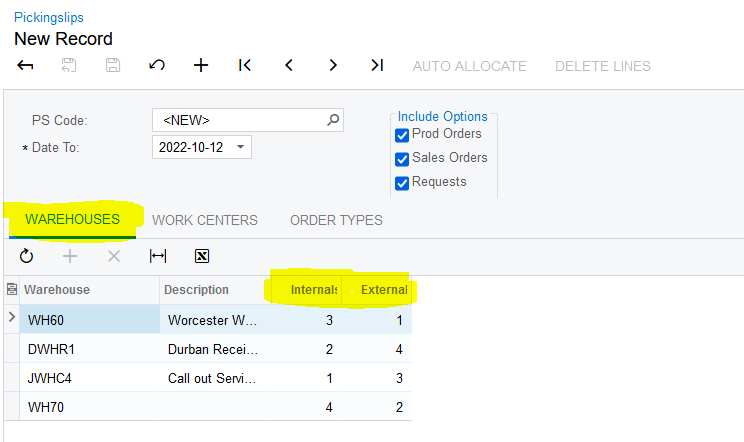
3. If needed change the default Internal or External sequence on the Warehouses Filter:
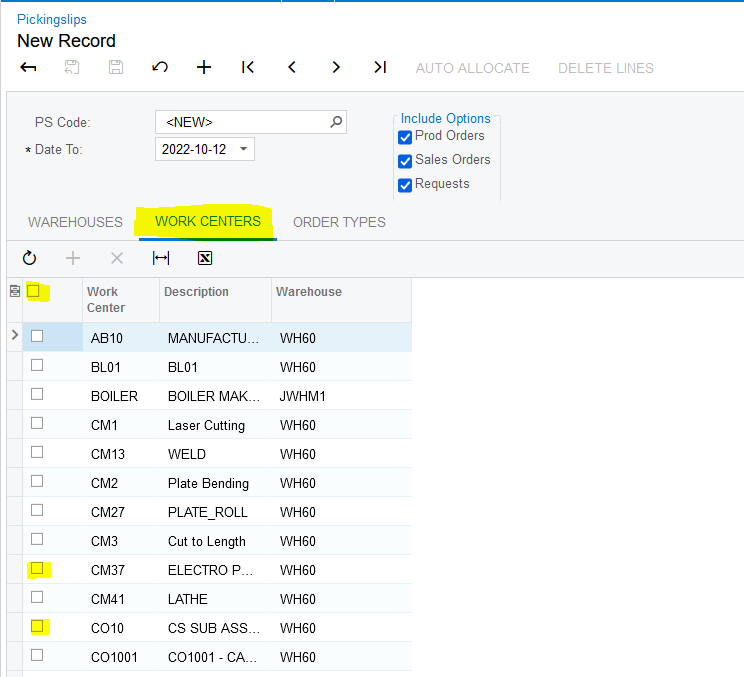
4. Select the relevant Work Centers for which you need to pick, or "Select All" in front of the Work Center column if your are picking for all the Work Centers:
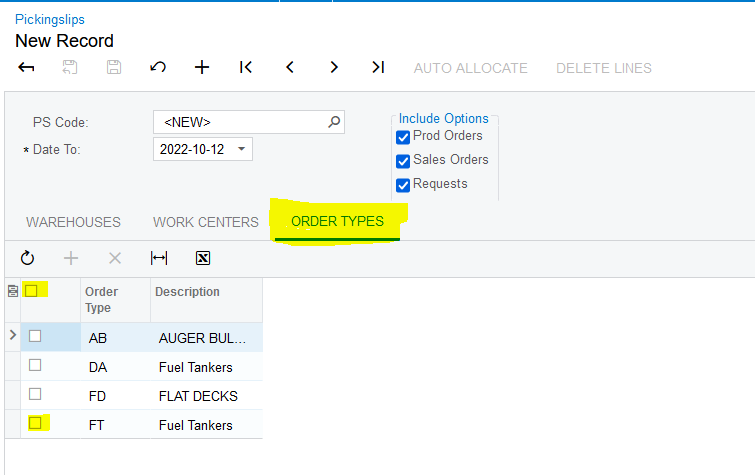
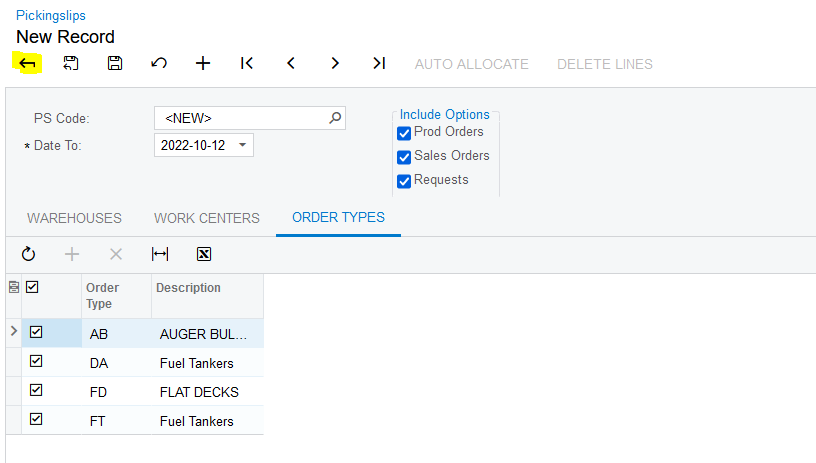
5. Select the relevant Order Types for which you need to pick, or "Select All" in front of the Order Type column if your are picking for all the Order Types:
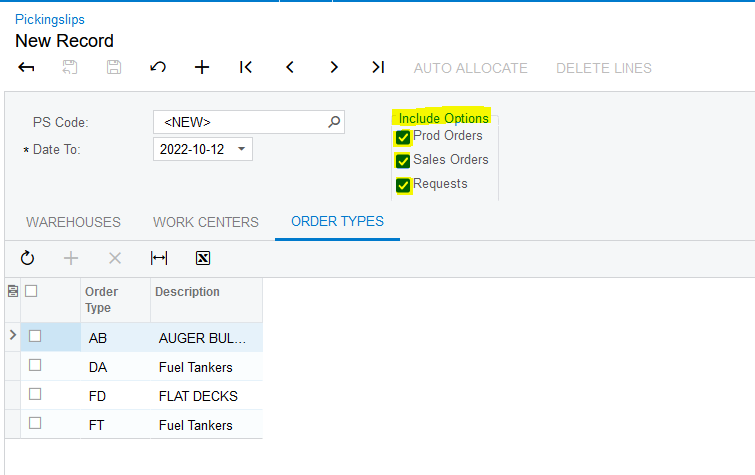
6. Select the relevant Documents for which you need to pick on the "Include Options" Group, or leave it as is if you are picking for Production Orders, Sales Orders and Requests:
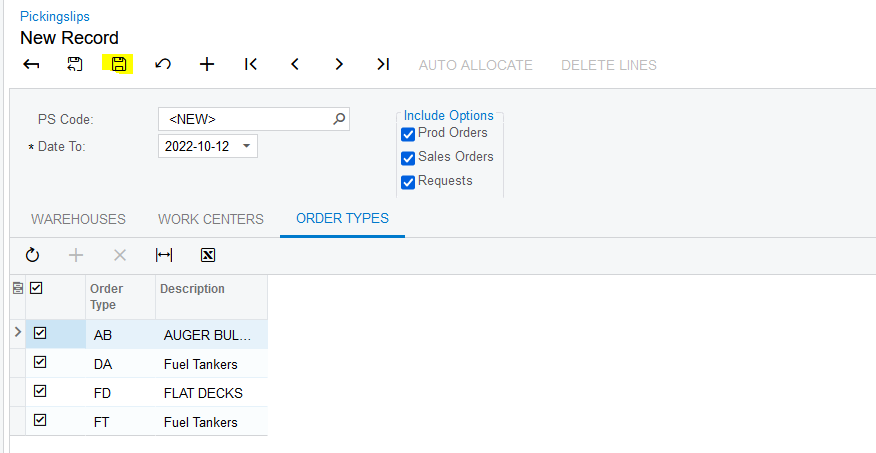
7. Once all the selections for the Filters have been made click on "Save":
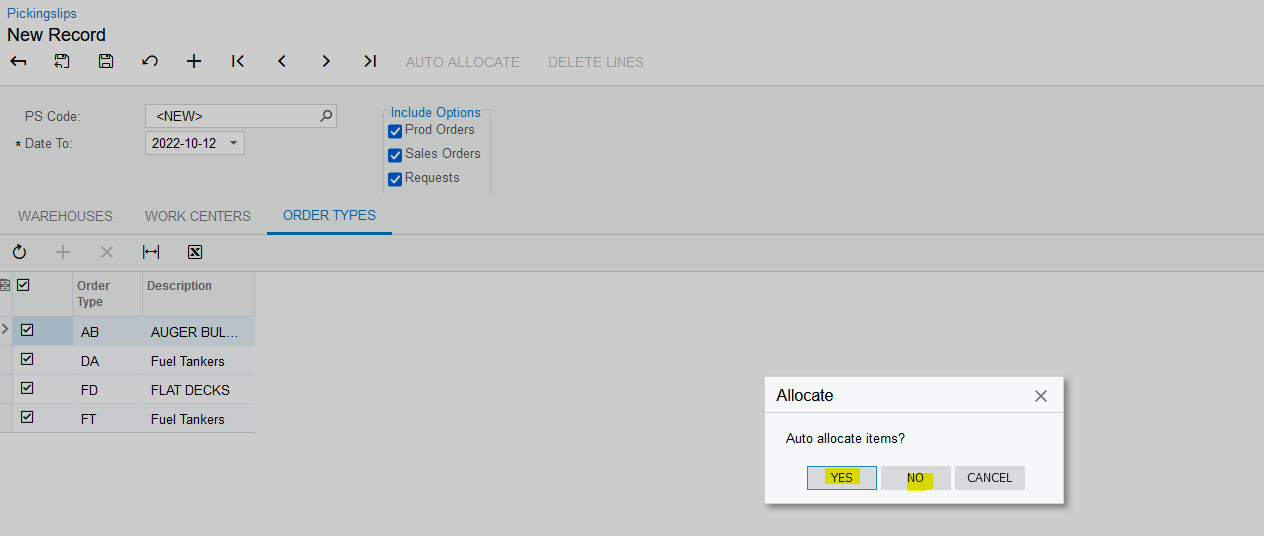
8. A Dialog box will come up asking if you want to Auto Allocate all the lines on the Pickingslip, if this is the case you can click on "YES". If you need to manually allocate the lines on the Pickingslip, then you will click on "NO". If you made a mistake by clicking on "Save", you can click on "CANCEL", then you will be able to discard the Pickingslip creation completely or make your selections again:
9. If you want to discard the Pickingslip creation completely you can click on "Discard Changes and Close":
Created with the Personal Edition of HelpNDoc: Free PDF documentation generator