Manage pickingslips
1. If you need to reassign an Allocated pickingslip line to another Expeditor you will select the relevant lines and click on "UNALLOCATE":
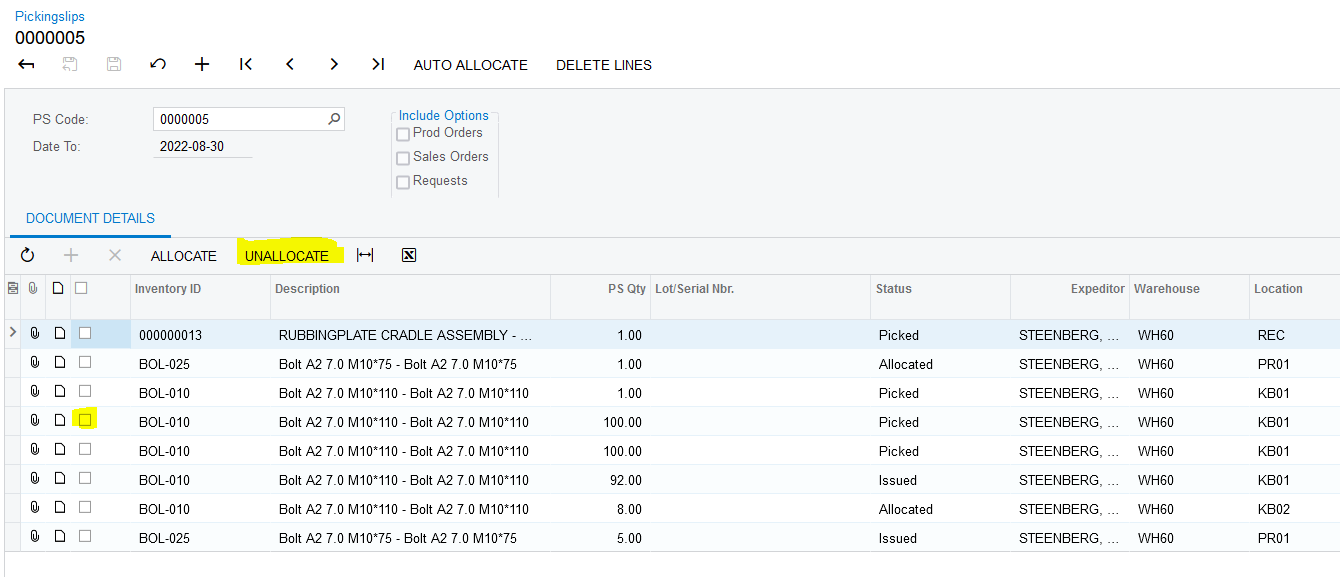
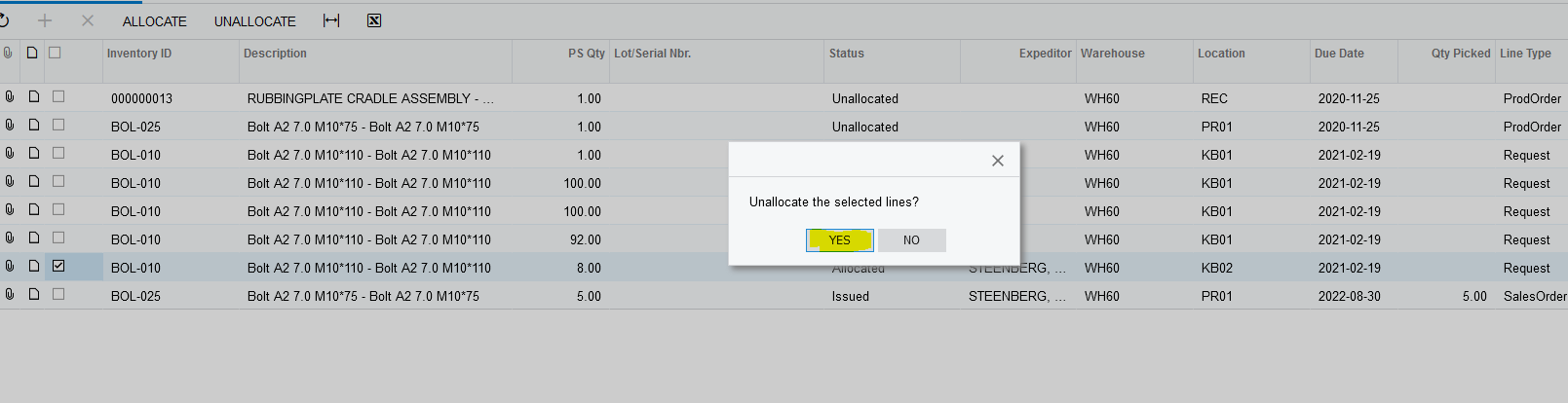
2. Once you clicked on "UNALLOCATE" the following Dialog box will come up where Acumatica asks you if you are sure you want to Unallocate the selected lines, you then click on "YES":
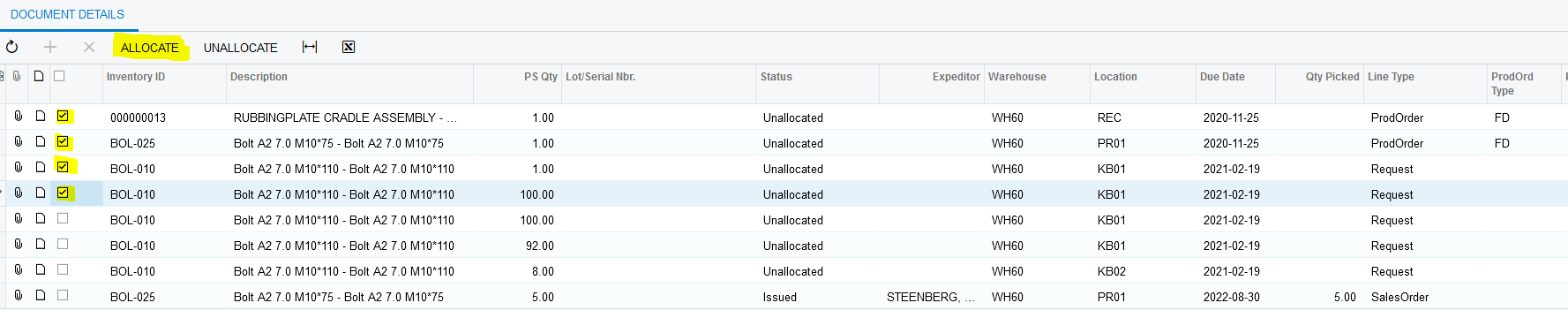
3. If you need to Allocate "Unallocated" lines on the Pickingslip to a specific Expeditor you will select the relevant lines and click on "ALLOCATE":
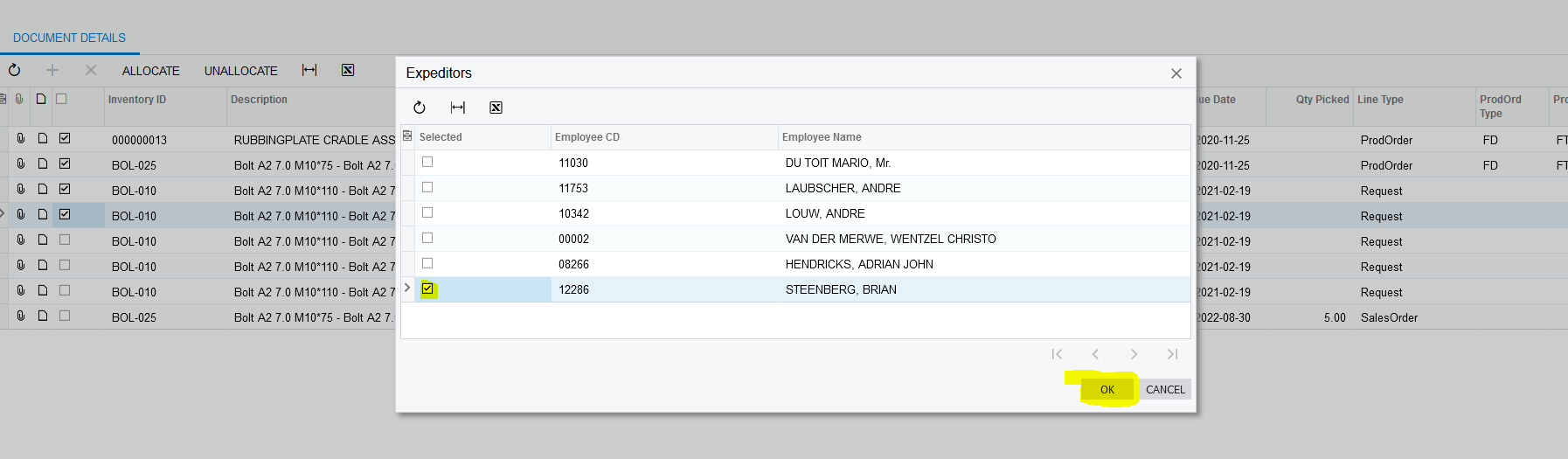
4. A Dialog Box will come up where select the relevant Expeditor and click on "OK":
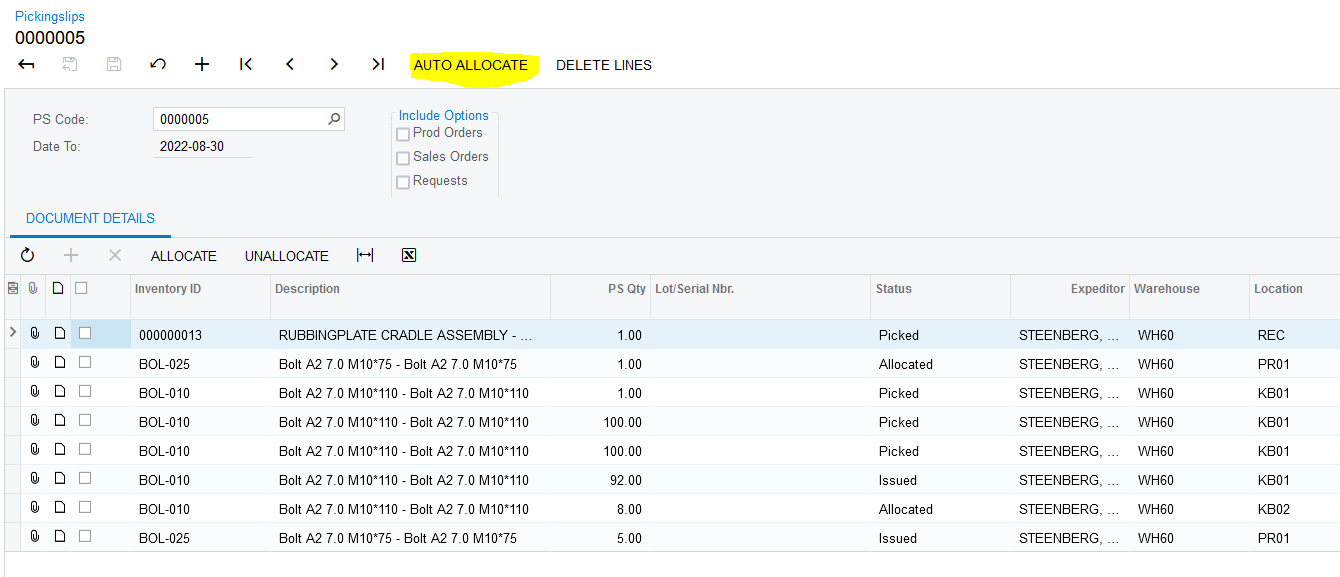
5. You can also Auto Allocate all the "Unallocated" lines on the Pickingslip as setup per the "Picking Allocation Matrix". Click on "AUTO ALLOCATE":
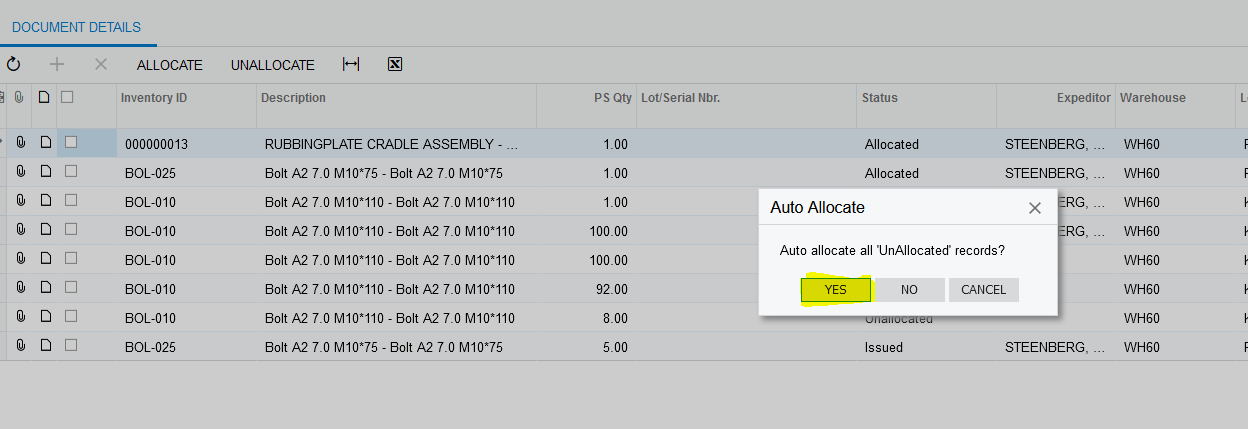
6. A Dialog Box will come up asking you if you want to Auto Allocate all the "Unallocated" lines on the Pickingslip, you then click on "YES":
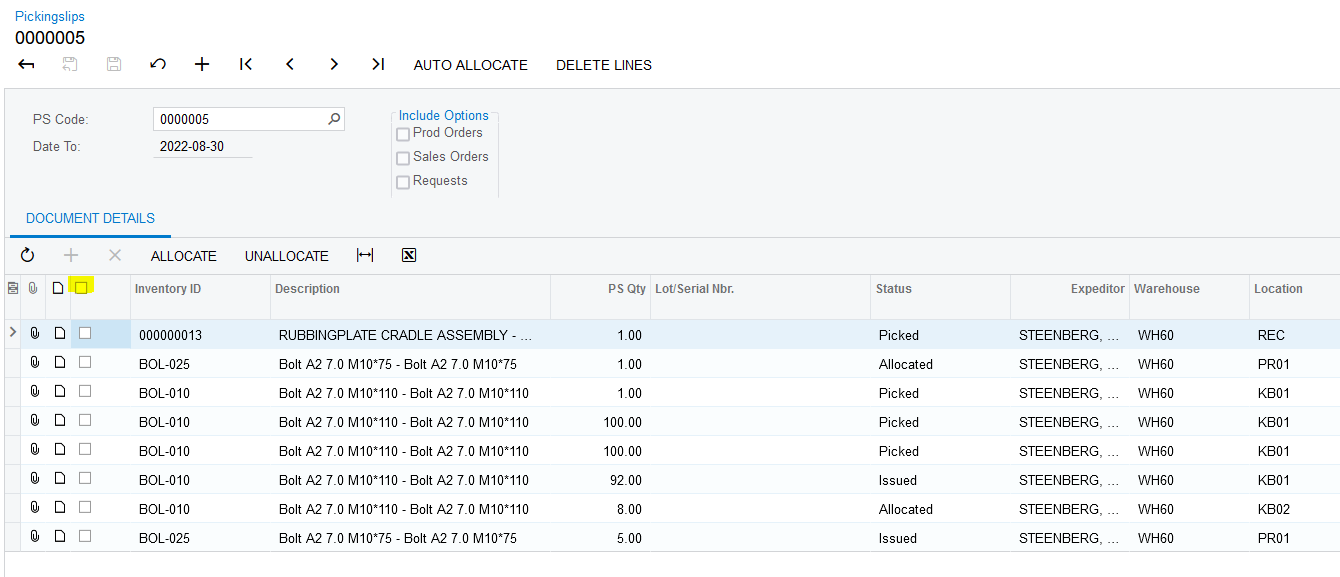
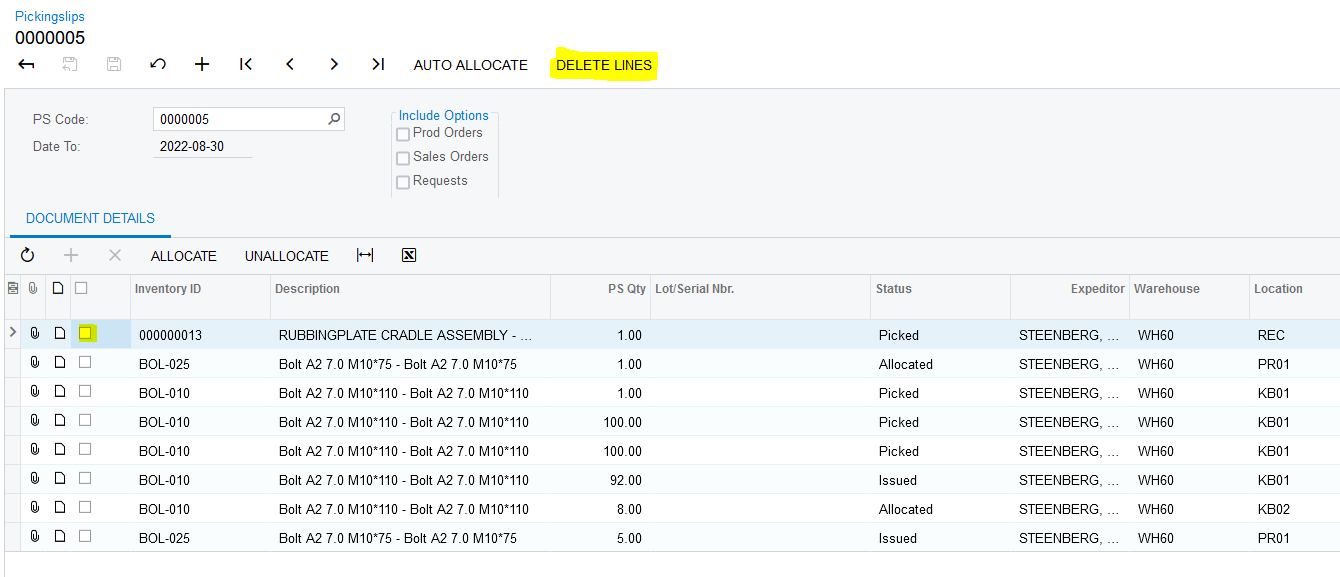
7. Acumatica also allows you the ability to correct lines on the Pickingslip that was generated by mistake, only lines with the statuses of "Unallocated", "Allocated" and "Picked" can be corrected. If you mistakenly created a Pickingslip and need to delete it you can click on the "Select" before the "Inventory ID" column, this will select all the lines on the Pickingslip:
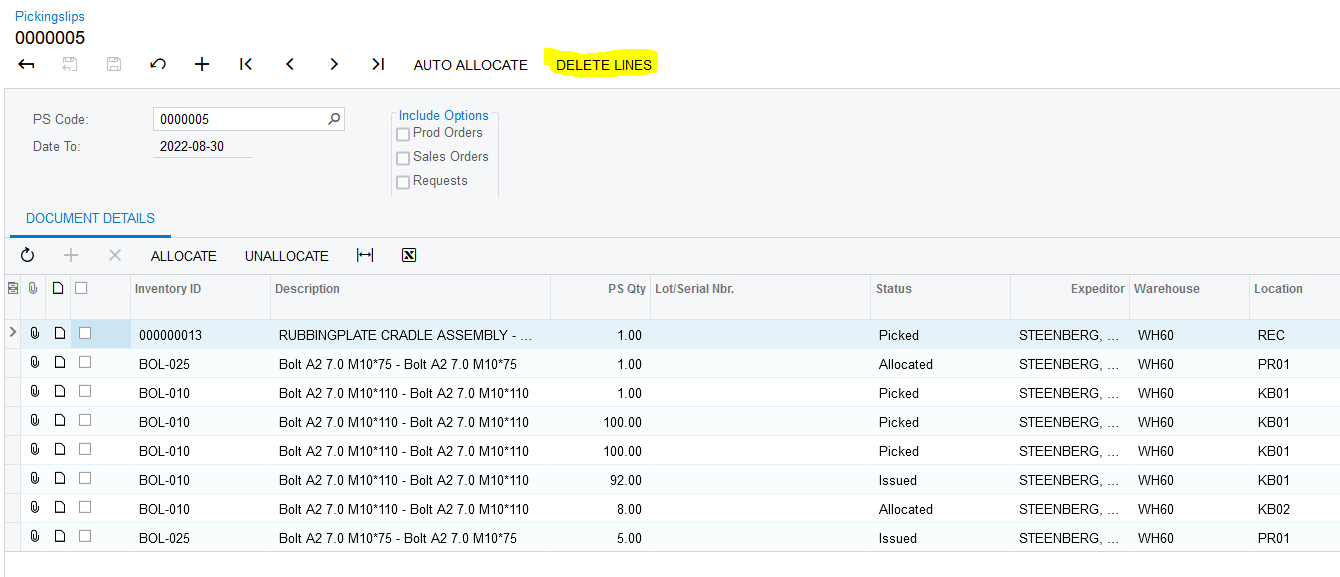
8. Then you will click on "DELETE LINES":
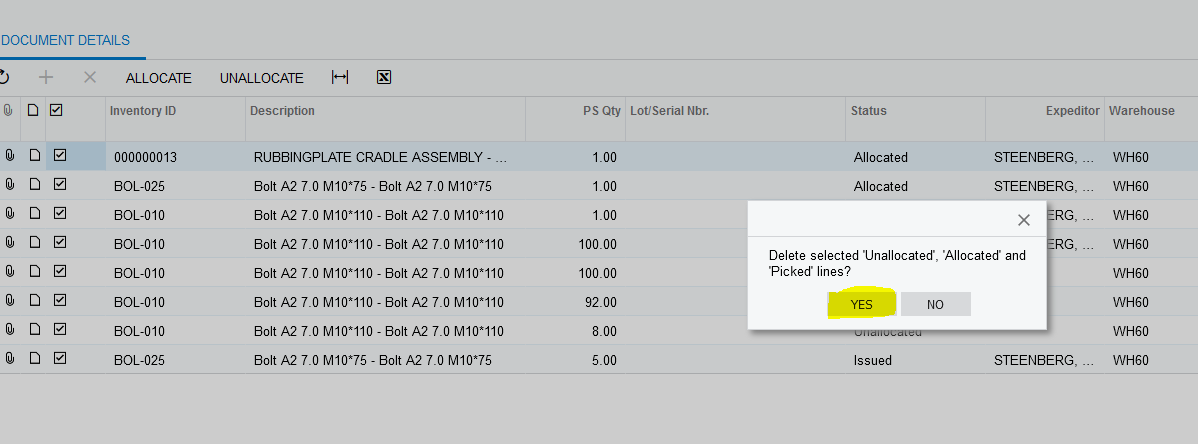
9. A Dialog Box will come up asking you if you want to delete the selected lines, click on "YES":
10. If lines on the Pickingslip was accidentally Picked, you can select the relevant line with the "Picked" status and click on "DELETE LINES":
11. A Dialog Box will come up asking you if you want to delete the selected lines, click on "YES":
Created with the Personal Edition of HelpNDoc: Create help files for the Qt Help Framework