Publish APK
Building and publishing new GRW mobile version using visual studio.
File version increment
After making changes to the project the file version can be incremented by changing the AndroidManifest.xml file under the Properties folder.
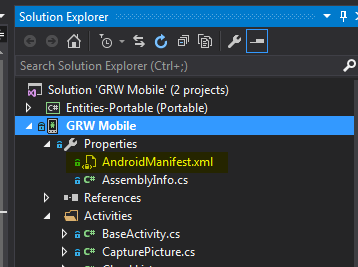
Setting the value property of "ApplicationVersion" to the new version number will allow the automatic update process to scan all APK files in the published directory to identify the correct file to be sent down to the users mobile device.

Archive process
Always make sure to rebuild on both the debug and release modes in visual studio before running the "archiving" (building the APK) action and leave the option set to release.
Select the archive option by right clicking on the project in the solution explorer.
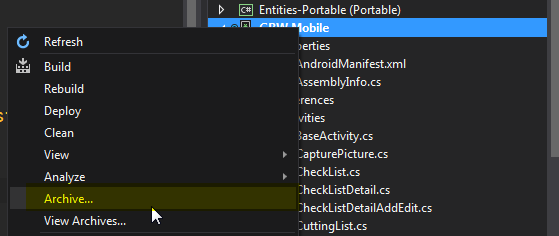
After the archive procedure completes select "distribute --> adhoc". Then select the GRW certificate and enter password. This will create the new APK file.
Copy the newly created APK to : "\\grw-app\INSTALLS\GRW Tech Updates\Android Package" follow the folder naming convention. This is not required. The auto update process scans the entire Android Package directory.
Set APK active for download
At this point the apk is uploaded but not active for download. To set it active browse to the GRW_NAV (Control panel) : http://grwiis7/
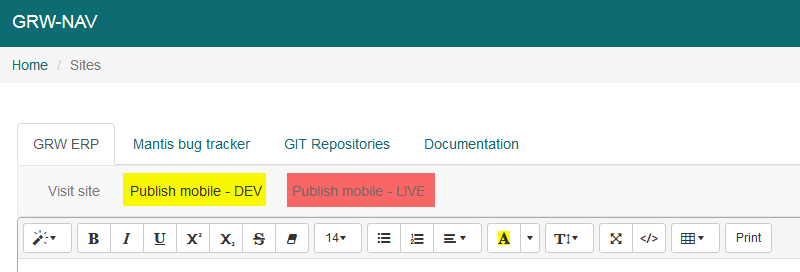
Select the DEV or LIVE tab (highlighted below) to set the APK active for the different servers.
Change the Mobile version to the corresponding APK version and make sure the database version is also updated.
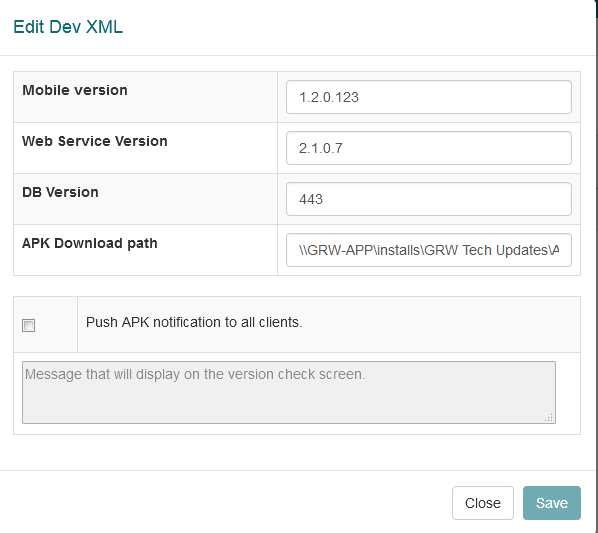
After pressing save the APK will be sent out for download when the user logs into the mobile app. Alternatively the "Push APK notification to all clients" checkbox can be selected to force all devices to immediately close any operation and to prompt for download. Use this option with caution.
Created with the Personal Edition of HelpNDoc: Maximize Your Reach: Convert Your Word Document to an ePub or Kindle eBook