How to transfer stock from receiving to another location
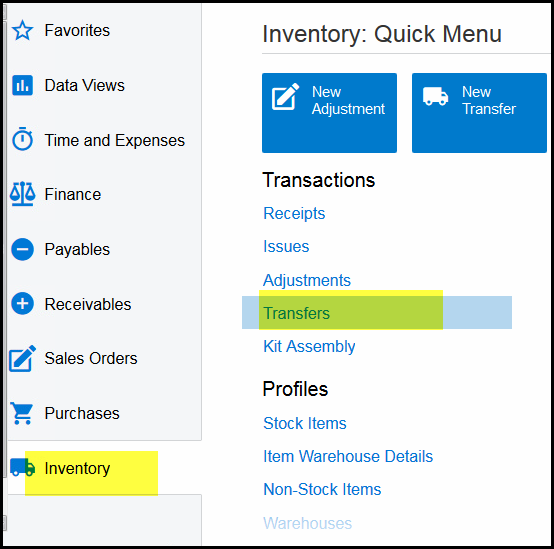
1. Click on Inventory>Transfers
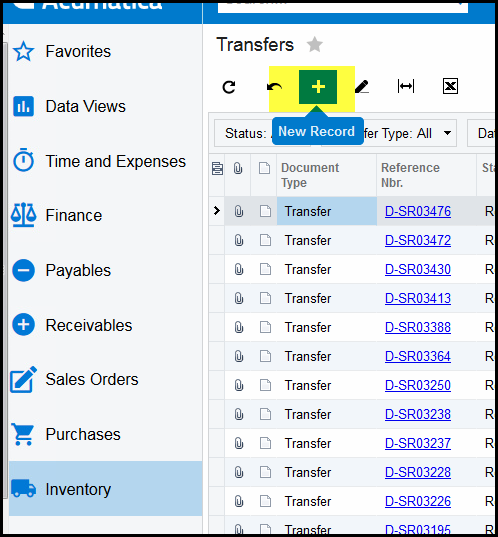
2. Click on '+' to create a new transfer
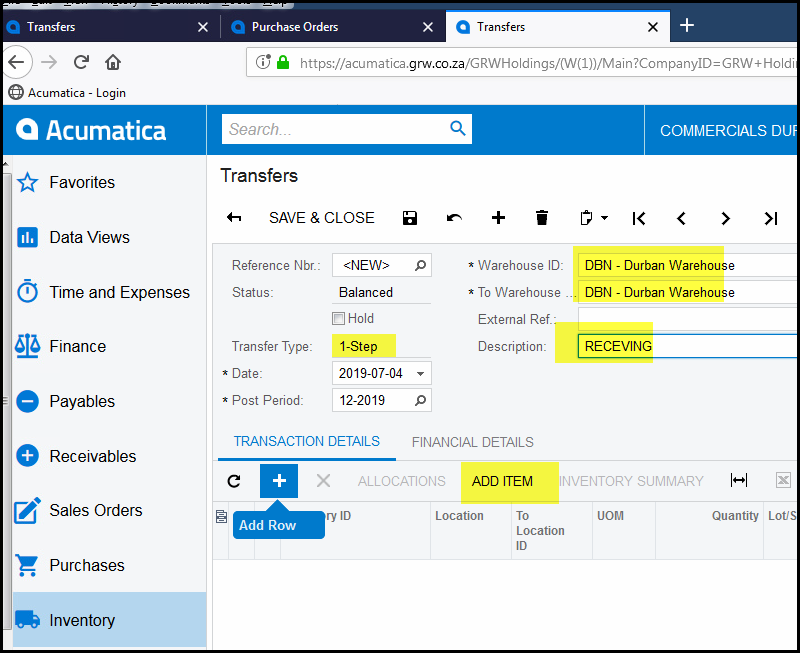
3. System will default to 1-step transfer type. Use 1-step for transfer between locations in the same warehouse.
4. Select the from and to warehouse - see below example is DBN
5. Add an appropriate description.
6. Click on ADD ITEM
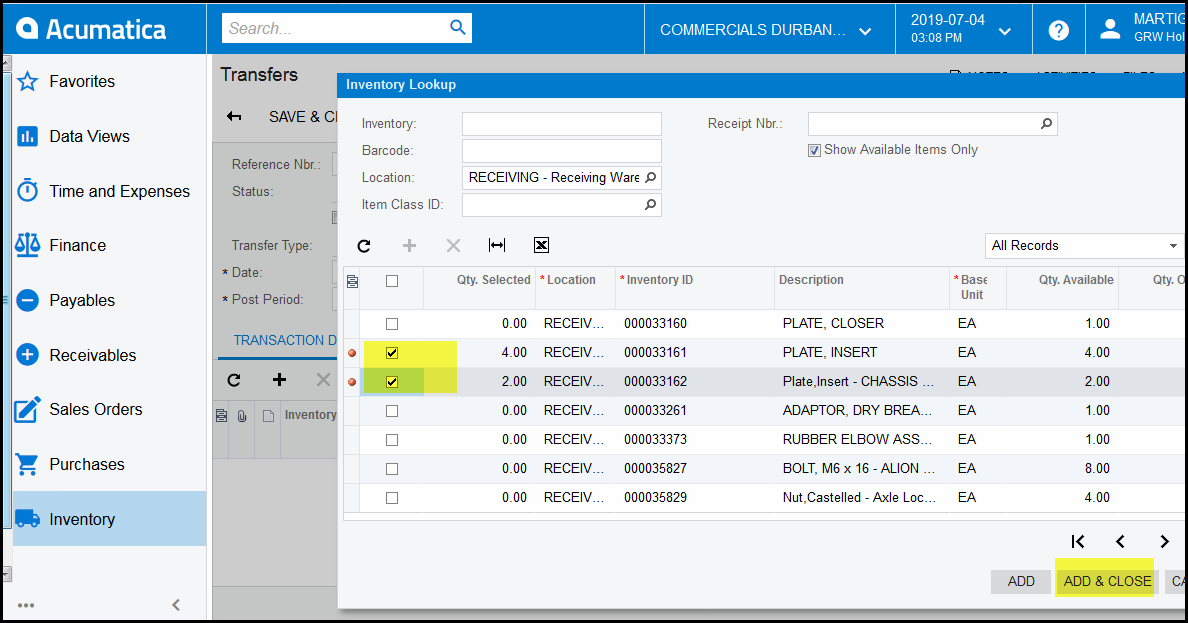
7. You are moving stock from receiving, type in the location search receiving.
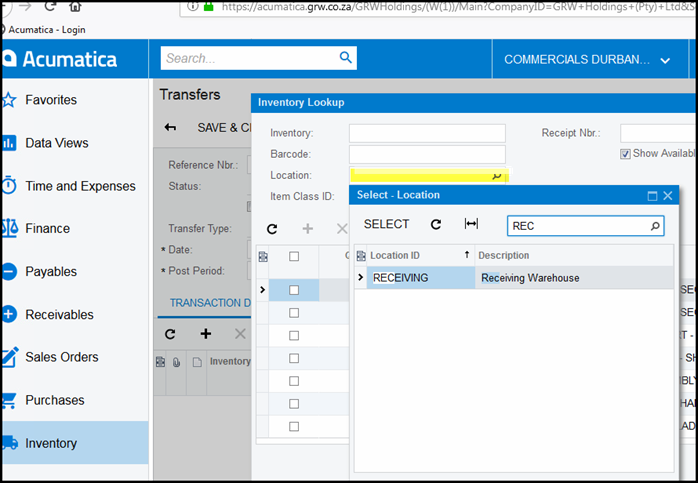
8. Only your items in the receiving locations will appear.
9. Tick the box of the items you want to move.
10. Add and Close.
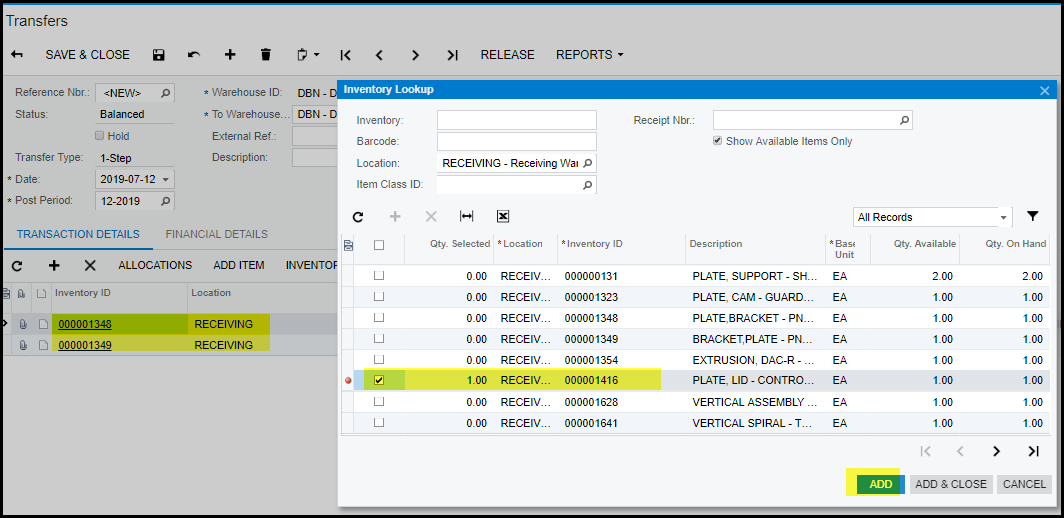
11. You can also only just 'add' your item, you will see it appears in the background.
12. So you are able to see what you have added while busy adding the rest.
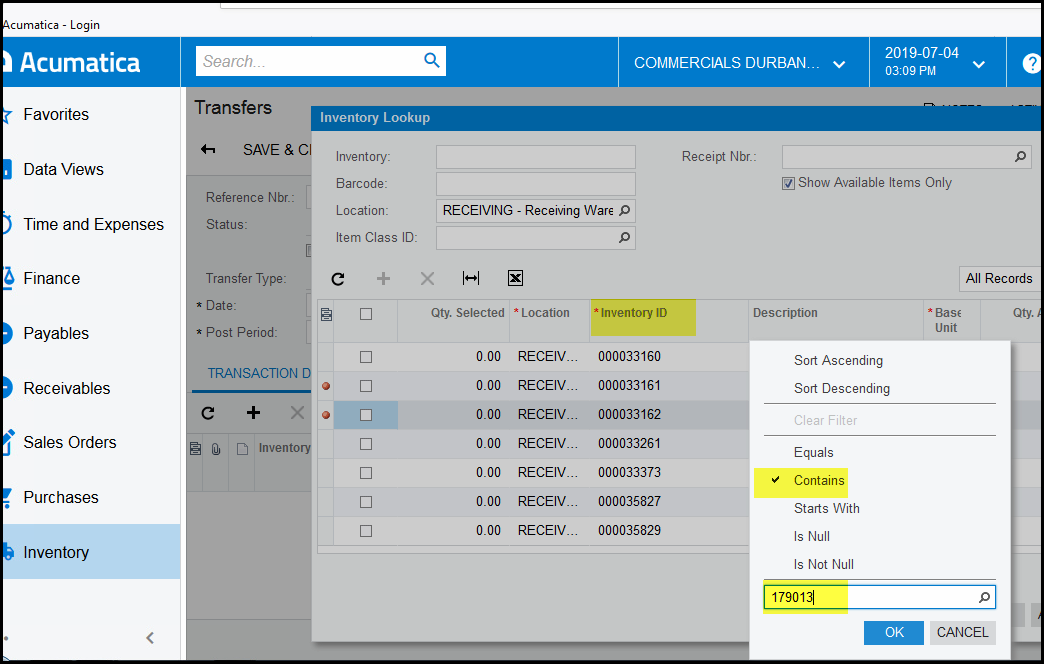
13. Remember if you are search for an item to use the coloum 'inventory id', double click, tick contains and type
in a part of your code.
14. When done with add & close, you will have to add your location to where you want to transfer the stock.
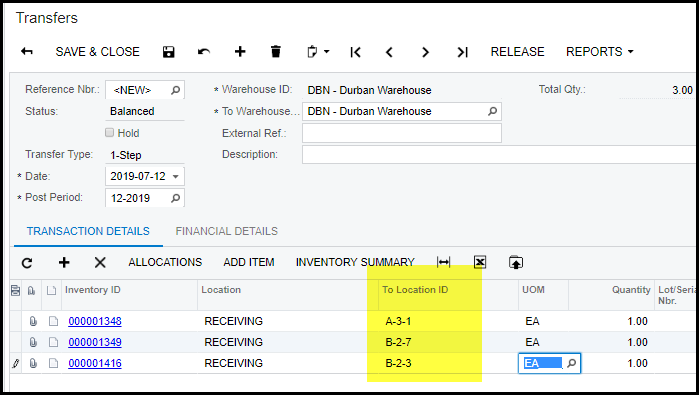
15. You will not be able to save your transfer if you to location is not completed.
16. Release
Created with the Personal Edition of HelpNDoc: Free Web Help generator