How to receive a purchase order
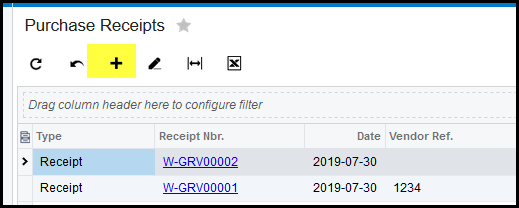
1. Click on purchases>Transactions - Purchase receipts
2. Click on the '+' to do a new receipt.
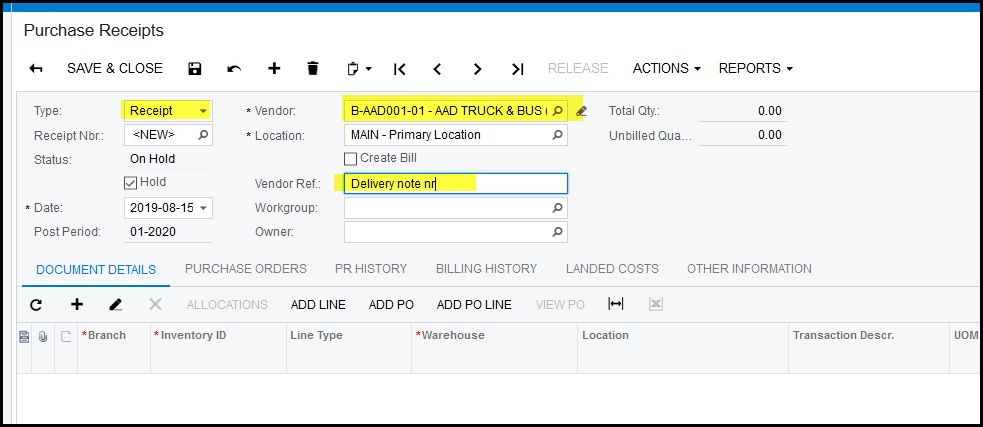
3. Select your transactin type 'receipt'.
4. Choose your Vendor/supplier
5. Complete your 'Vendor ref' - this is the reference of the supplier/vendor delivery note or invoice nr.
6. SAVE (it is always good to save your transaction as soon as possible otherwise your can loose your work)
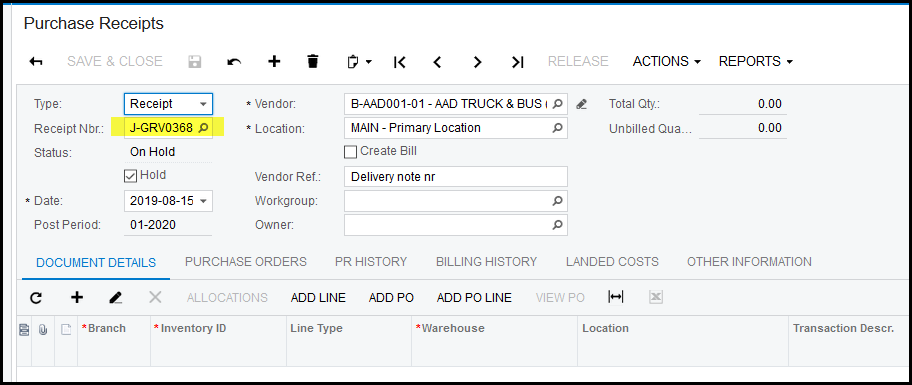
7. Once your document is saved, it will show a receipt nr.
8. Click on 'ADD PO' to look up the Purchase order for the receipt.
9. Tick the box.
10. Add & close
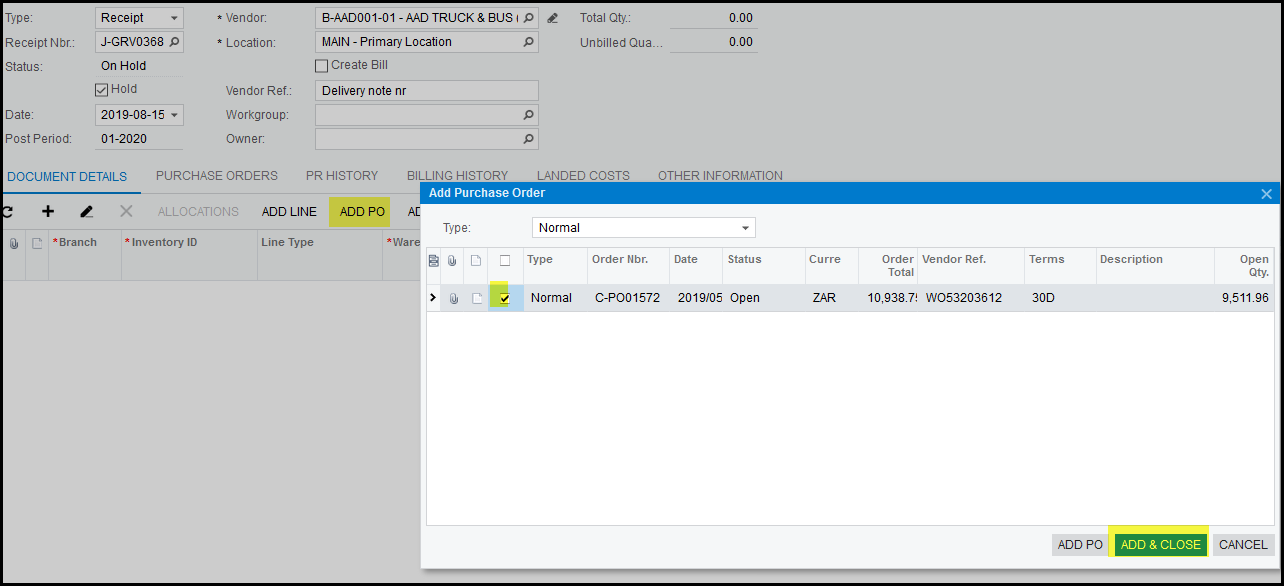
11. The line will show on the receipt.
12. Change the quantity to what you want to receive.
13. Complete your warehouse and location.

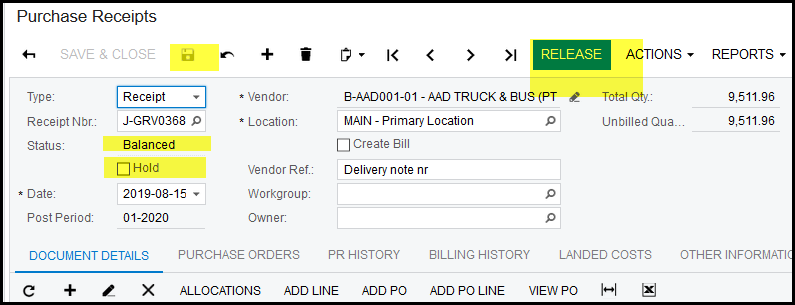
14. When your are 100% that your transaction is ready to process, take of the 'hold' tick and save.
15. The status of your transaction will change to 'Balanced'.
16. When the status is 'balanced' it is not finalised yet.
17. To make changes put it back on 'hold' and do your changes.
18. SAVE and take of 'hold' again.
19. If you are satisfied and want to process the 'Balanced' transaciton - click on 'Release'
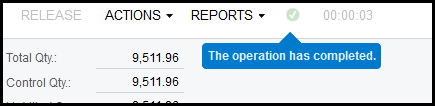
20. Make sure that you see a 'green' mark, if you see a red cross, hover with your mouse over it to see what the error is, in the case below the transaction was processed correctly.
21. The status of your receipt will show 'Released'
Created with the Personal Edition of HelpNDoc: Produce online help for Qt applications