How to transfer stock
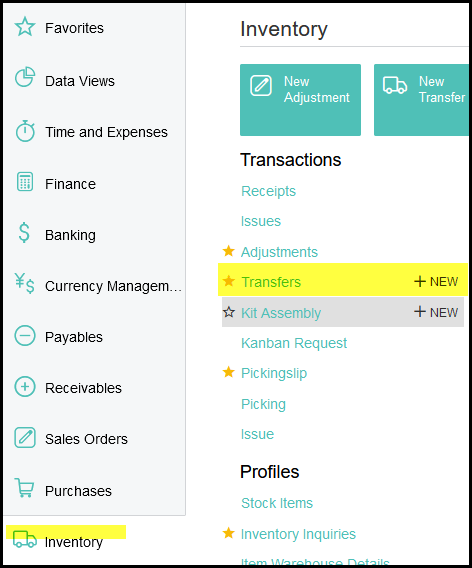
1. Go to inventory>transactions>transfers +
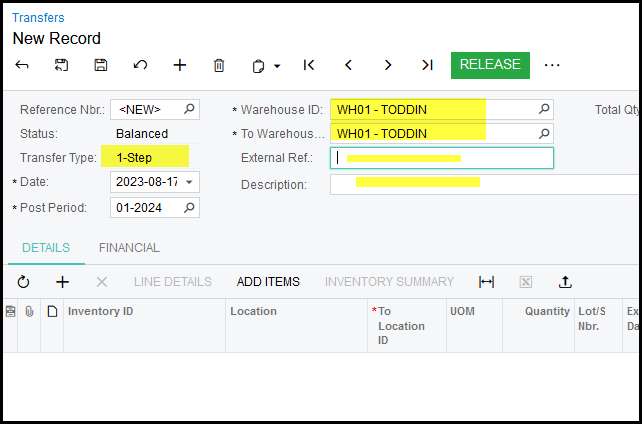
2. The system will default to a 1-step transfer (2-step transfers is used when you want some else to receive the transfer for a different warehouse.)
3. Select your from/to warehouse.
4. External ref and description is just a short description not that important but also useful for later searches.
5. Click on the + and enter your inventory code.
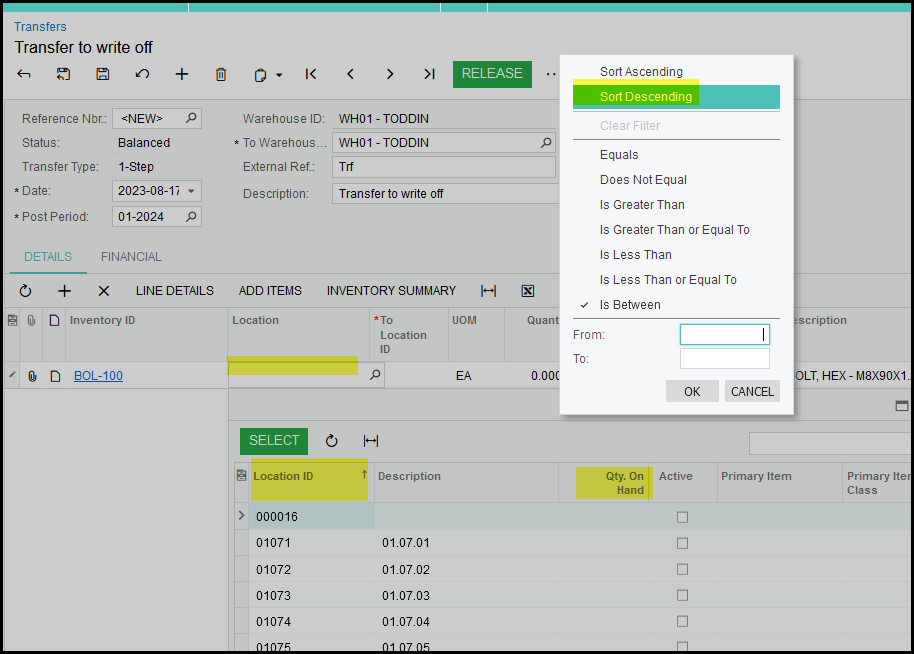
6. In the search for location it will sort on location by default, but change it to qty on hand descending then all your locations with stock on hand will show.
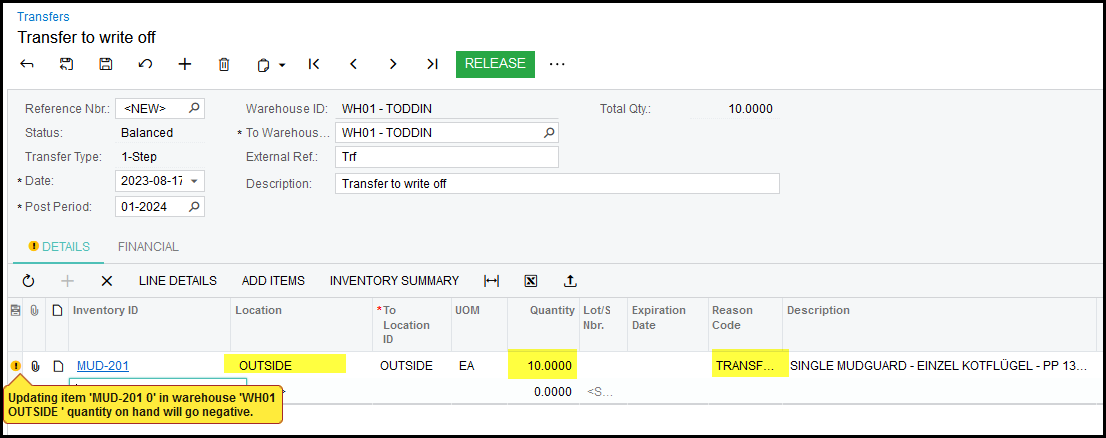
7. Enter the qty you want to transfer and reason code is 'transfer'. We can setup additional reason codes for specific reasons.
8. See below the location does not have qty on hand that is why you get the warning. If you will release it now that status will not change to 'released' it will
stay balanced.
9. When I added the MUD-201 it automatically filled in the location of the item because it is the default location for the item.
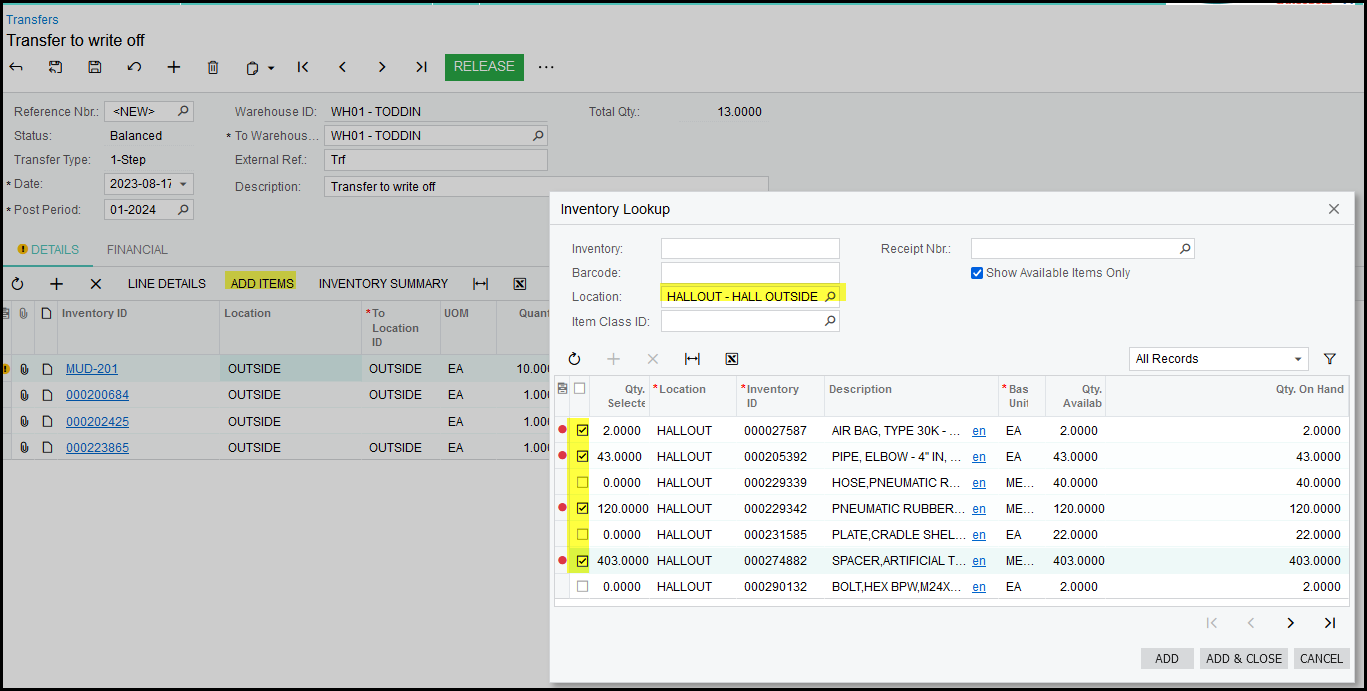
10. Another option is also to 'add items'. You can type in the location of any option to search.
11. Tick you items, it will add the full qty in the location.
12. Add & Close
13. Release your transfer - make sure that the status changed to 'released'.
Created with the Personal Edition of HelpNDoc: Full-featured multi-format Help generator