How to receive a PO for operations against the job
1. When Job's operation/service is done, you have to received the purchase order.
2. Go to the specific purchase order.
3. Click on 'ACTIONS'> Enter PO Receipt
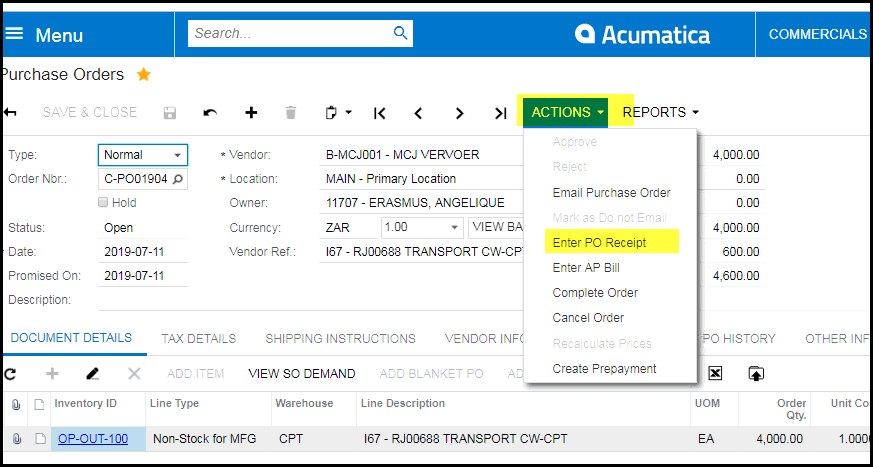
4. Make sure that your vendor reference is filled it.
5. Fill in the job nr and supplier name in the line description of the item ( this is always good for future reference)
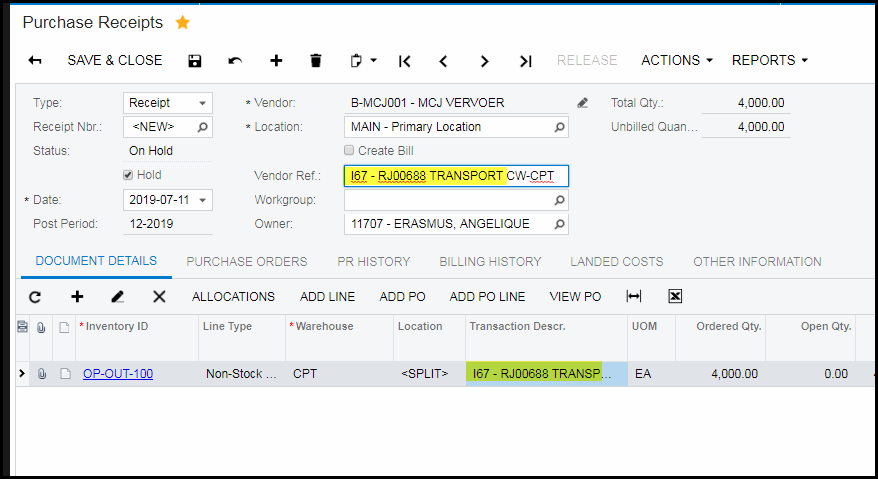
6. Save and release when sure your qty is correct.
7. PLEASE NOTE: The cost still needs to be issued to the job. See steps below.
8. There are two ways to do it - you can choose what works best for you - Do a manual issue to the job or - use unreleased material alloctions
A - Do a material issue to the job
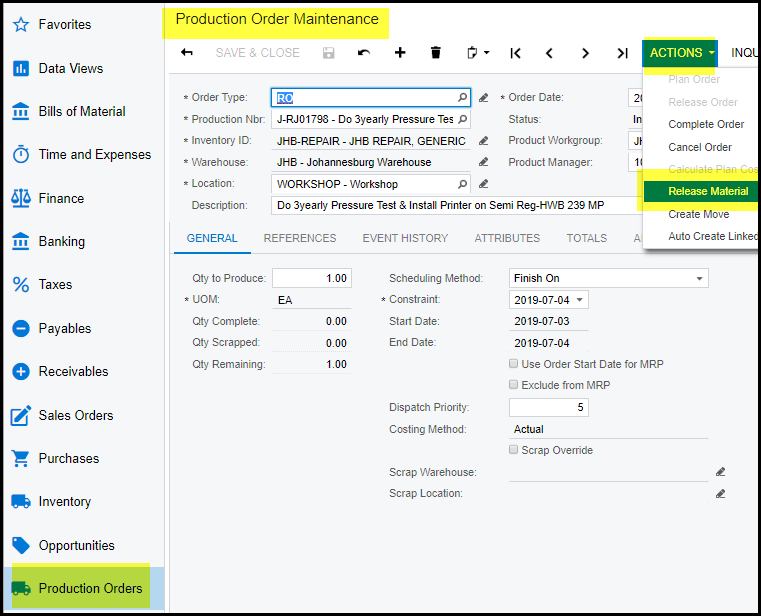
- Go to production order maintenance and select your job
- Action>Release material
- The the screen with the available material will appear, only choose your operation code and select.
- This will open the material issue, save and release.
- You do not have to start from the job you can also do a manual material issue - production orders>material and '+' for new issue select your job and operation
check quantity and save and release.
B - Unrelease PO Receipt
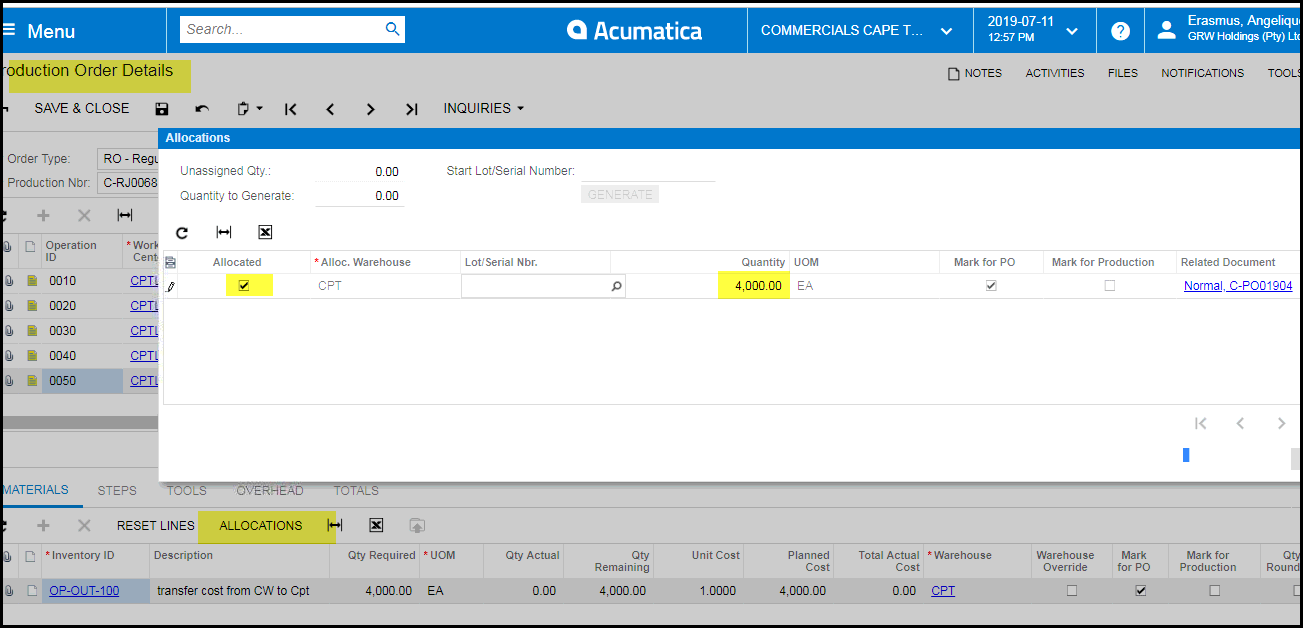
- Go to the job - Production order details and click on the specific operation line.
- Click on ALLOCATIONS
- 10. The allocation box will appear - Tick 'Allocated'
- 11. Check the the qty on the allocation screen is what you want to allocate.
- 12. Click on OK.
- 13. To release the material - Go to production orders> transactions> unreleased material allocations
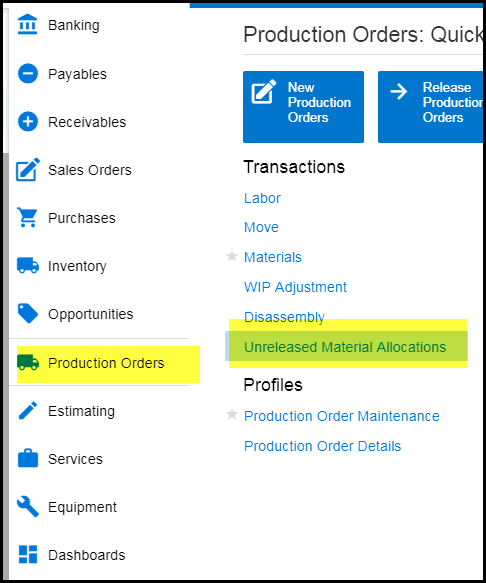
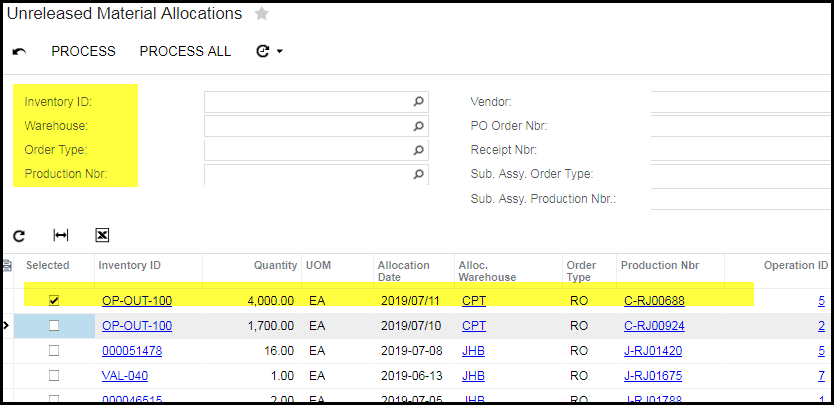
- Your can define your search with the different options below.
- Tick your specific operation code, check it against the job nr.
- Click on process
- You can tick more than one operation code for more than one job.
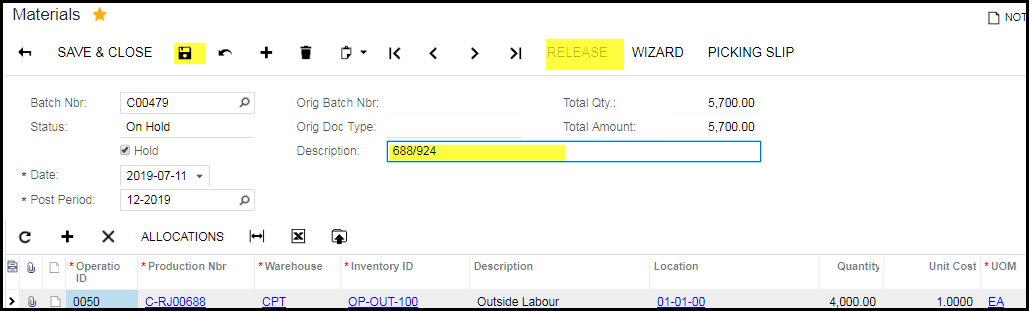
- This will open your material issue.
- Fill in the job nr in the description
- Save, untick on hold and release.
- Your cost will now show on your job.
Created with the Personal Edition of HelpNDoc: 5 Reasons Why a Help Authoring Tool is Better than Microsoft Word for Documentation