How to print stock labels
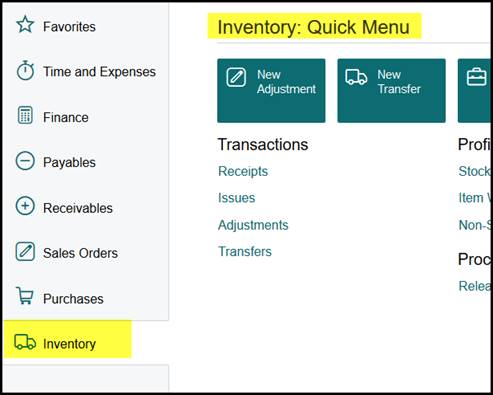
- Click on Inventory
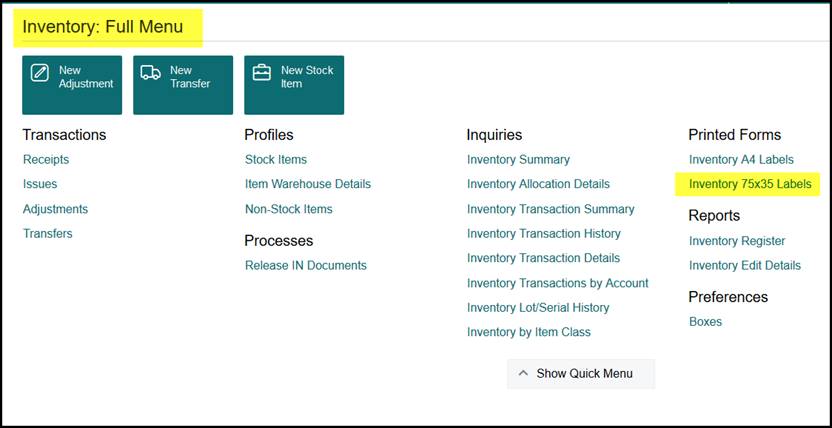
- Click on Inventory: Quick Menu ( it will change to Inventory: Full Menu)
- Go to Printed Forms
- Click on Inventory 75x35 labels
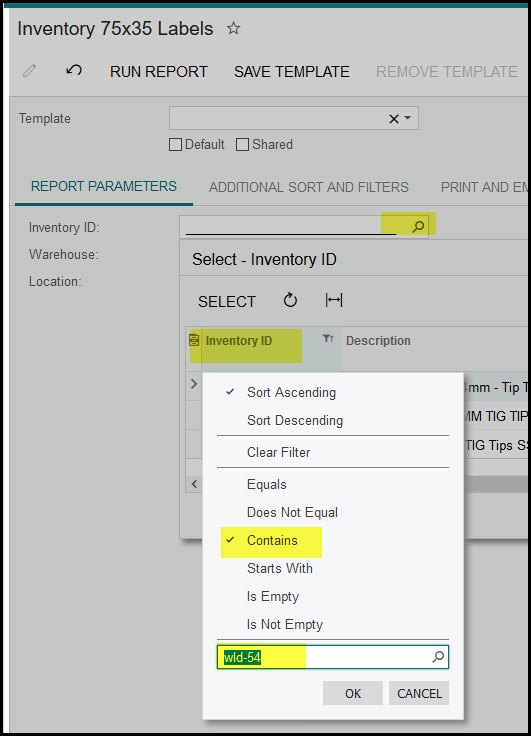
- Click on the search
- Inventory ID, select ‘contains’ and type code partially in the block. Click on OK
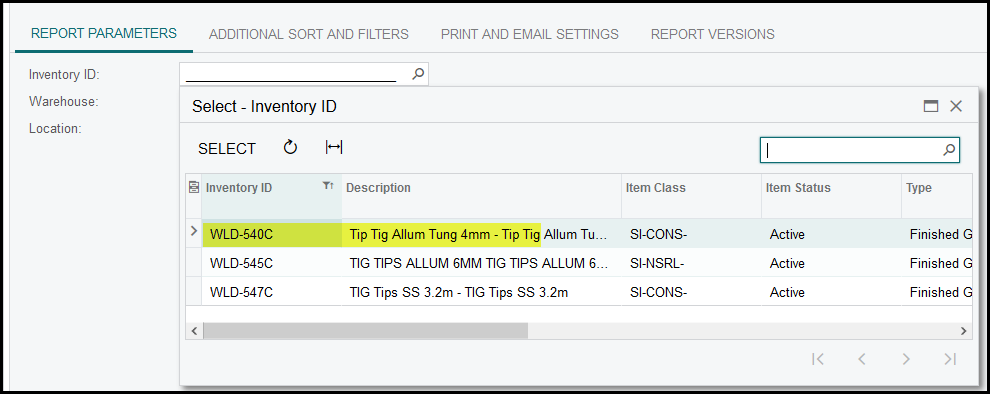
- The search will bring up any code that contains your search.
- Double click on the code you want to select.
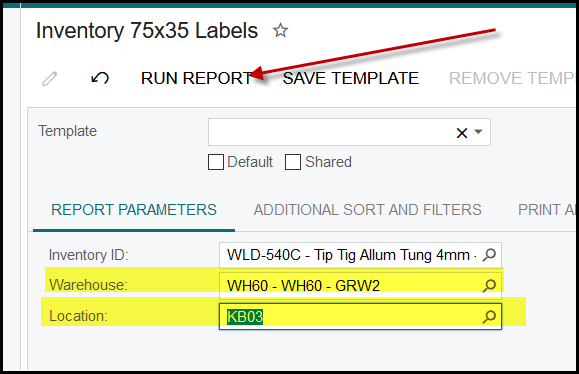
- Search and select your warehouse and location.
- Click on ‘RUN REPORT’.
Created with the Personal Edition of HelpNDoc: Maximize Your CHM Help File Capabilities with HelpNDoc