How to create a purchase requisition
1. Purchase requisitions is used for approval to purchase of non-stock/expenses mostly but can also be used
for stock purchases.
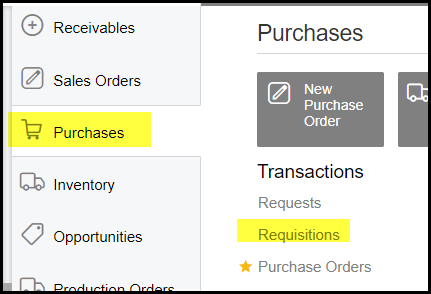
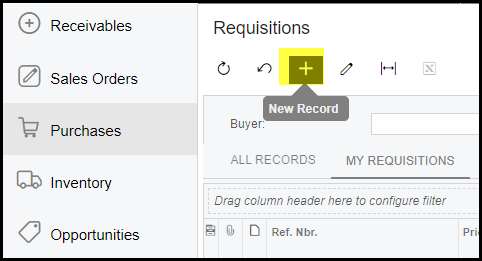
Go to purchases>Requisitions>Click on the + to create a new requisition.
2. Certain rules apply to the total amount of your requisition. Please see How does approvals work.
3. Check your currency when you start, but normally it should be euro's, unless your supplier will invoice you in a different currency.
The description can be a summary of the goods or services. This is for future reference and make your searches easier.
Depending on your total amount select your 'authorized individual' and or 'Executive Commitee' as per the rules.
Click on the plus to add your inventory id - this is a list of non-stock and stock items - you can search by description.
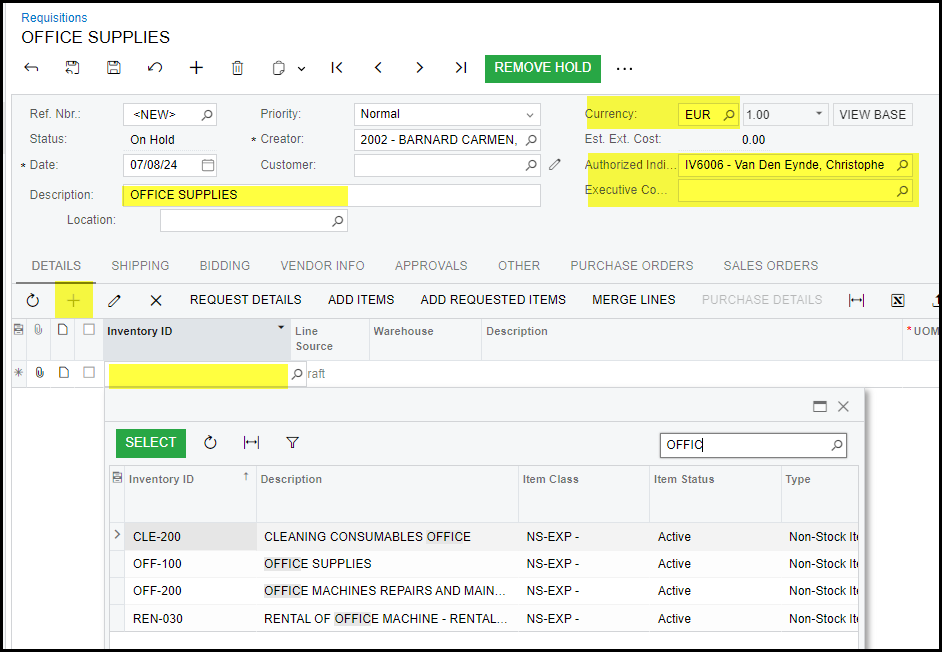
4. Complete your warehouse, description of the line qty, Ext Unit cost and workcentre
Do not complete 'Ext. Ext Cost' this is a calculated field.
Save your requisition after completion of the first line.

Add your quote from the supplier or any document to your requisition - see How to attached a document
5. When you have entered all your line and have checked your amounts. Go to the 'bidding' tab and click on the + to add the vendor. Add the vendor and 'Choose vendor'
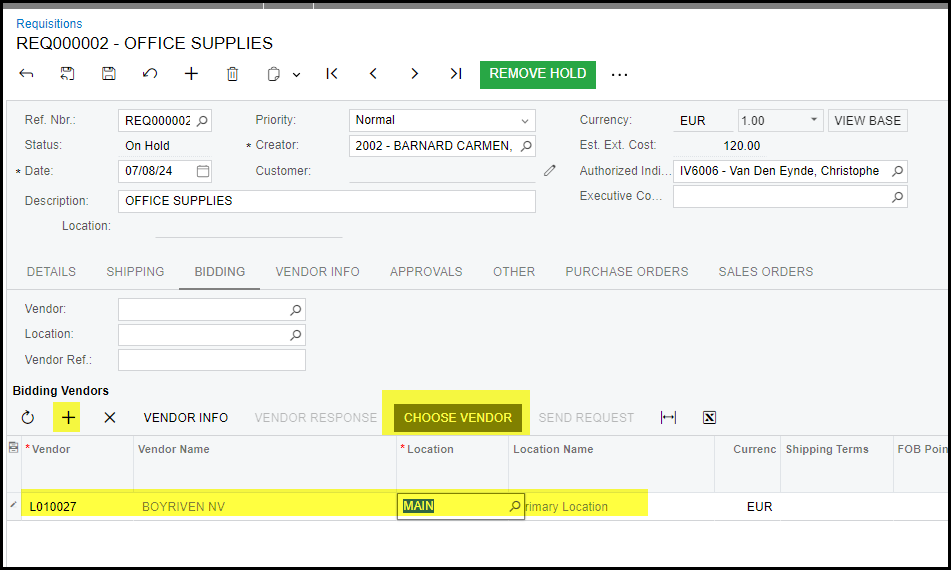
Choose vendor will complete your bidding - make sure that you select the correct supplier.
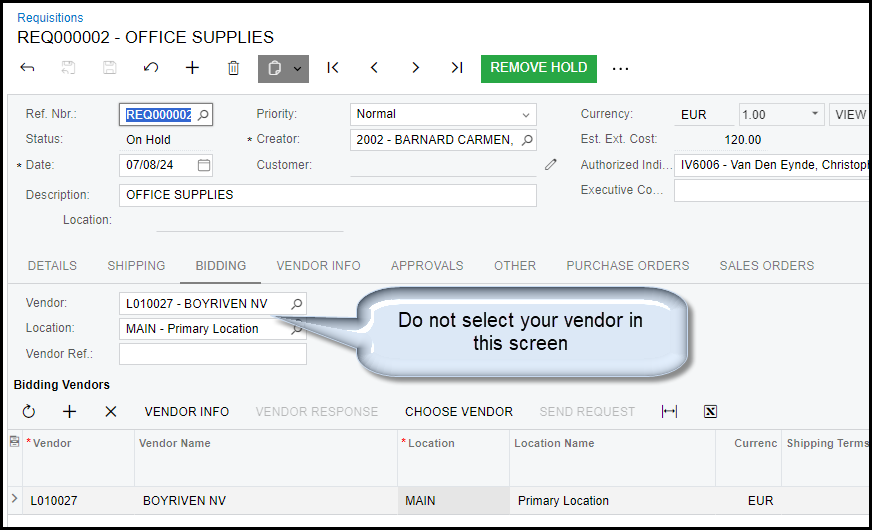
6. Your requisition status is 'on hold'. Only when you take it off hold other approvers will see it and it can be approved. Make sure about your
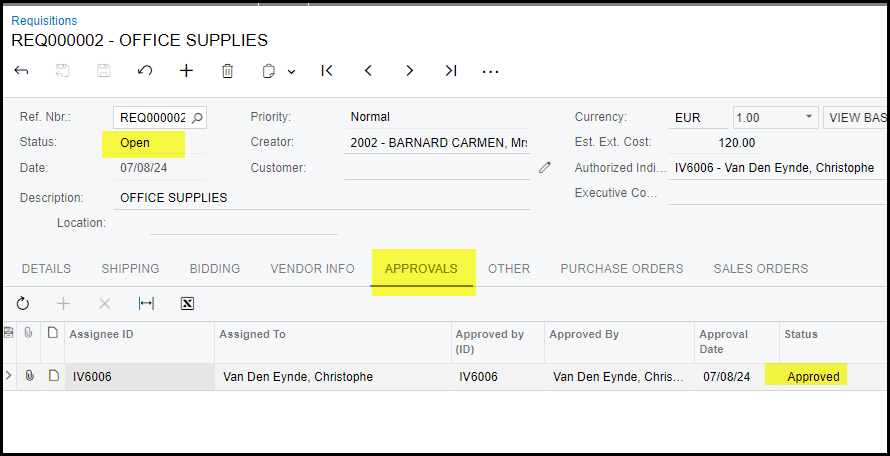
amount before you take it off hold. Your requisition will show 'pending approval, you can also see that in the 'approvals' tab.
A requisition can be put back on hold while in the approval process and no purchase has been created.
Once your requisition is approved the status will be 'open' and ready to create a purchase order.
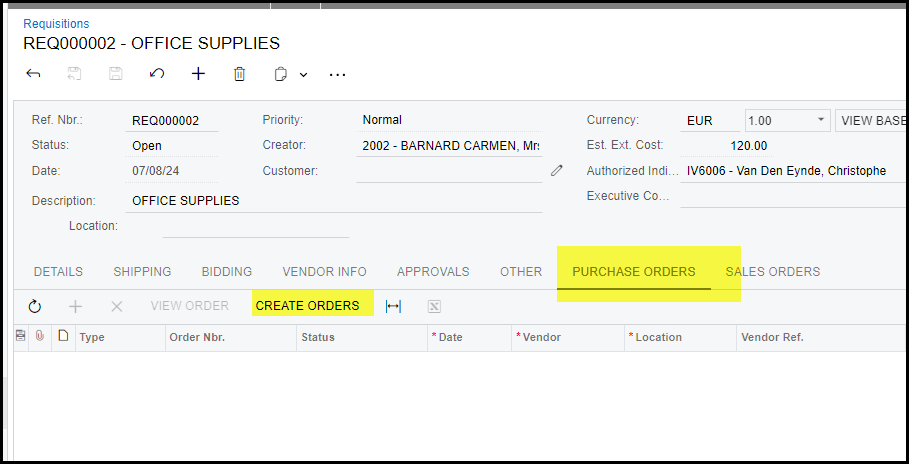
7. Click on create orders.
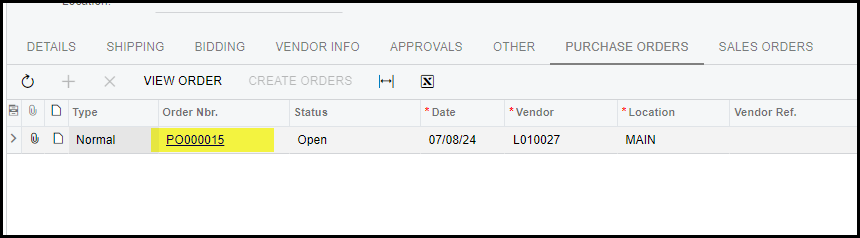
8. Open your purchase order.
9. Print your purchase order.
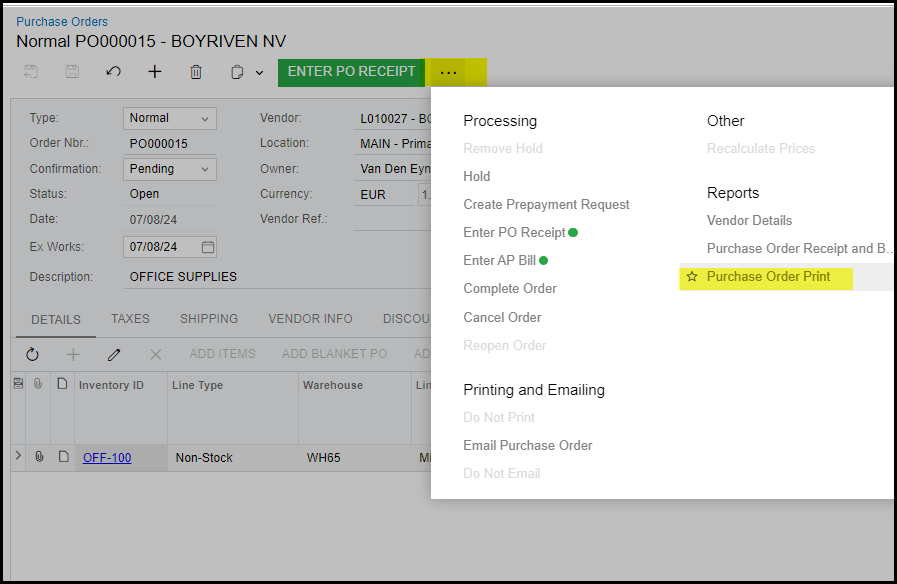
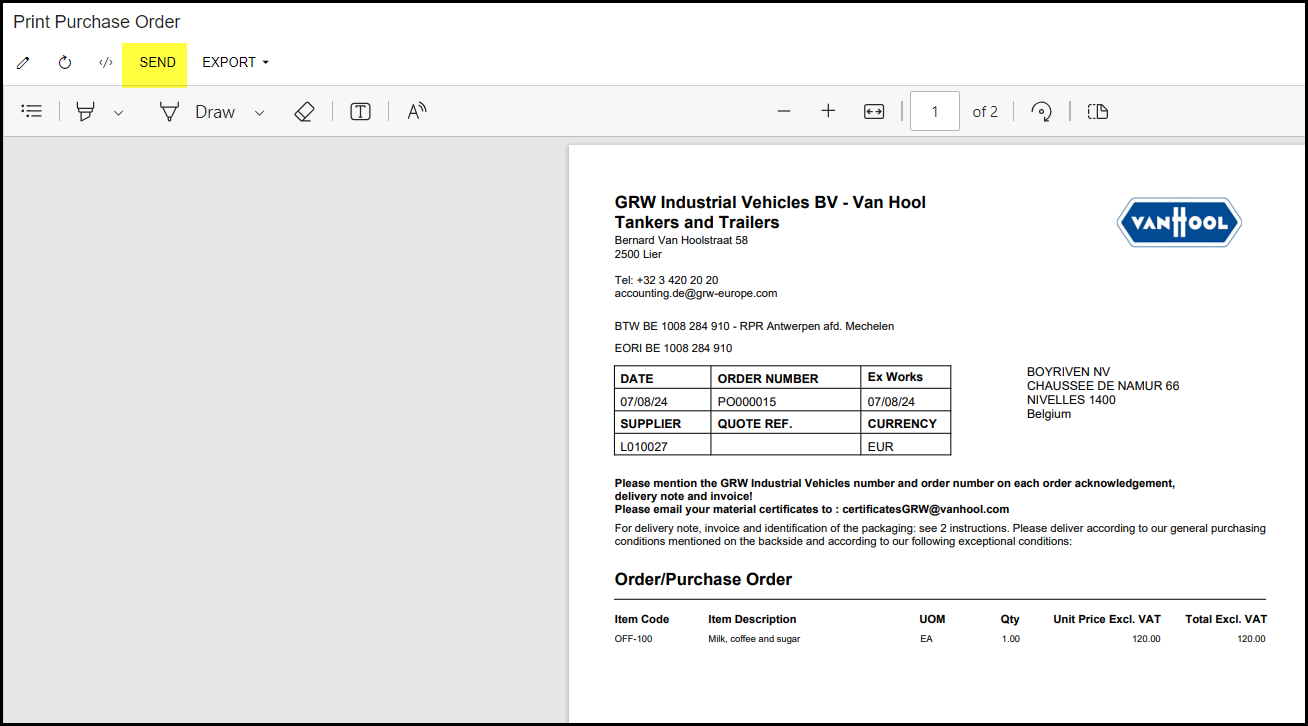
Click on send to email your PO or Export to pdf to print.
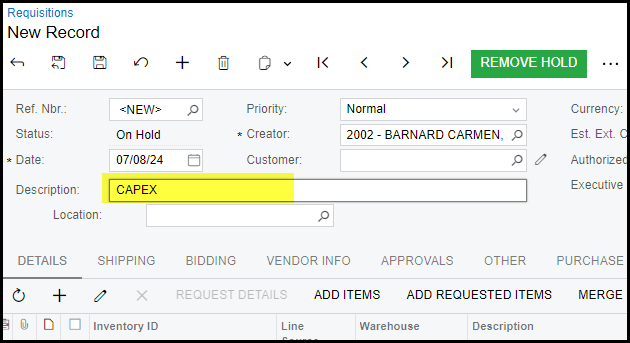
10. For requisitions that is for assest/capital expenditure - see How does approvals work.
Most import is that your header description should only show "CAPEX', nothing else.
In your detail lines you can give more descriptive details.
Created with the Personal Edition of HelpNDoc: Maximize Your Documentation Efficiency with a Help Authoring Tool