How to create a case
1. Search for 'case' in your search menu
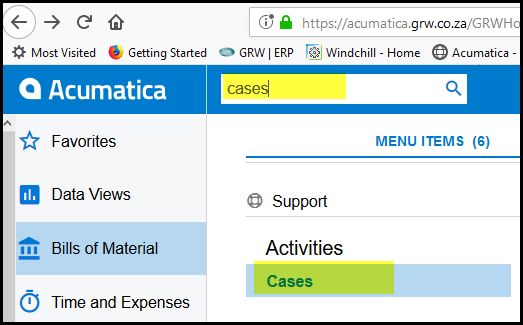
2. Click on Cases'
3. Click on the '+' to add a new case.
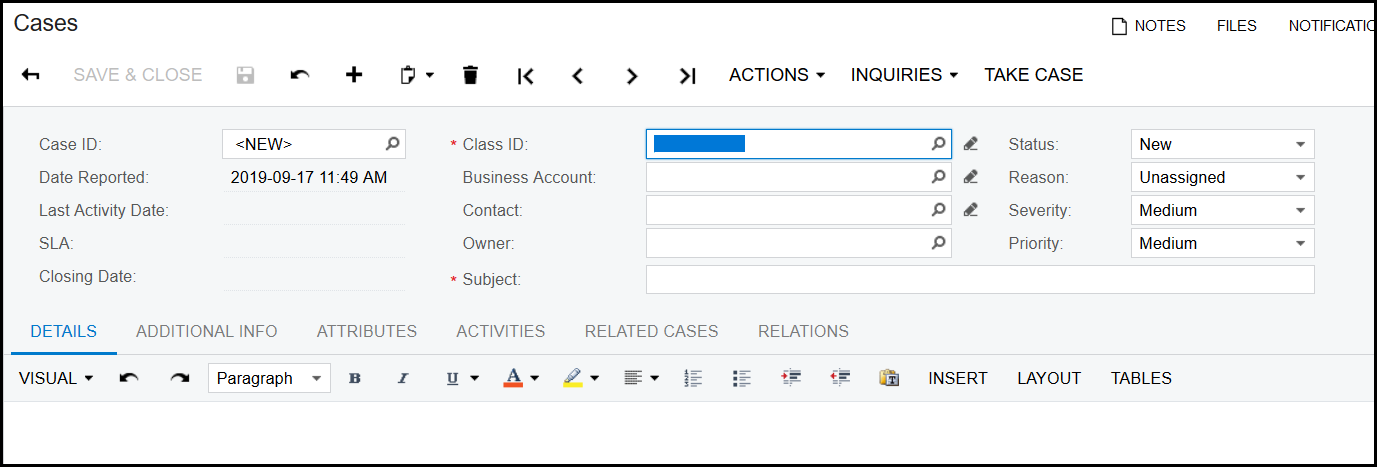
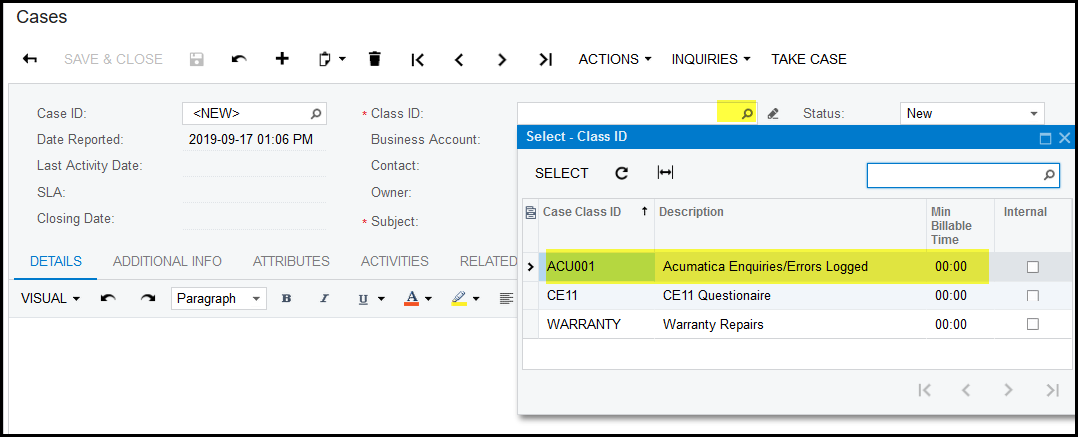
4. Click in Class ID on the search box.
5. Select ACU001-Acumatica Enquiries/Errors Logged/Training needed.
6. Do not complete the 'business account' field.
7. In the contact field. Click in the search and type a part of your name, select your name.
8. The 'business account' field will auto complete and show your branch, press back space to take out this field.
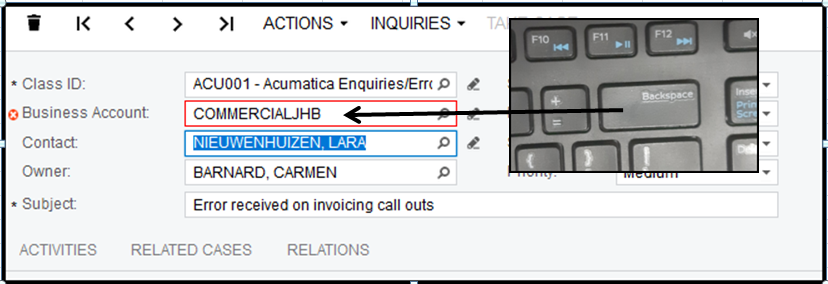
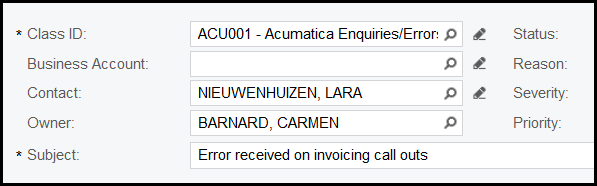
9. Choose the person to who you want to address it - in the case of Acumatica/wisERP/Mobile device it will be 'Carmen Barnard'
10. In the subject field - fill in a proper description.
11. Save your 'case' after you have completed the header section.
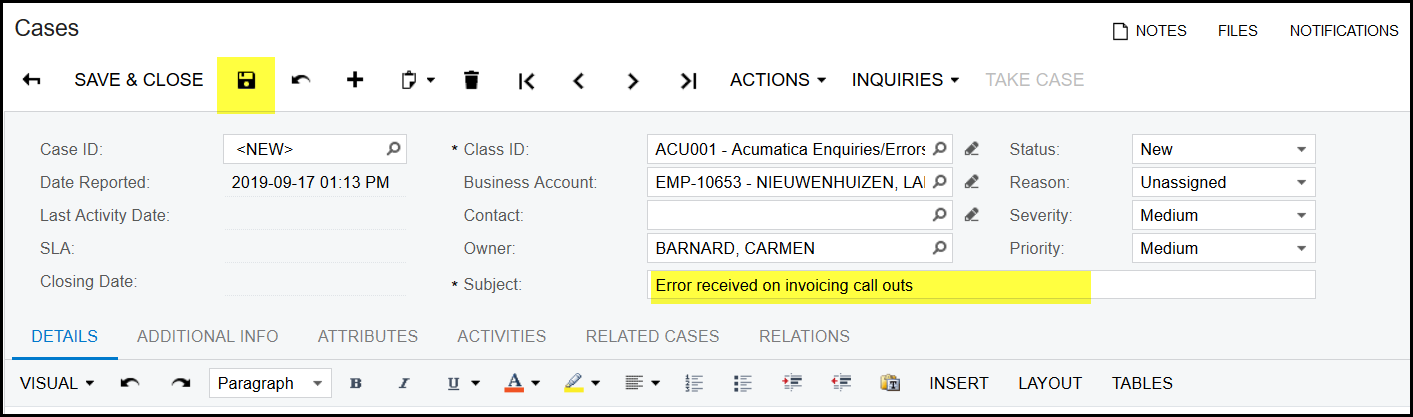
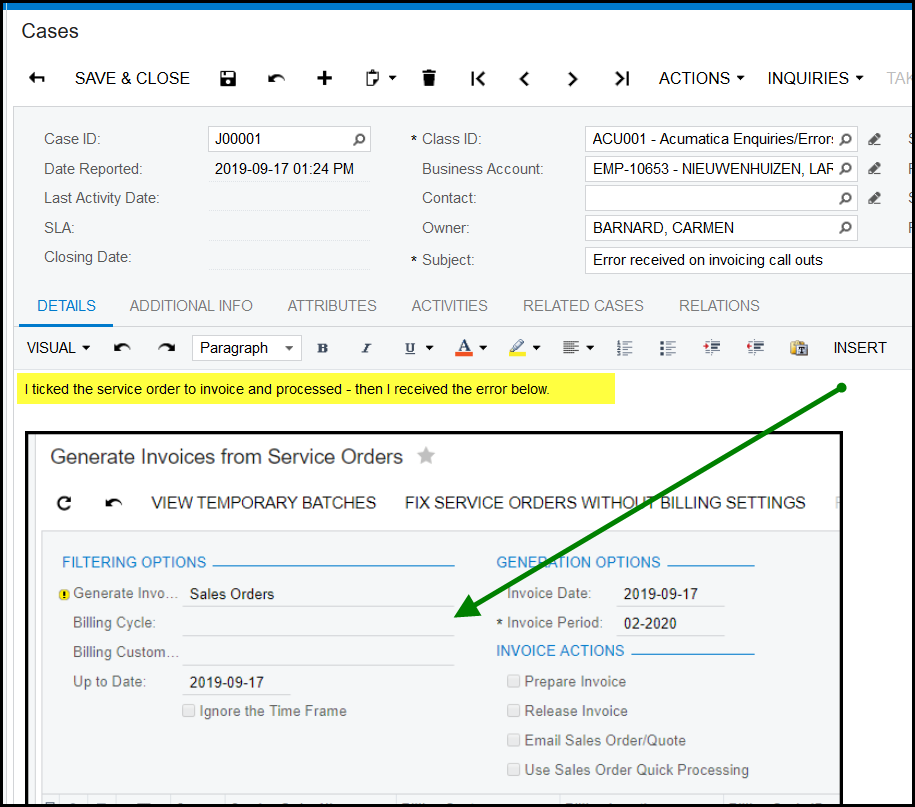
12. Add a detailed description under 'DETAILS' where exactly you got the error and on what screens and menus. You can also paste a screenshot in the
'DETAILS' field. Also always refer to the type of transaction and transaction number you have issues with. The more details you give the quicker we can
resolve to it.
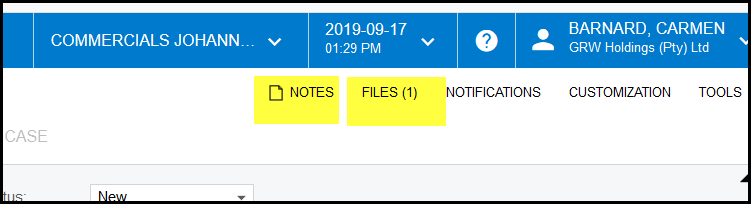
13. You can also add files or notes to the case, this will help to resolve it quicker.
14. Each 'case' has statusses: New - the user is still busy creating and completing the case (nobody will attend to it).
Open - The case is now open and needs to be investigated by the 'owner'. The 'owner' will receive an email.
Closed - Once the owner responded on the case and it is completed he will change it 'Closed'
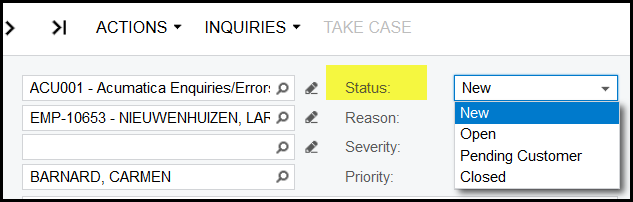
15. If the issuer of the case is not happy with the completed case he can change the status back to 'open', but he HAVE to make proper comments or notes.
Created with the Personal Edition of HelpNDoc: Powerful and User-Friendly Help Authoring Tool for Markdown Documents