How to convert a quote to a sales order
1. Open you QT
Add your customer order number
Copy order
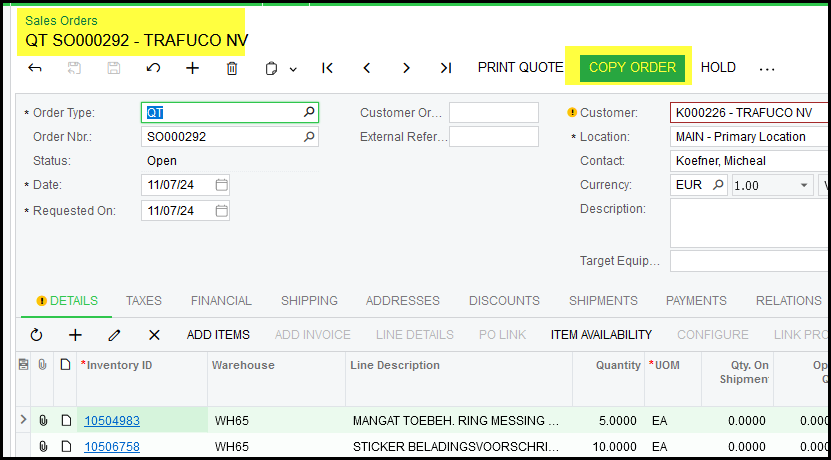
2. Select SO type, OK.
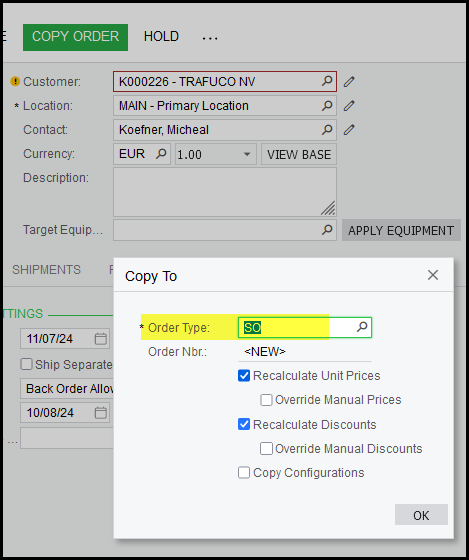
3. This is a copy of your QT. Save your SO.
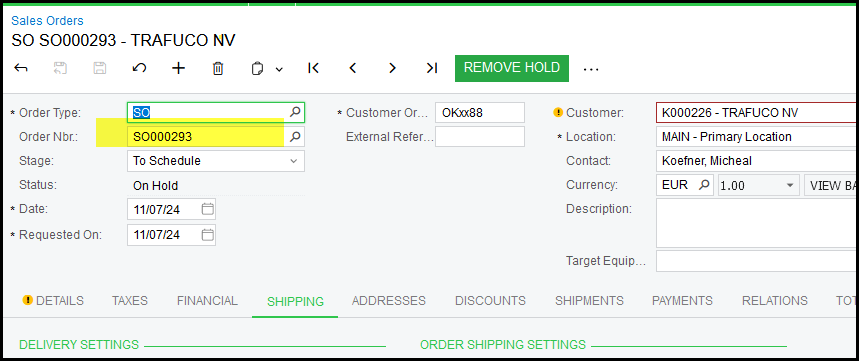
4. Remove hold to open your sales order.
See the quantity available.
You will not be able to ship the 10qty only 3 that is available.
Note this customer is on credit hold - DO NOT remove the credit hold - Contact Elizma Jordaan <elizma@grw.co.za>
You are not allowed to remove the credit hold, only our Debtors Manager.
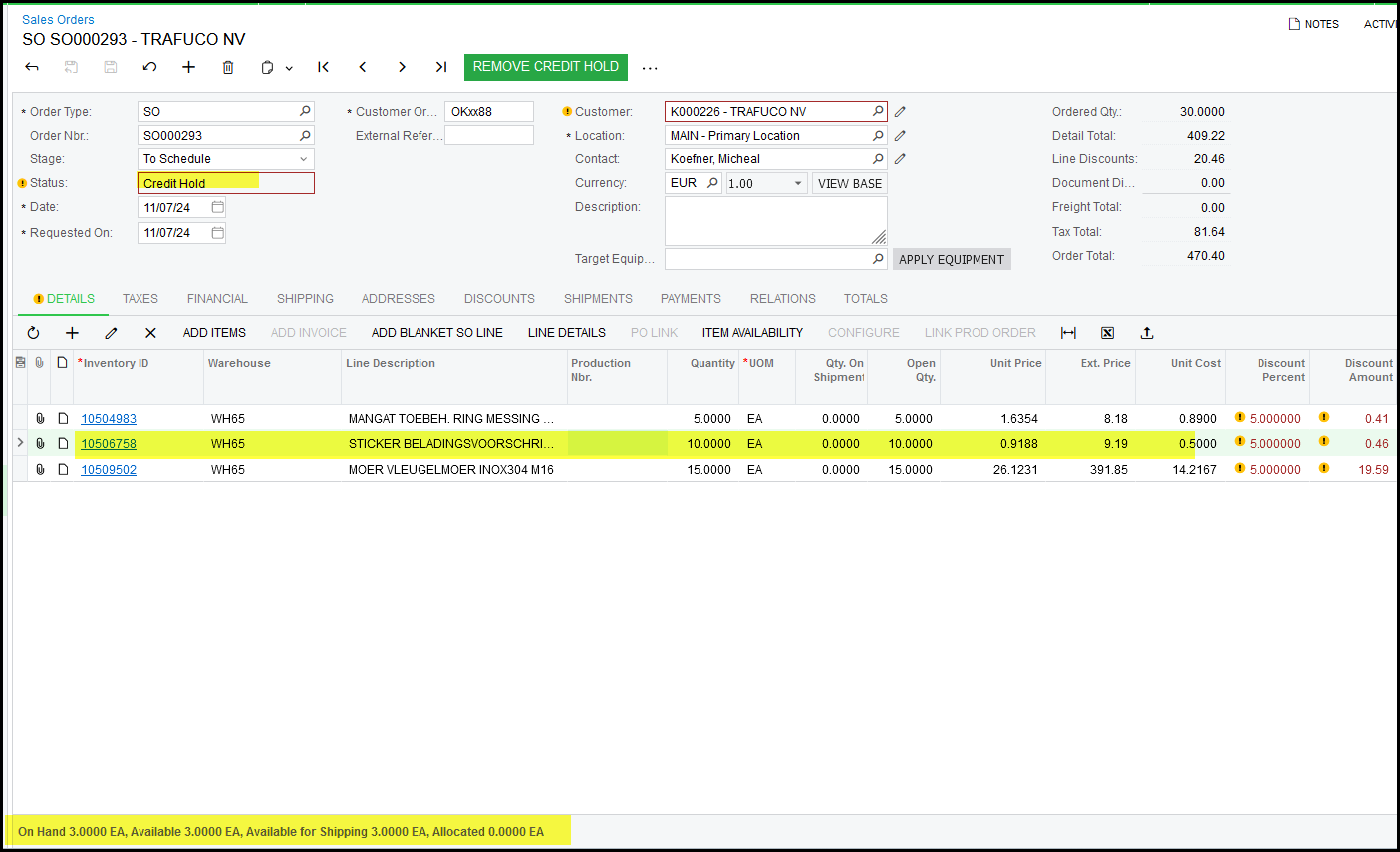
Sales order in foreign currency.
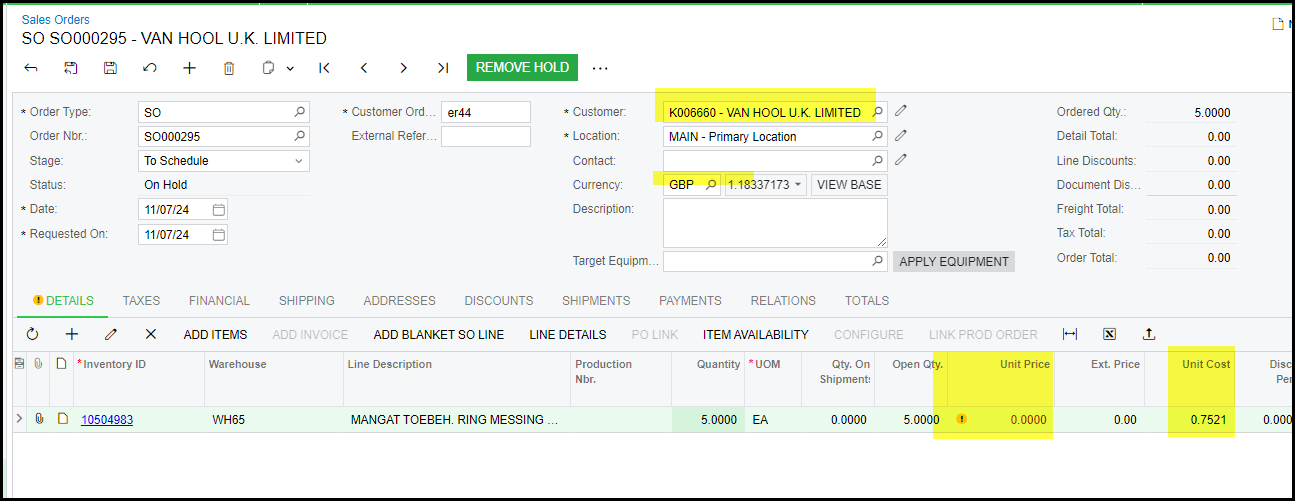
5. Once Elizma has removed the credit hold the status will be OPEN and you can create shipment.
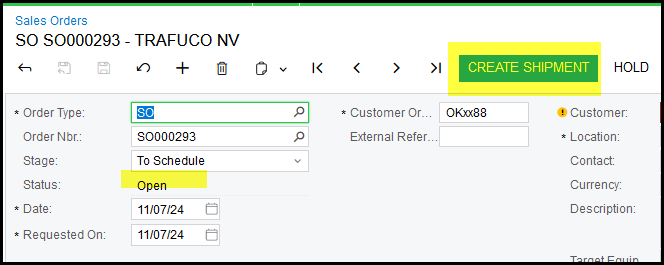
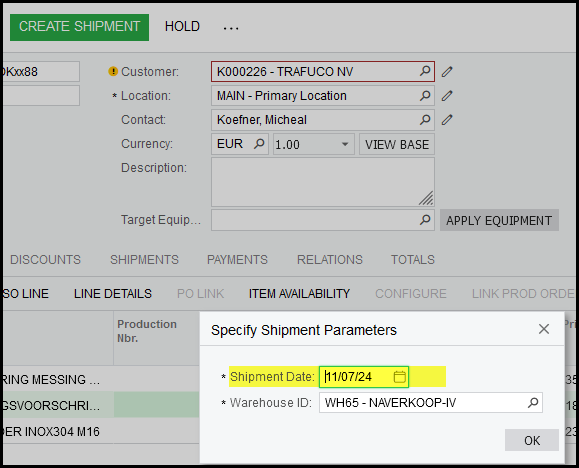
It will default to today's date - click on OK.
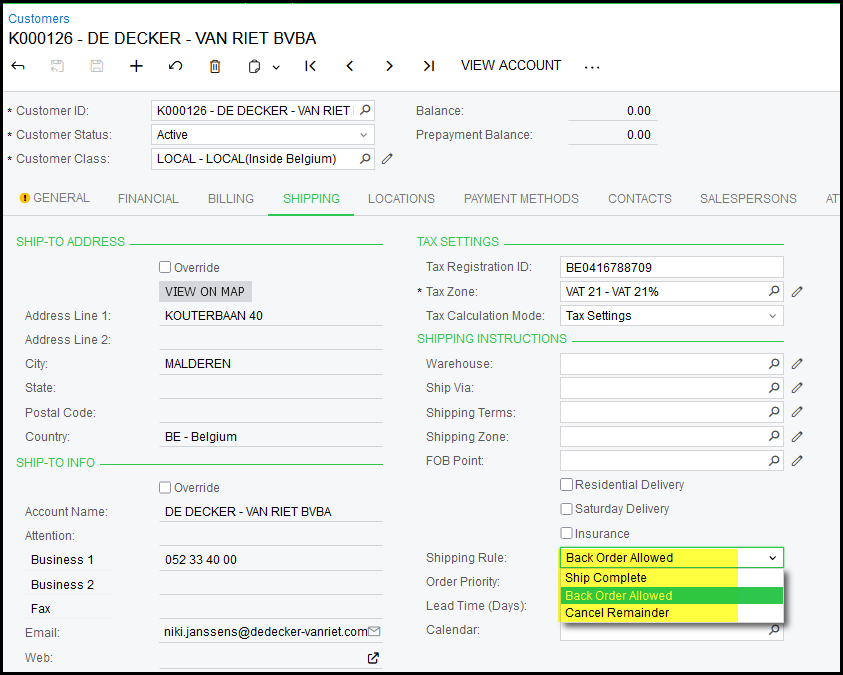
6. On each sales order line has a shipping rule. The rule can be set per customer. The default is set as 'Back Order allowed'
This indicates that the sales order can have multiple shipments until it is fully shipped.
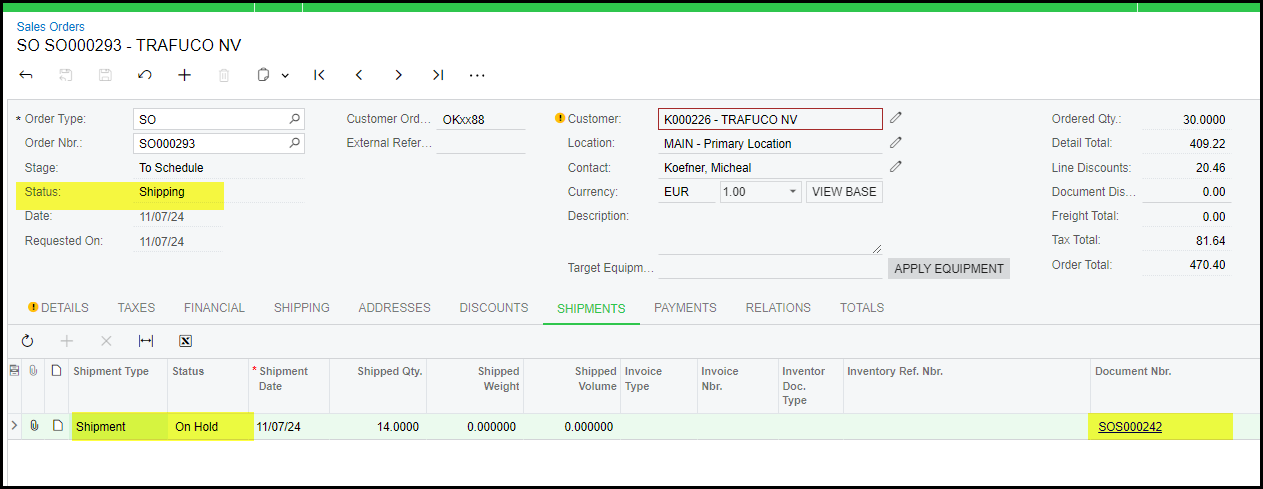
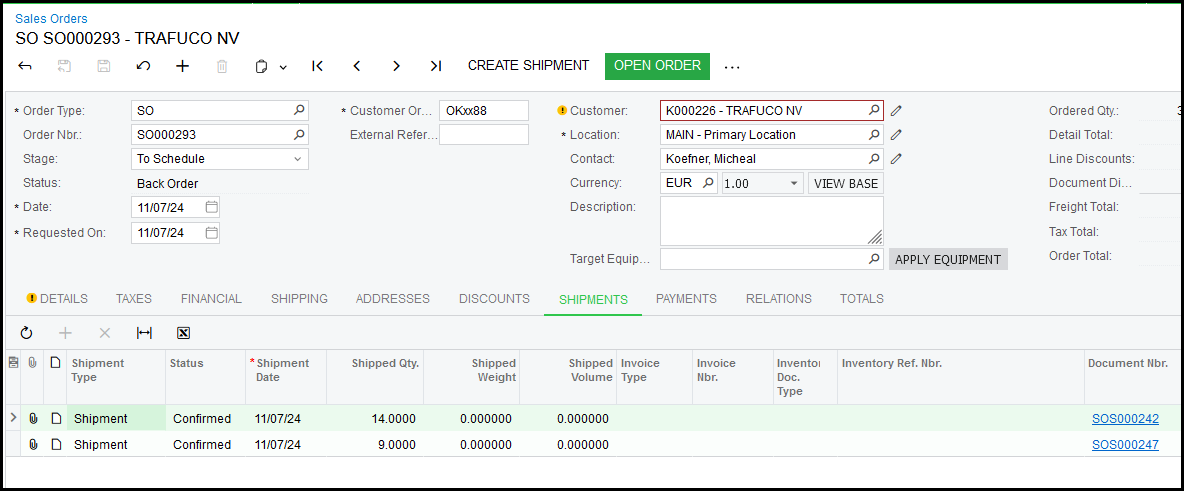
7. Under the shipments tab you can see the details on the shipment.
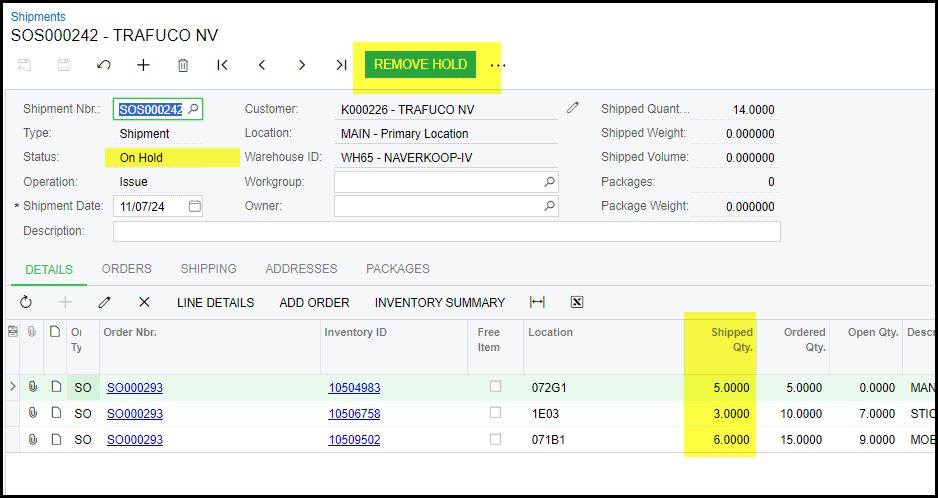
Click on remove hold on the shipment. Now ready for stores to pick the parts.
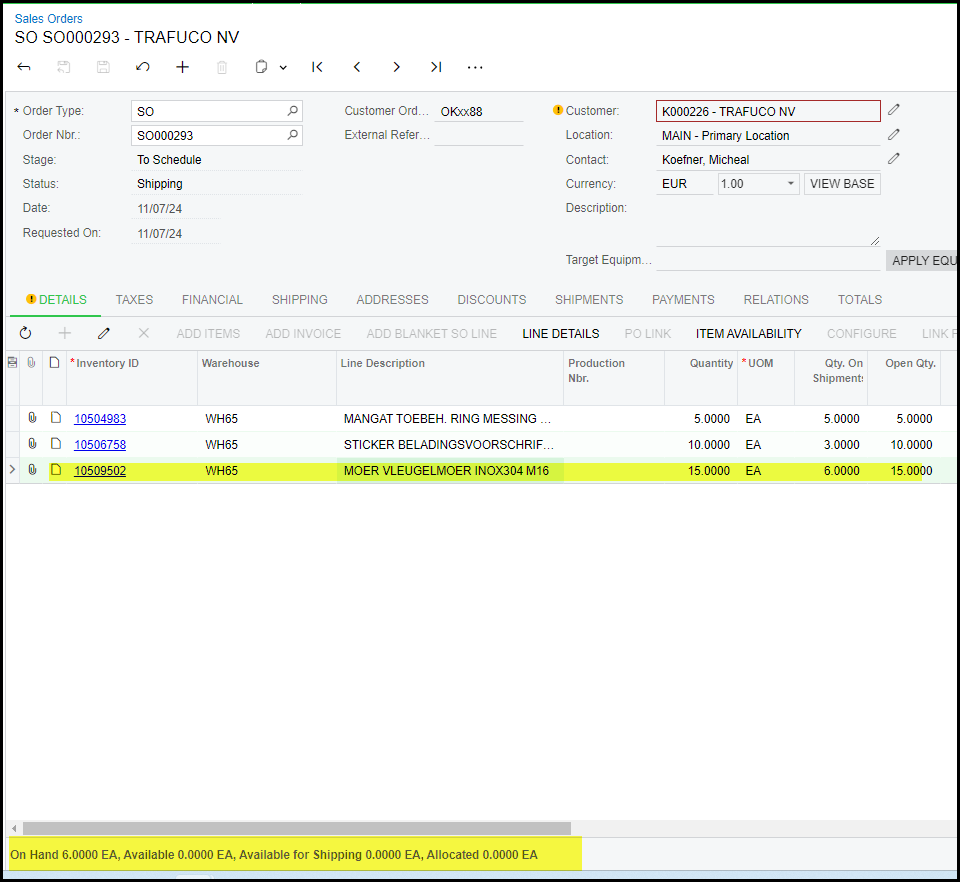
8. See the quantity available for 10509502 is 0.
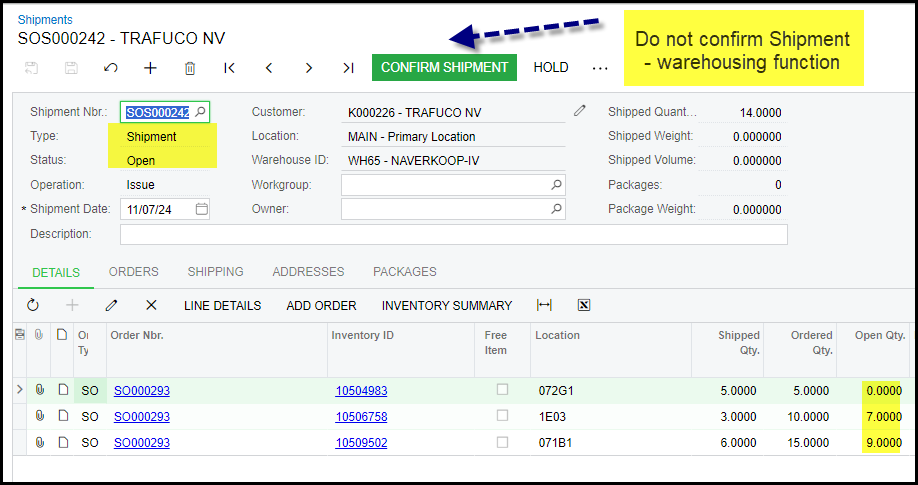
9. The sales order status is 'shipping' and the Shipment is On Hold, Remove Hold - The Status op the Shipment is OPEN - Warehousing
Warehousing can print the pick list.
Only warehouse people will confirm the shipment once they collected the parts in the store.
(The shipment training on different manual).
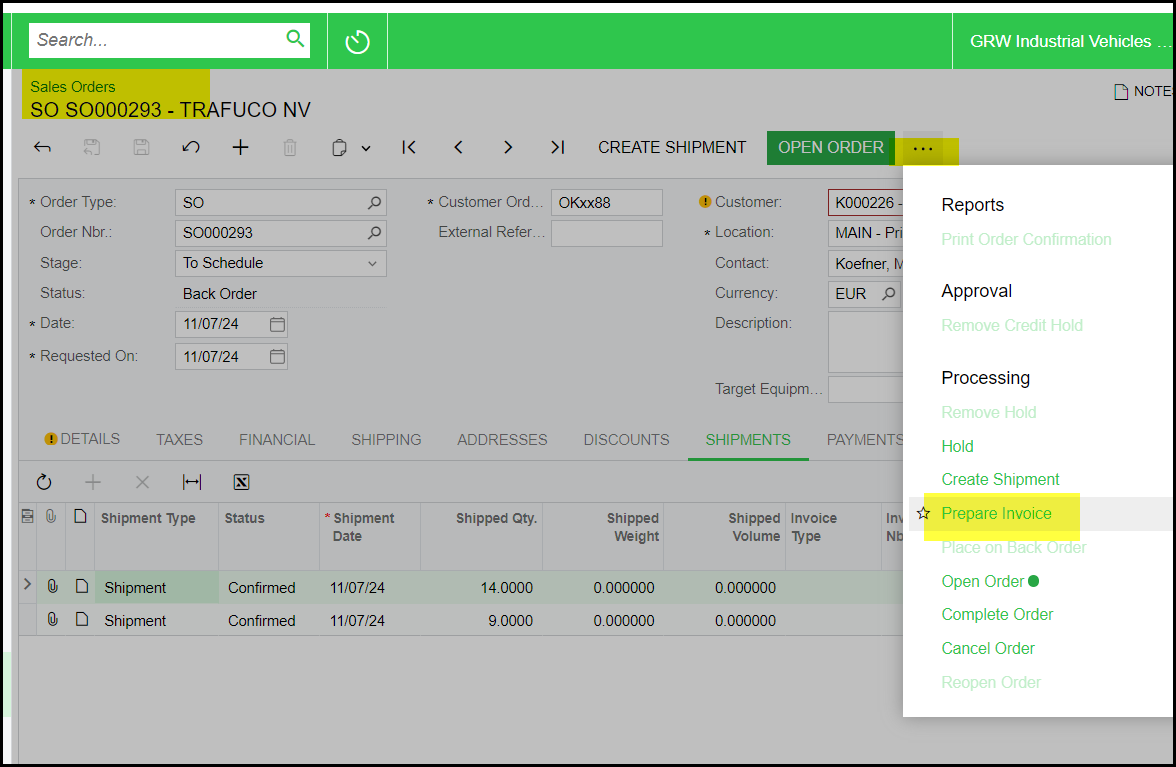
10. Once your Sales order is confirmed. You can prepare invoice.
Prepare invoice
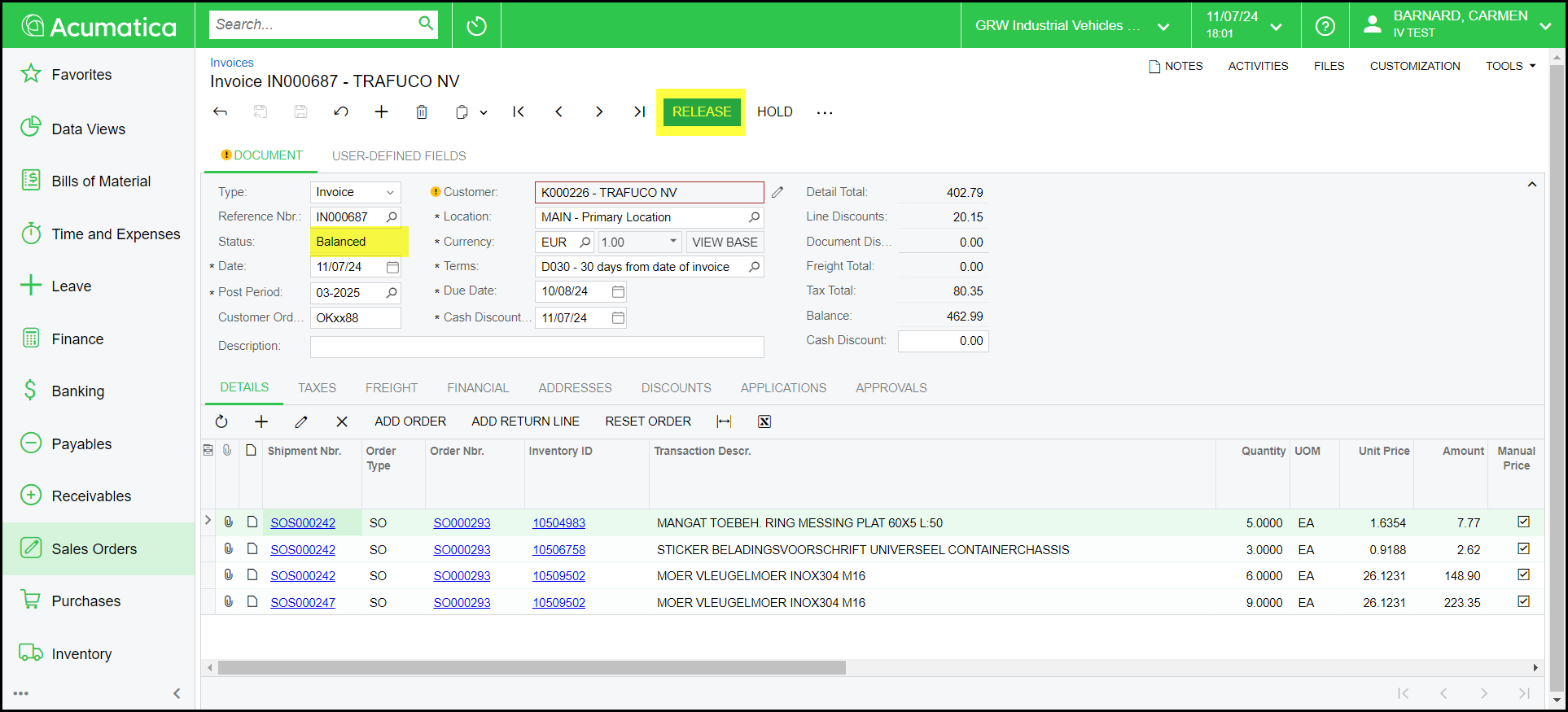
Your invoice status is 'balanced' - release your invoice.
The status will change to 'open'
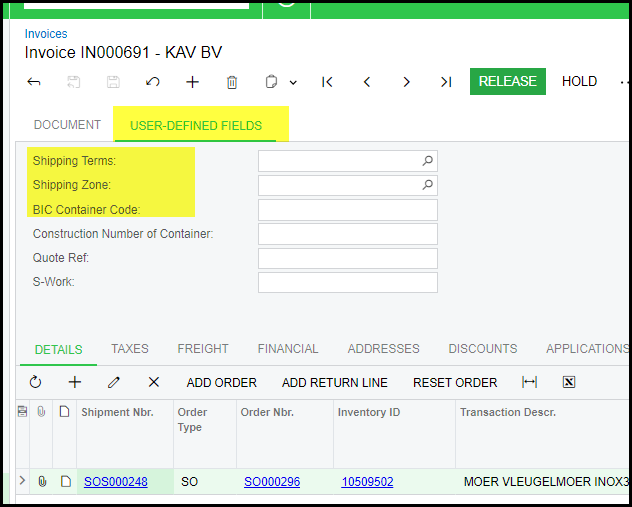
Click on User-Defined Fields and complete the info.
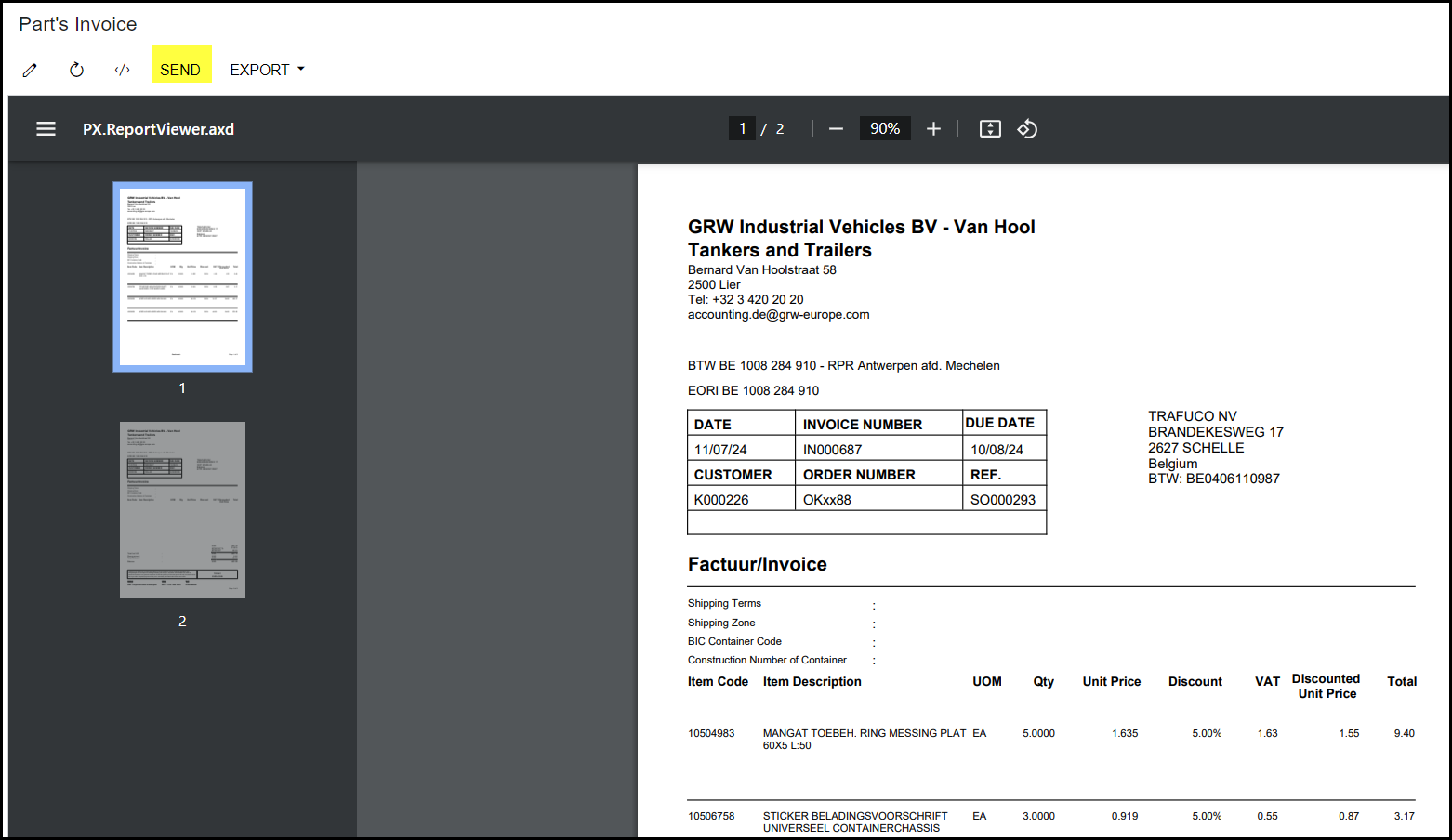
11. Print your 'Part's Invoice' and 'Delivery Notes' if necessary.
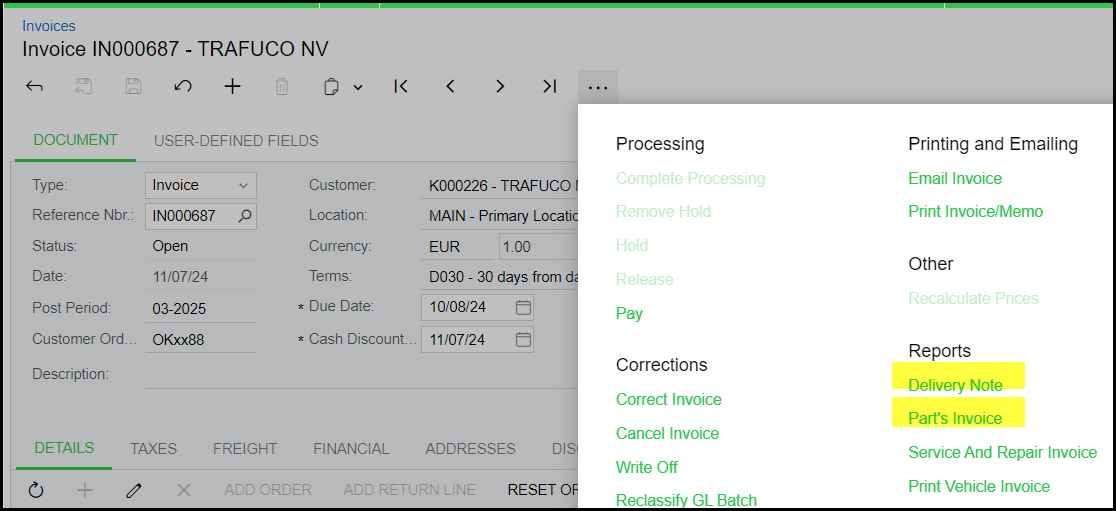
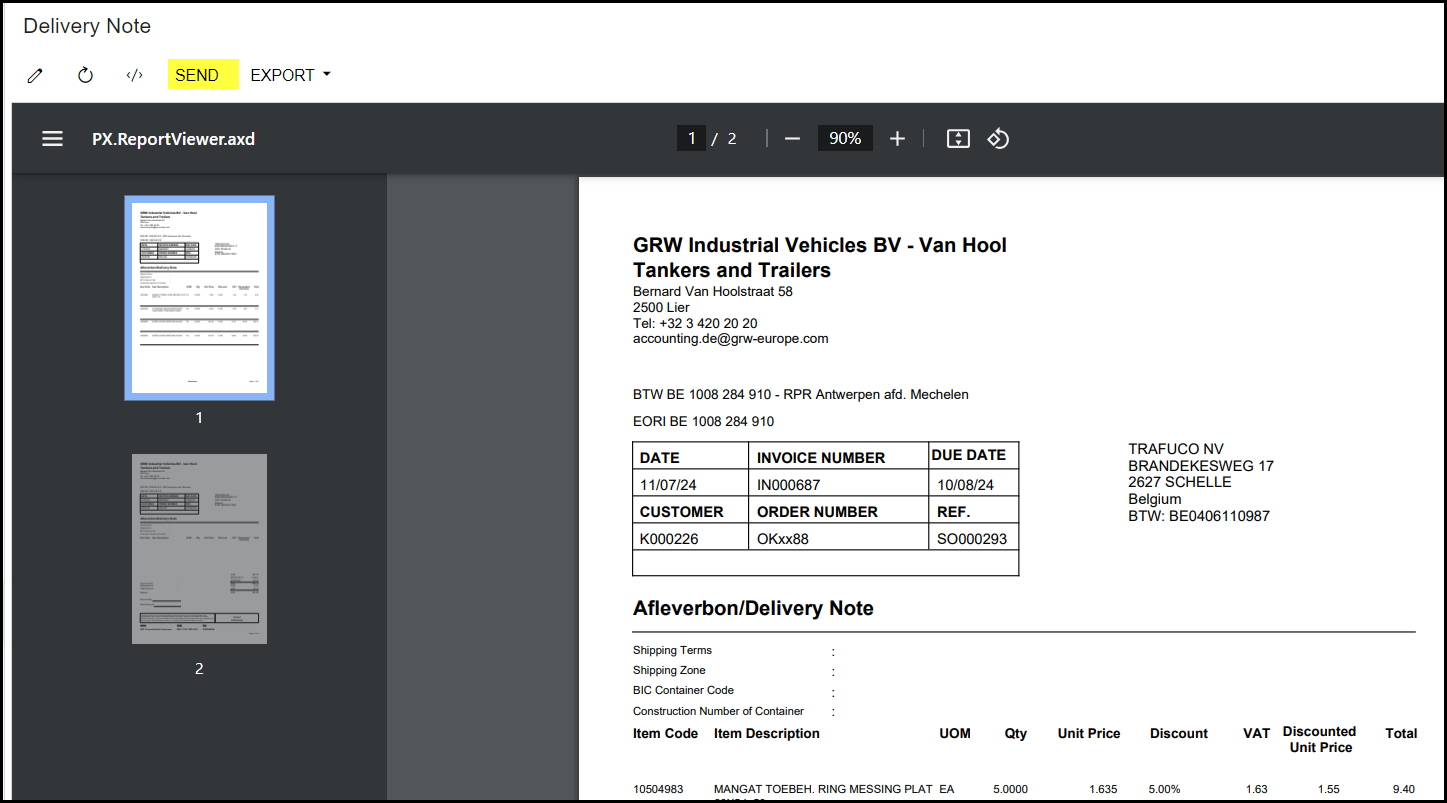
12. The Delivery Note
13. The Part's Invoice
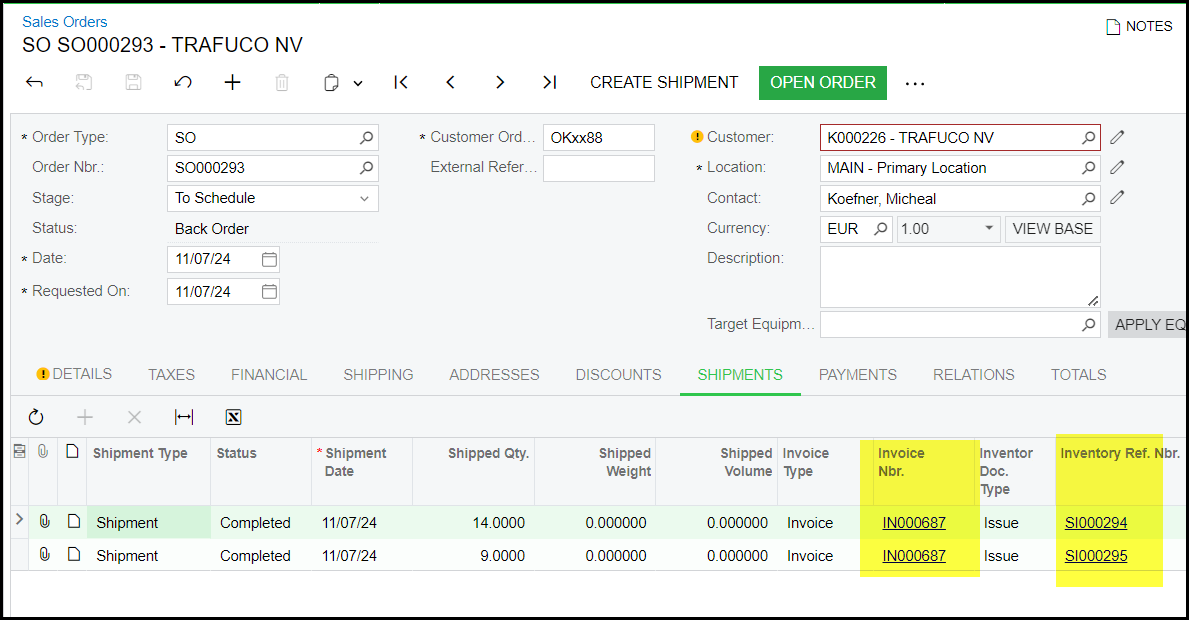
14. To see the details of your transactions go to shipments on the SO.
Created with the Personal Edition of HelpNDoc: Transform Your CHM Help File Creation Process with HelpNDoc