Dashboard
Dashboards for Picking
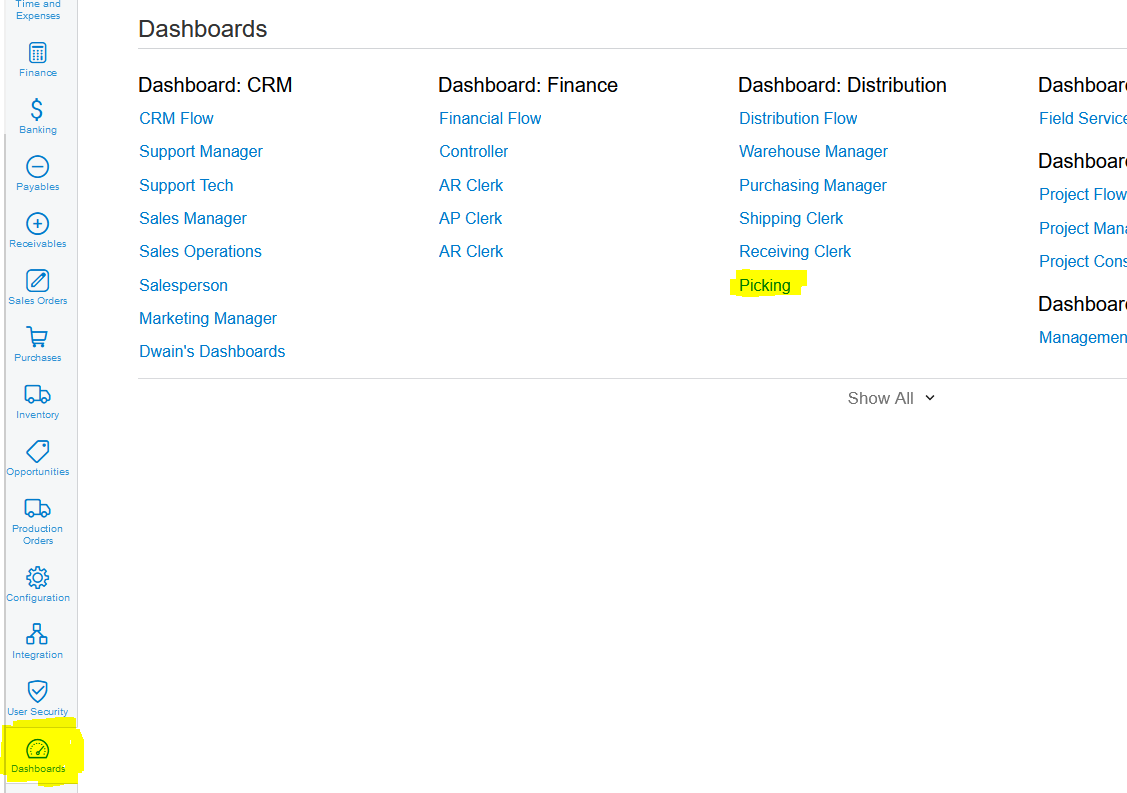
1. Click on Dashboards>>>Dashboard: Distribution>>>Picking:
2. "EXPEDITOR PICK LOAD" Dashboard gives you a view of all the Expeditors and how many Pickingslip Lines are Allocated to each Expeditor and Picked per Expeditor:
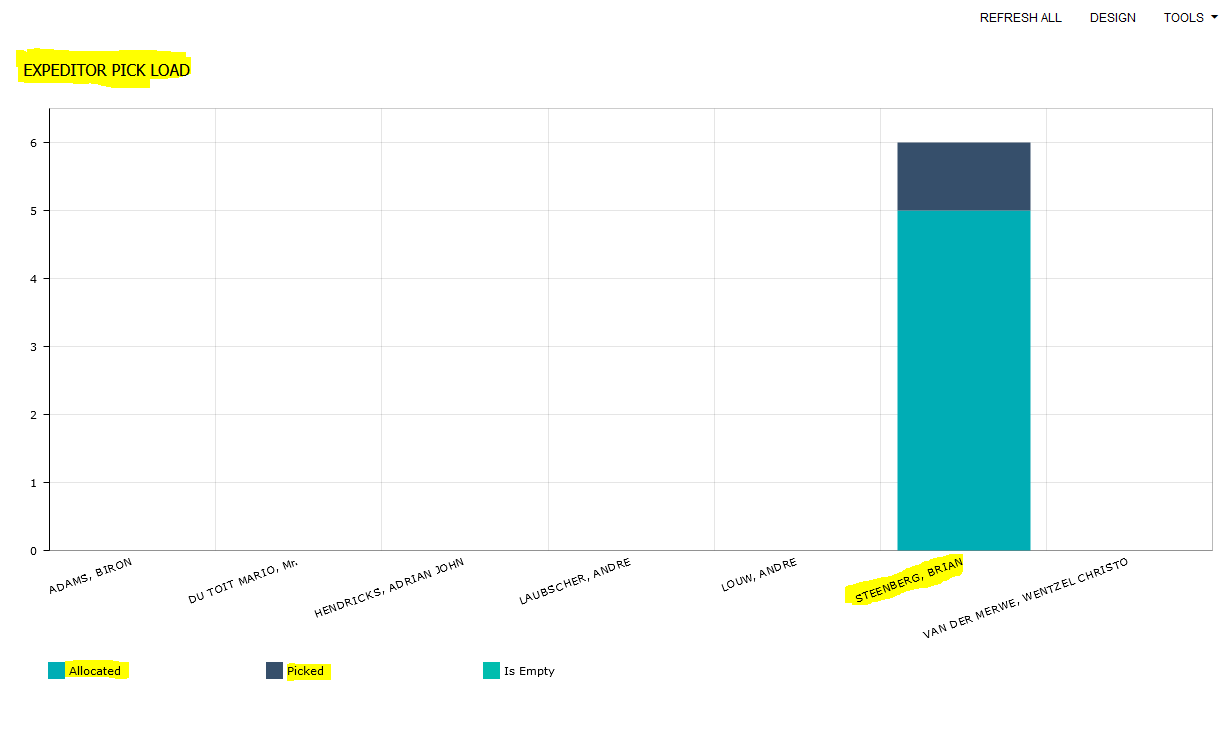
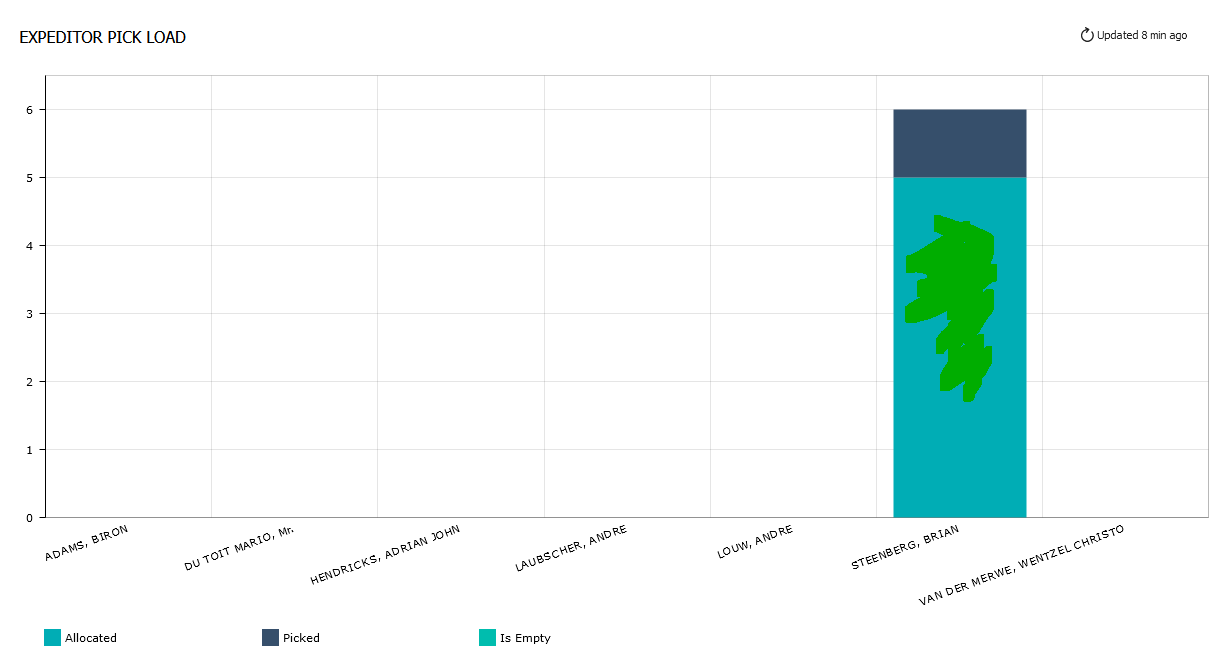
2. If you need to see the detail, you can click on any of the two colors for a specific Expeditor:
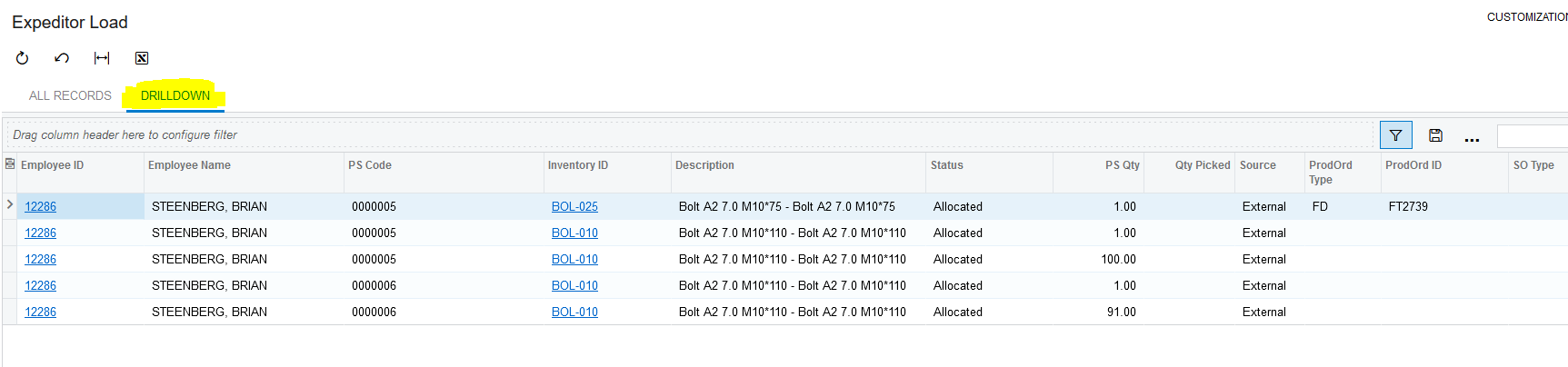
2. This will open the Drilldown view:
3. "UNALLOCATED ITEMS" Dashboard gives you a view of all the Warehouses, as well as all the Unallocated Pickingslip Lines. This Dashboard also gives you the ability to Allocate the Unallocated Pickingslip Lines to a specific Expeditor:
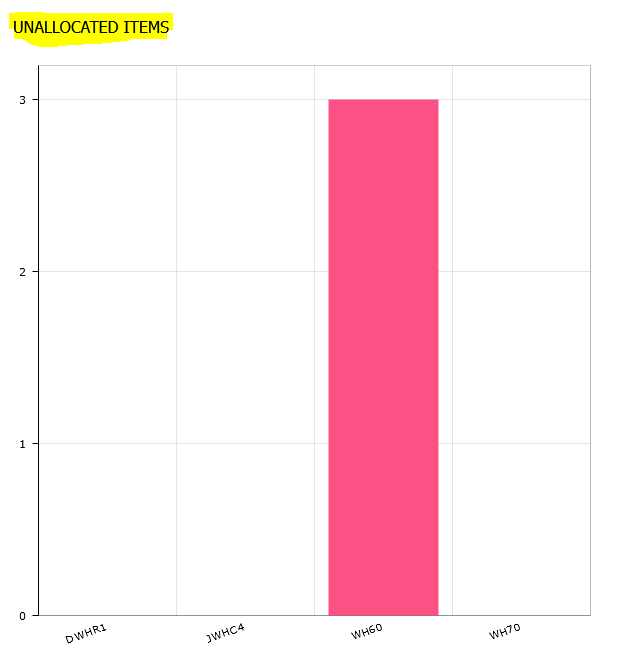
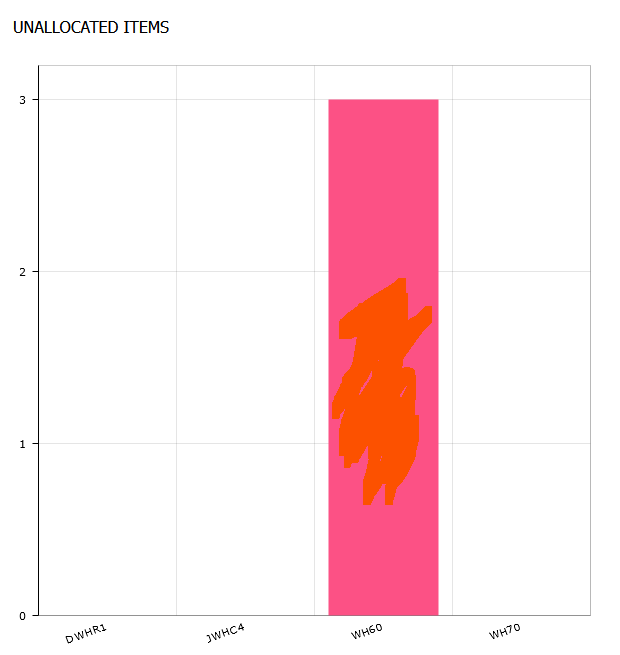
4. If you need to allocate a specific Warehouse's Pickingslip Lines to a specific Expeditor you can click on the Bar for the specific Warehouse:
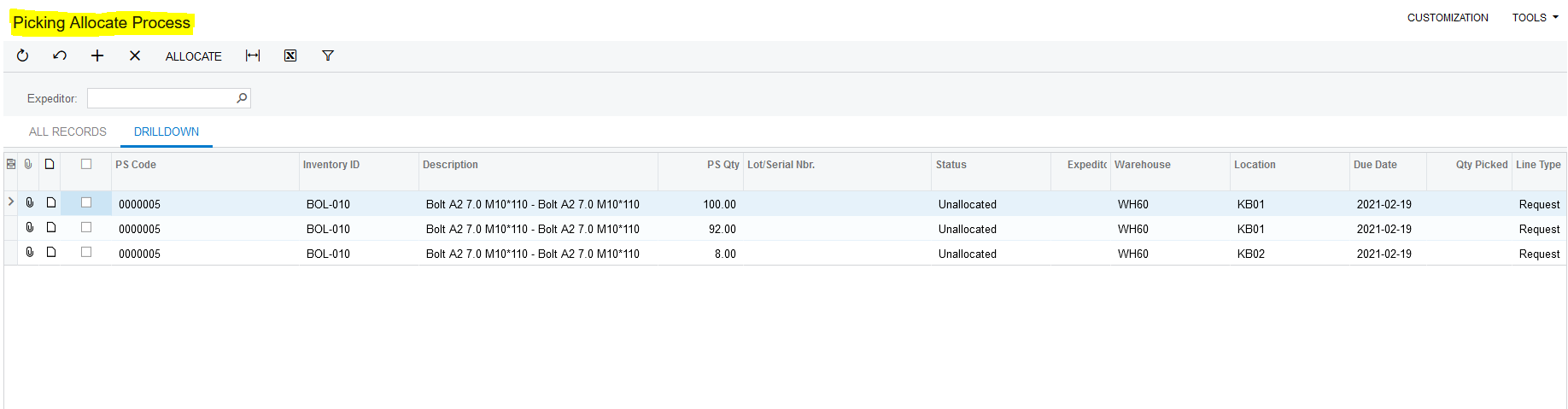
5. This will open the "Picking Allocate Process" screen:
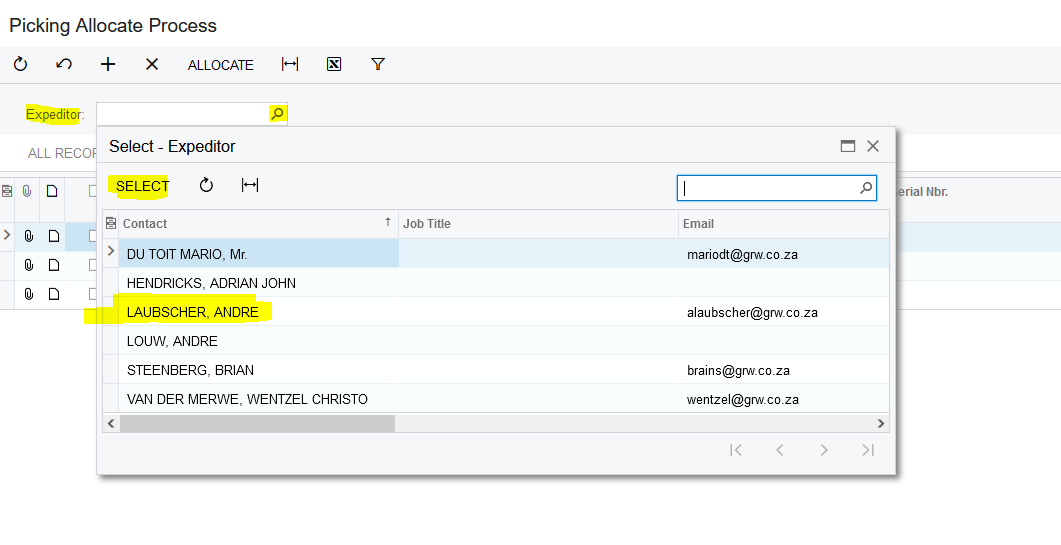
6. Select the Expeditor on the "Expeditor" field:
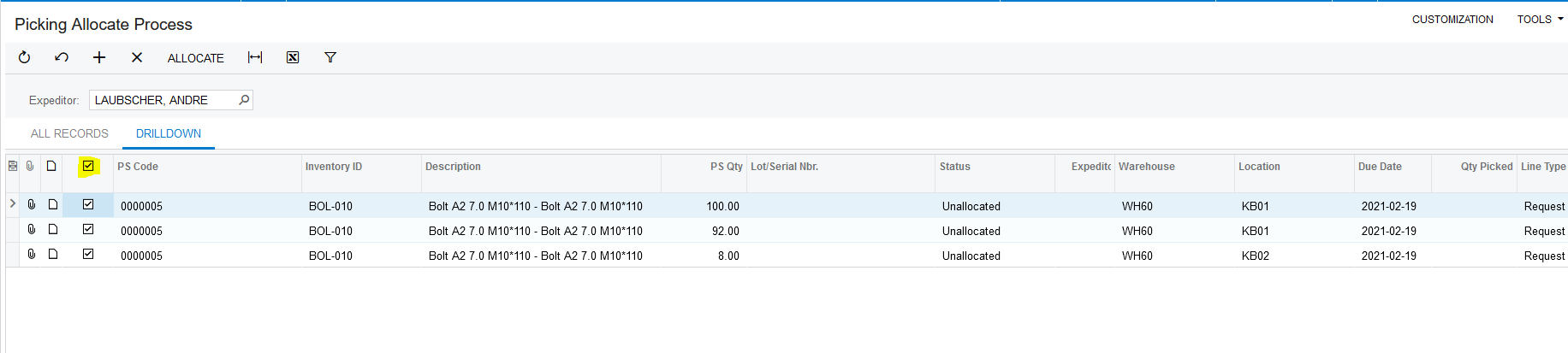
7. Select the relevant Pickingslip Lines you want to Allocate to the specific Expeditor, or "Select All" in front of the "PS Code" column if your are assigning all the Lines to the specific Expeditor:
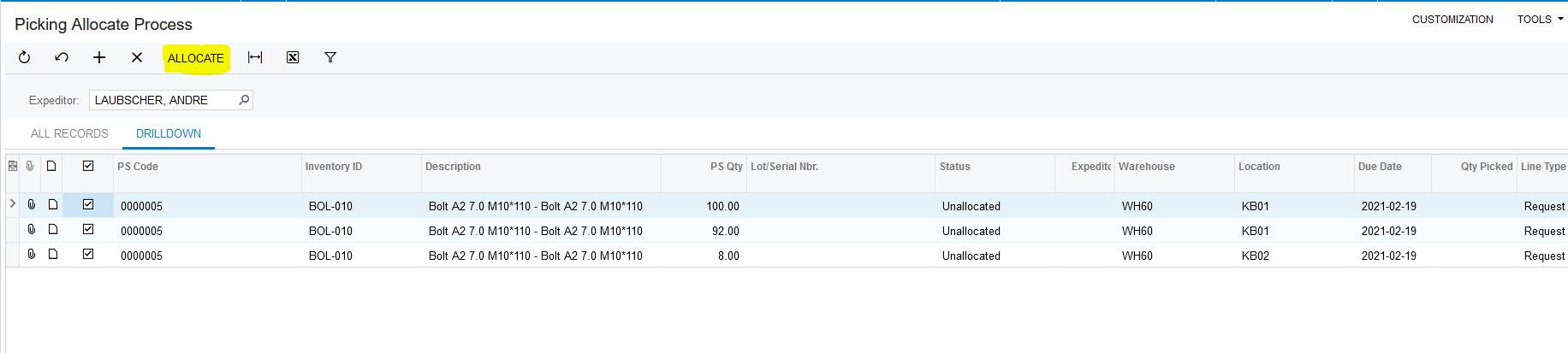
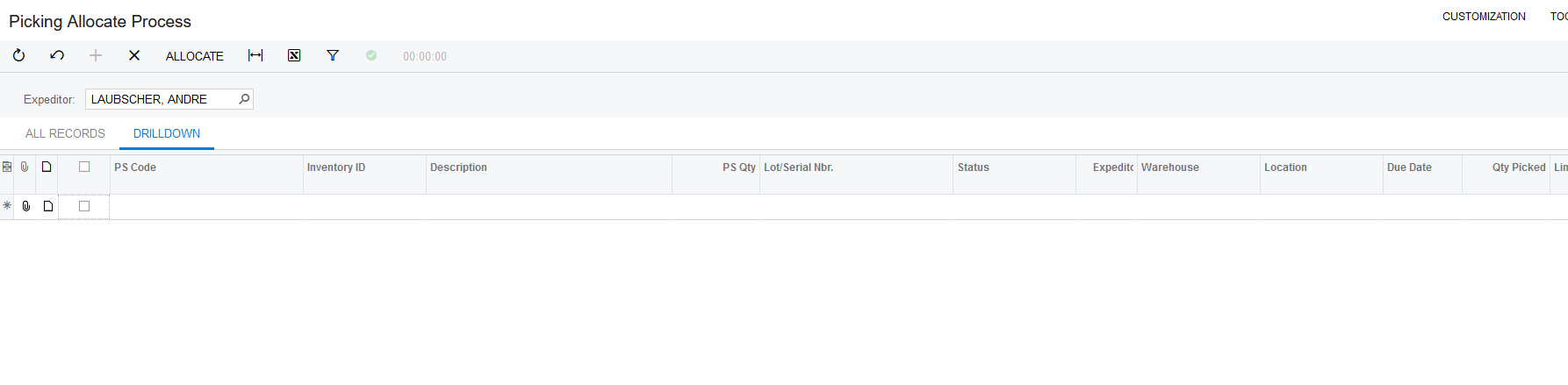
8. Once you have made your selections you can click on "ALLOCATE":
Created with the Personal Edition of HelpNDoc: Effortlessly Publish Your Word Document as an eBook