Creating/Managing Pickingslips
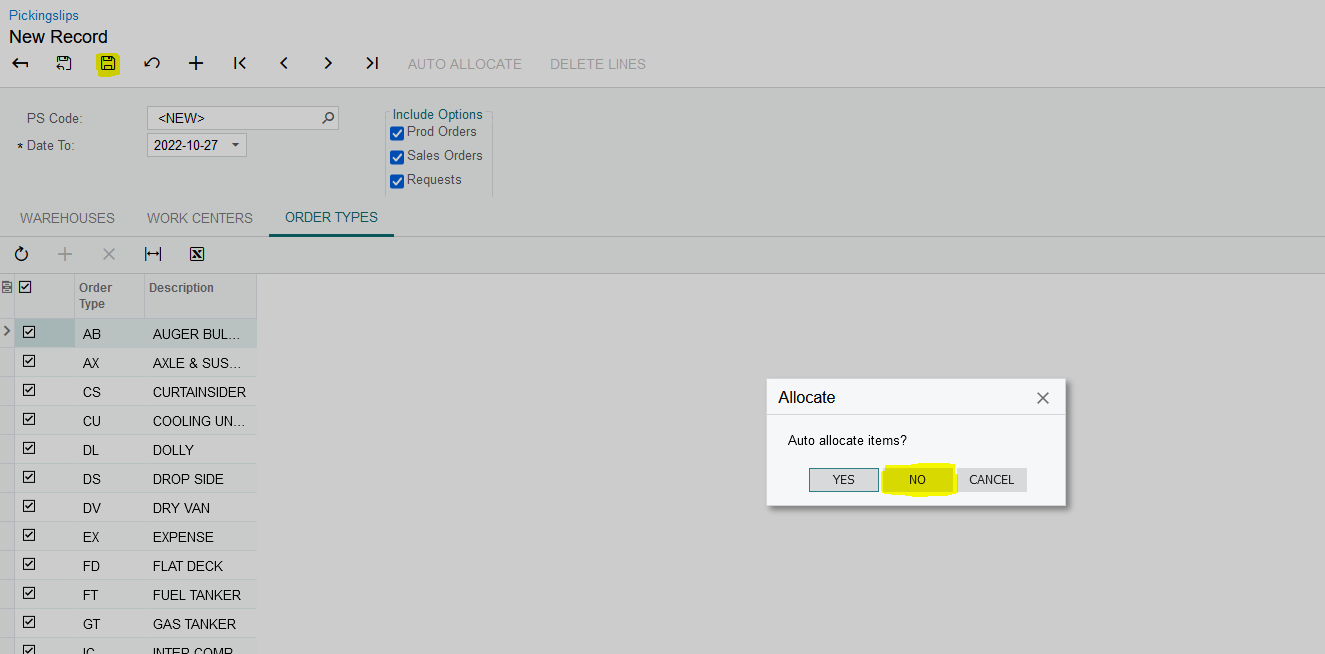
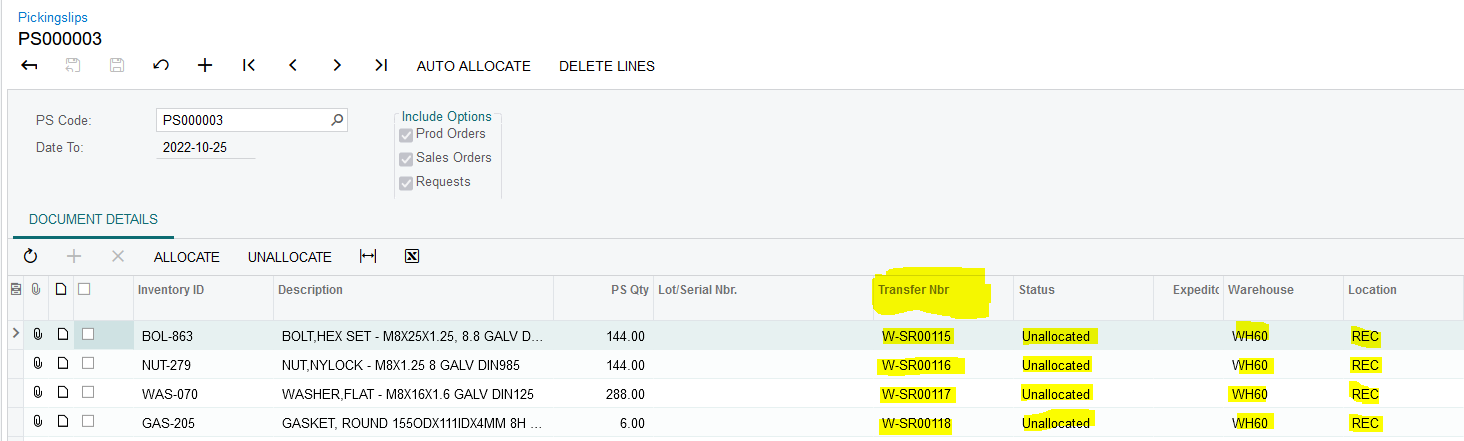
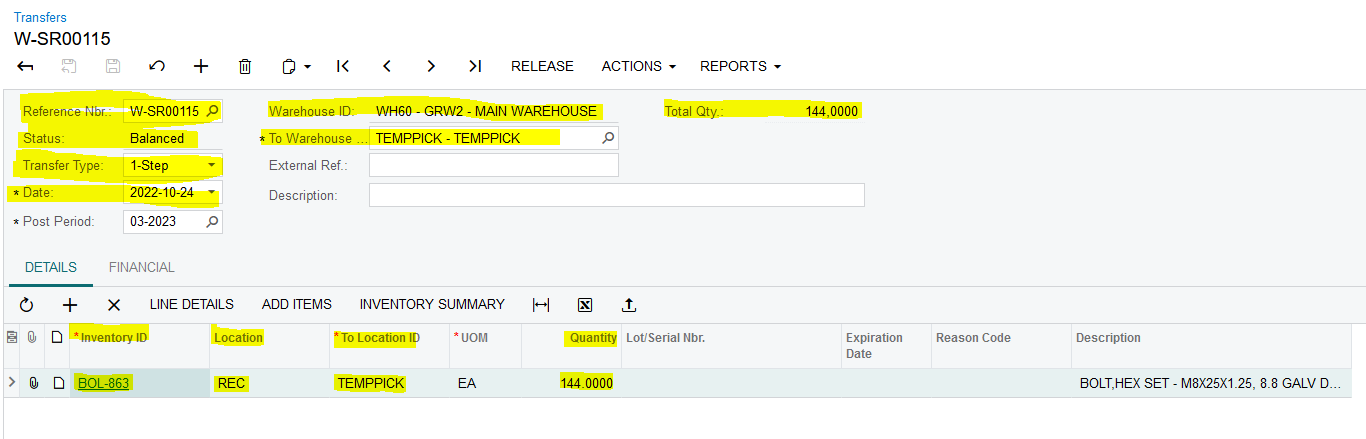
1. Once a new Pickingslip is generated and the End User selects "NO" on the Dialog Box and clicks on "Save" the status is "Unallocated" for all the lines on the Pickingslip and a Balanced One Step Transfer is created in Acumatica using today's date. To see the Transfer that was generated you will see the generated Transfer Number in the "Transfer Nbr" field. One transfer per Pickingslip Line gets generated in the Warehouse and Location as specified on the specific Pickingslip Line, with the To Warehouse as "TEMPPICK" and the To Location as "TEMPPICK". If the "TEMPPICK" Warehouse and Location doesn't exist it will be created via the Code:
2. If the End User clicks on the "AUTO ALLOCATE" Action all the "Unallocated" Lines on the Pickingslip gets Allocated as per the setup done on the "Picking Allocation Matrix":
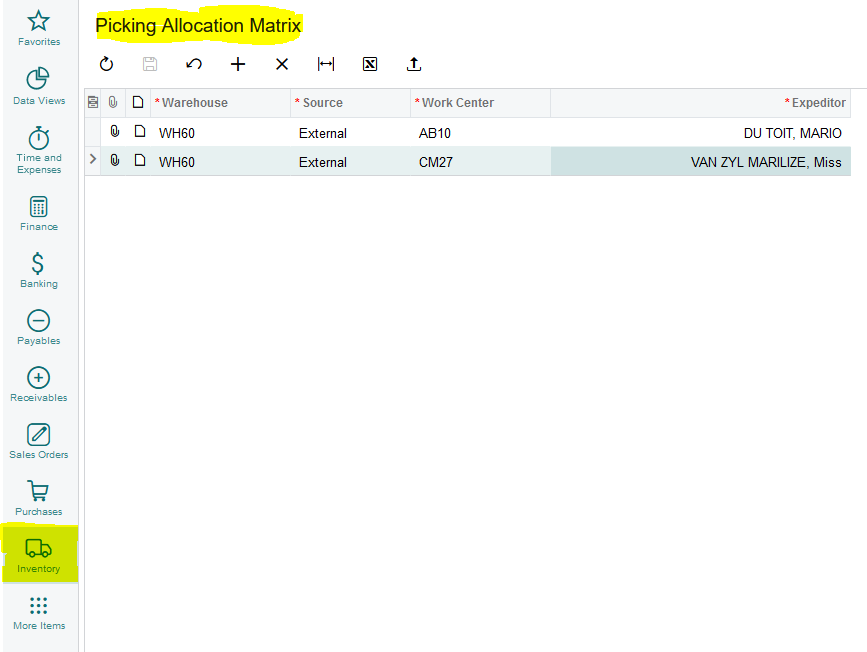
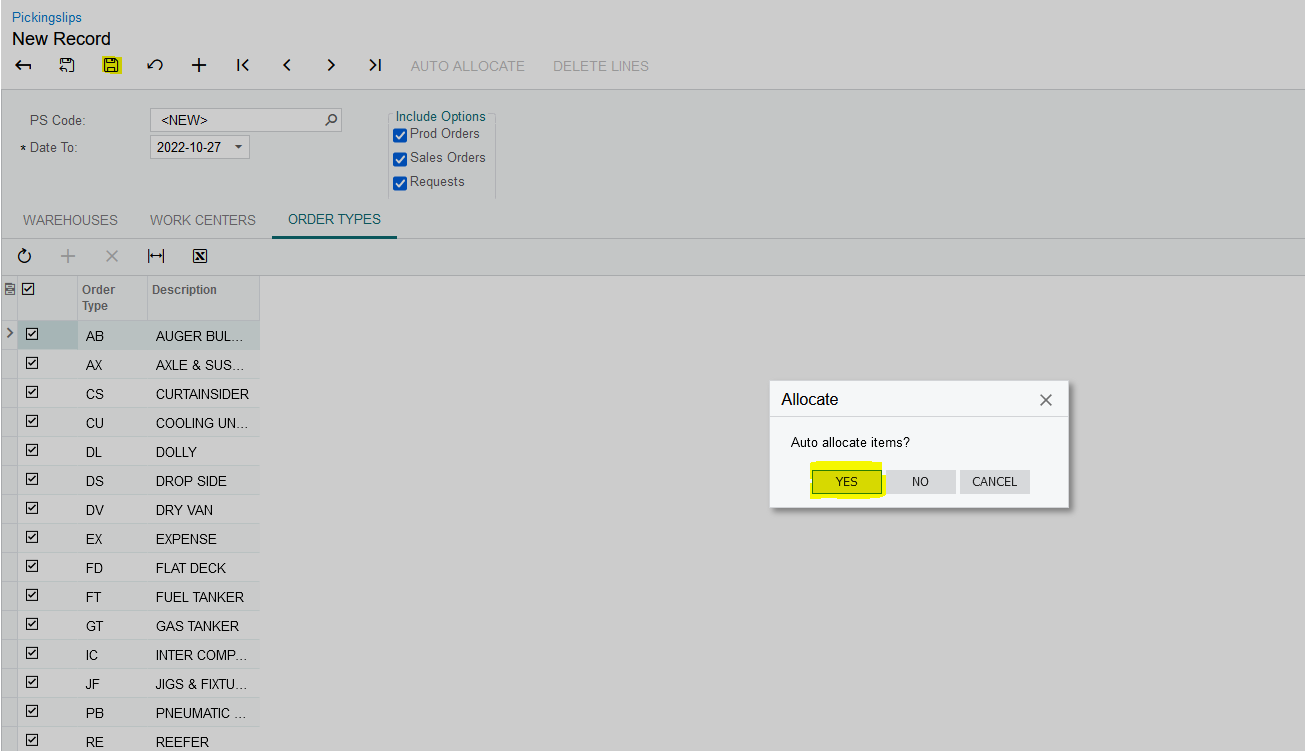
3. Once a new Pickingslip is generated and the End User selects "YES" on the Dialog Box and clicks on "Save" the status is "Allocated" for all the lines on the Pickingslip and a Balanced One Step Transfer is created in Acumatica using today's date. To see the Transfer that was generated you will see the generated Transfer Number in the "Transfer Nbr" field. One transfer per Pickingslip Line gets generated in the Warehouse and Location as specified on the specific Pickingslip Line, with the To Warehouse as "TEMPPICK" and the To Location as "TEMPPICK". If the "TEMPPICK" Warehouse and Location doesn't exist it will be created via the Code. Allocation gets done as per the setup on the Picking Allocation Matrix:
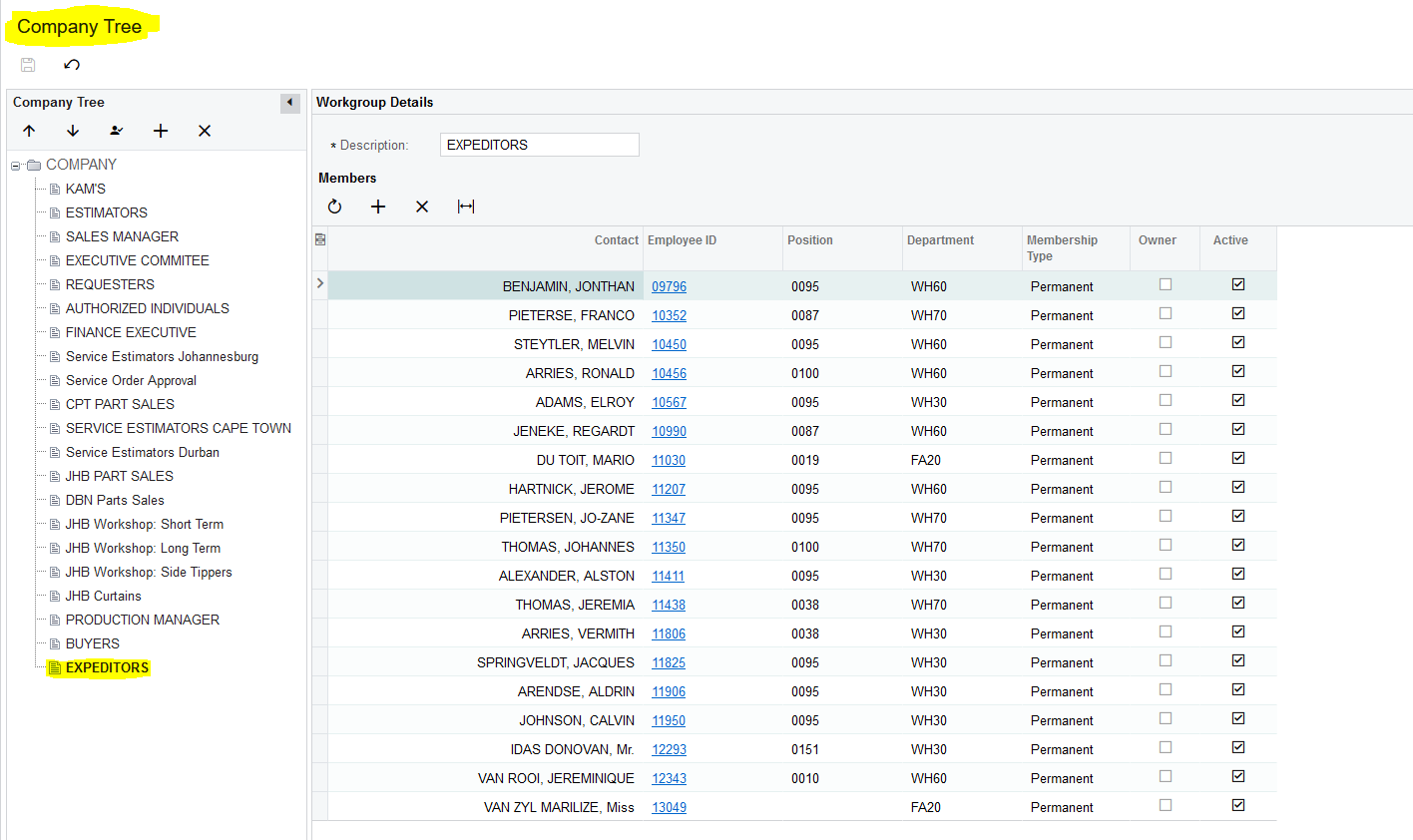
4. If the End User clicks on "ALLOCATE", a Smart Panel pops up with all the Employees that was loaded on the "EXPEDITORS" Company Tree:
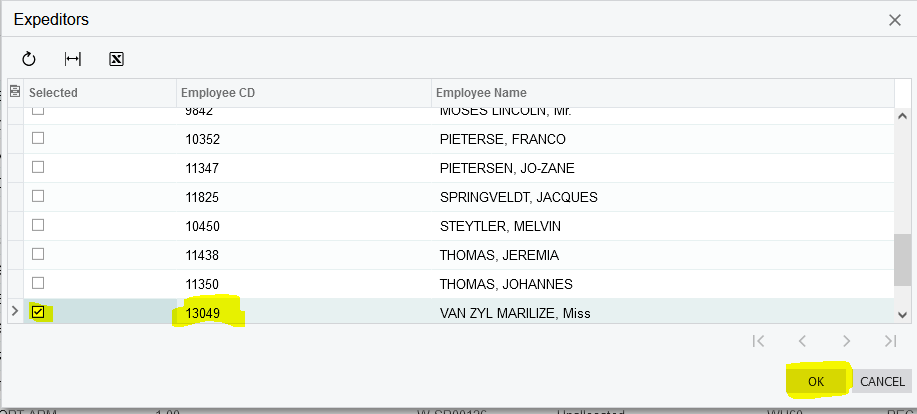
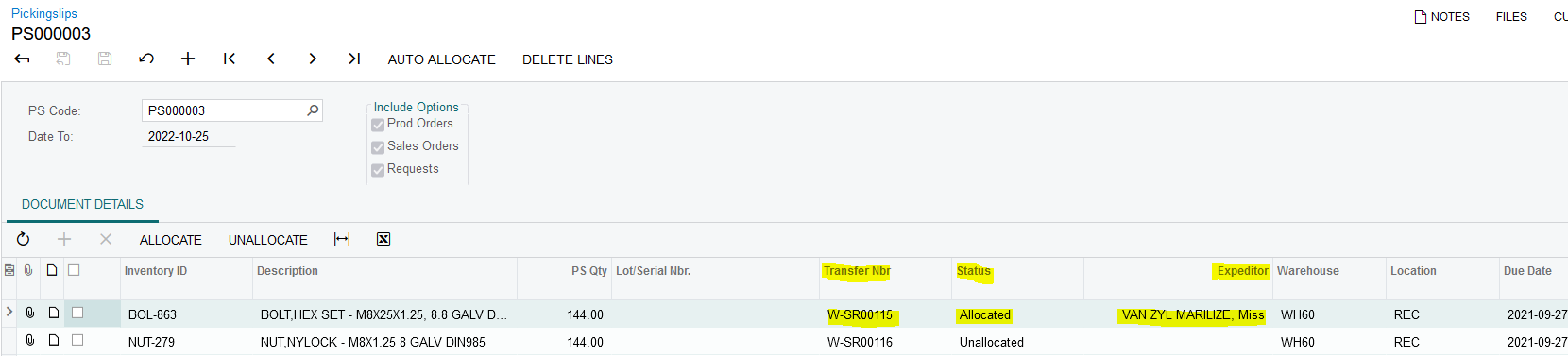
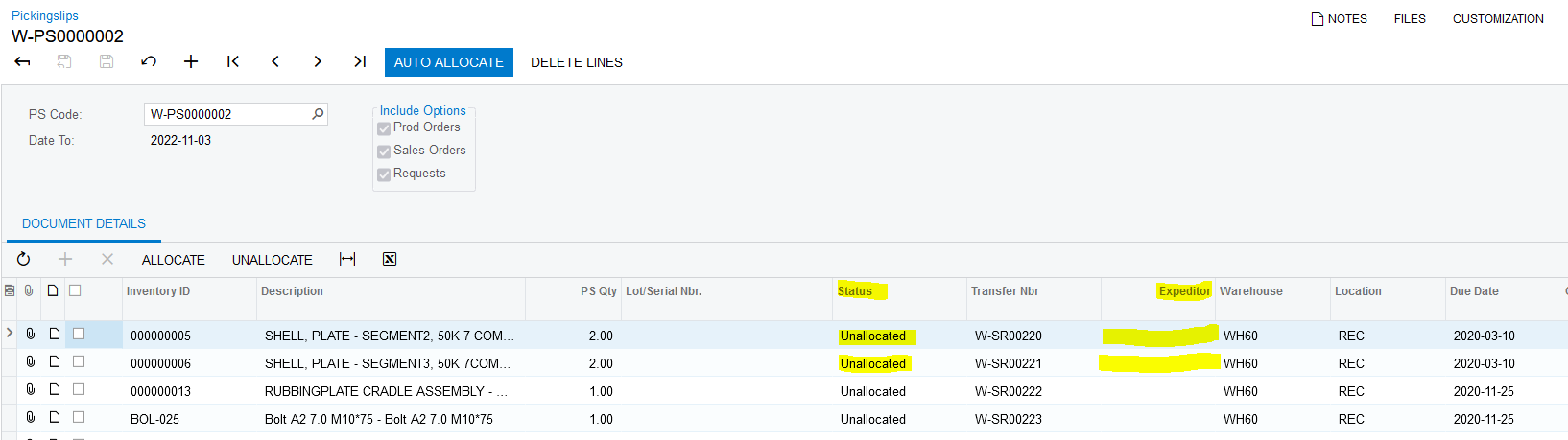
5. Once the End User selects a specific Expeditor and click on "OK" the selected Pickingslip Line gets the "Allocated" status and Expeditors name shows in the "Expeditor" field:
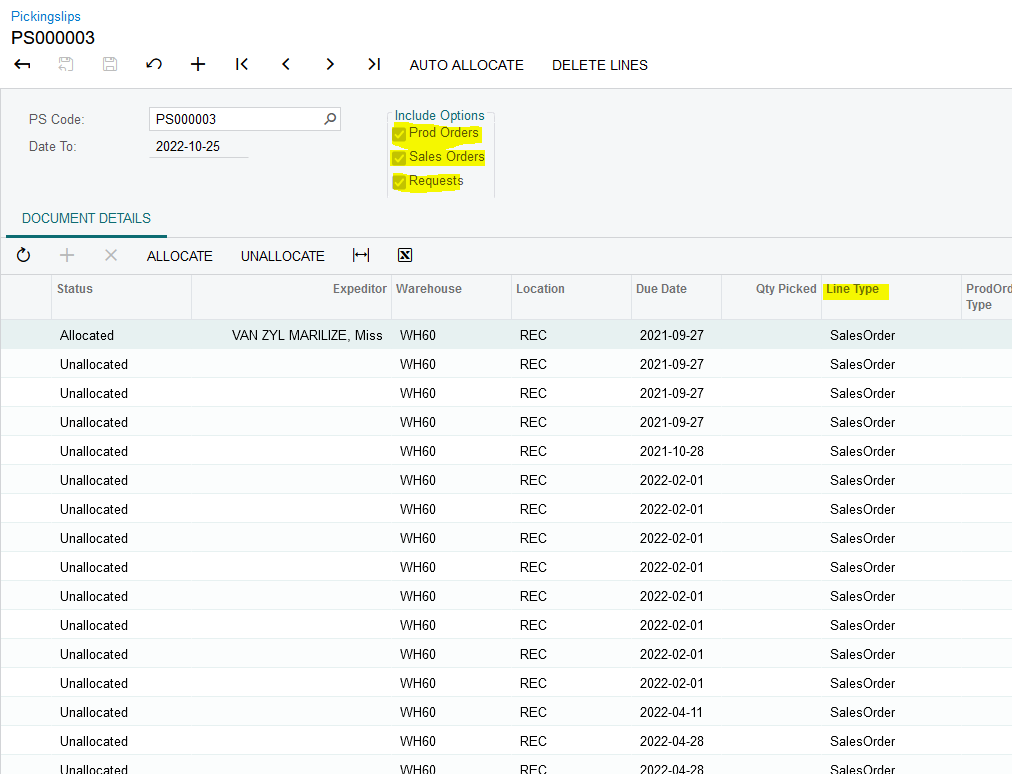
6. Based on the End User's selections on the "Include Options" it will generate Pickingslip Lines with the Line Types as per the relevant Selections:
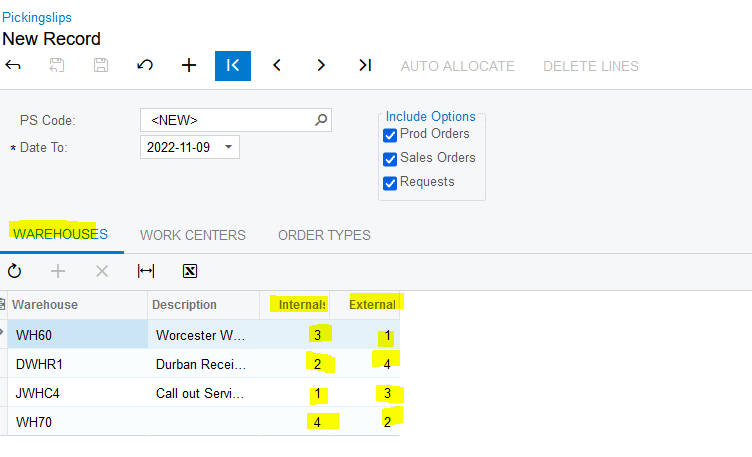
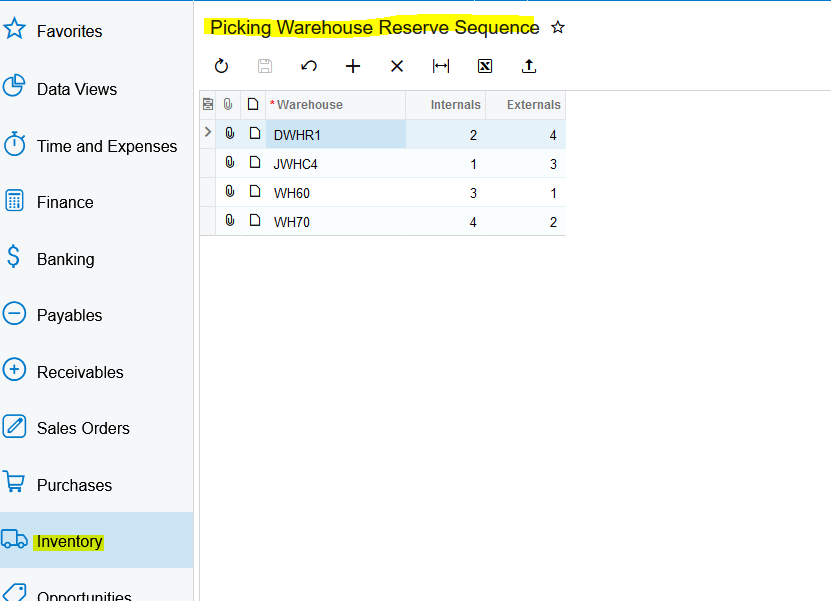
7. The Picking Order on the Warehouses tab can be changed on the fly by the End User, otherwise it will use the Order for the Warehouses for Picking as per the Setup on the "Picking Warehouse Reserve Sequence":
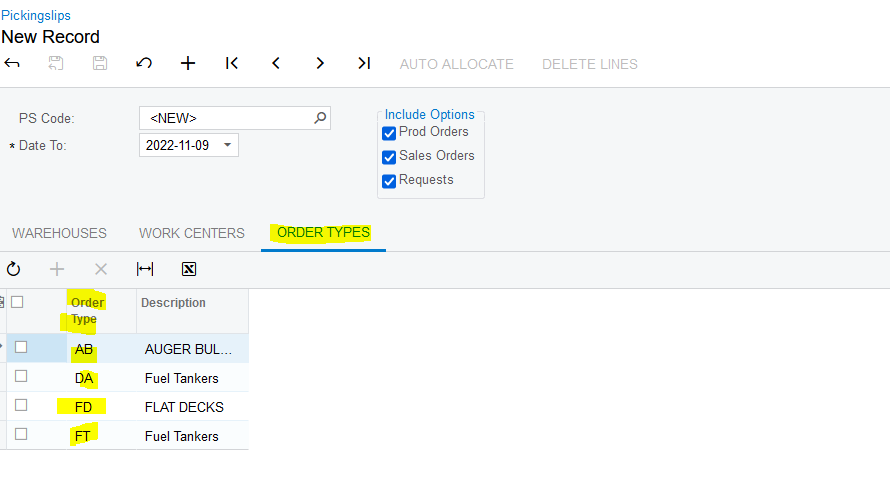
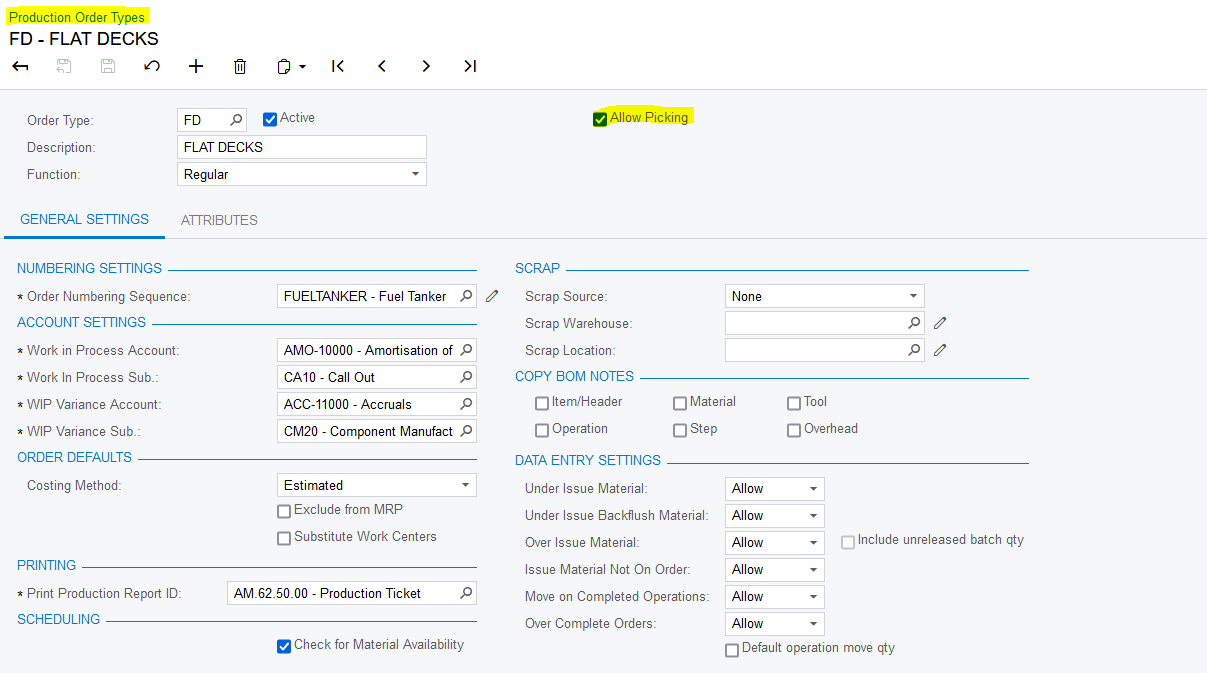
8. Only Order Types that have the "Allow Picking" Flag selected is available for Picking:
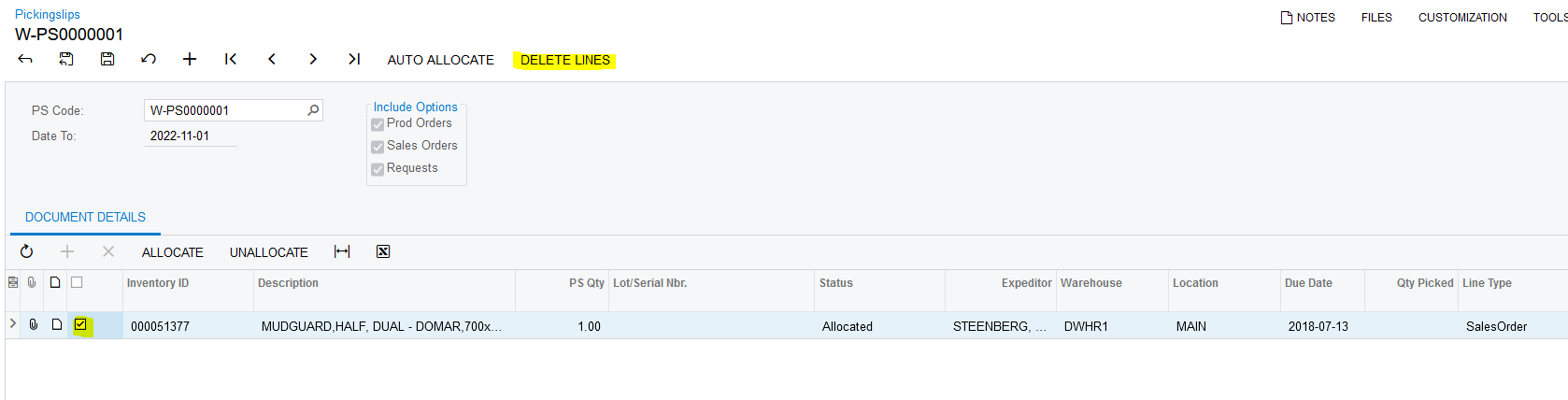
9. If the End User made a mistake on some of the Pickingslip Lines and want to Delete them, the End-User will select the relevant lines and click on the "DELETE LINES" Action. Only Pickingslip lines with the following statuses can be deleted "Unallocated", "Allocated" and "Picked". The Pickingslip Lines with the "Allocated" or "Unallocated" status the relevant Balanced Transfer linked to the line that was created will also be deleted. The Pickingslip Lines with the "Picked" status the relevant Released Transfer gets Reversed and Released as well:
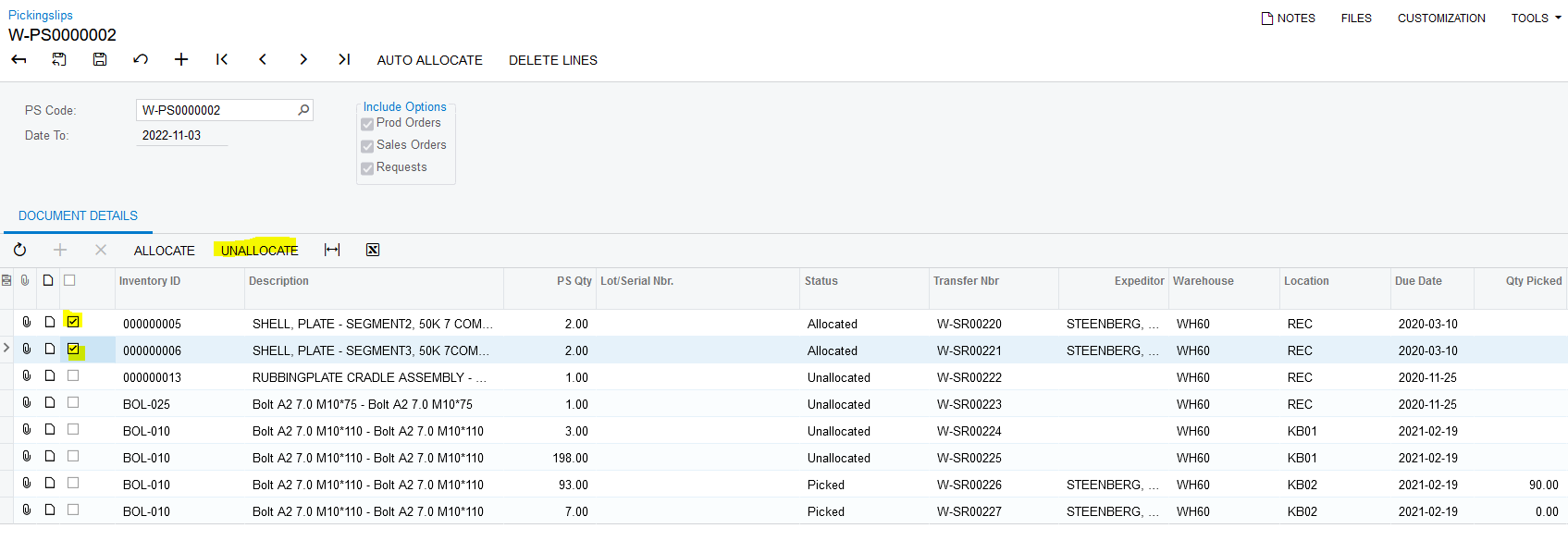
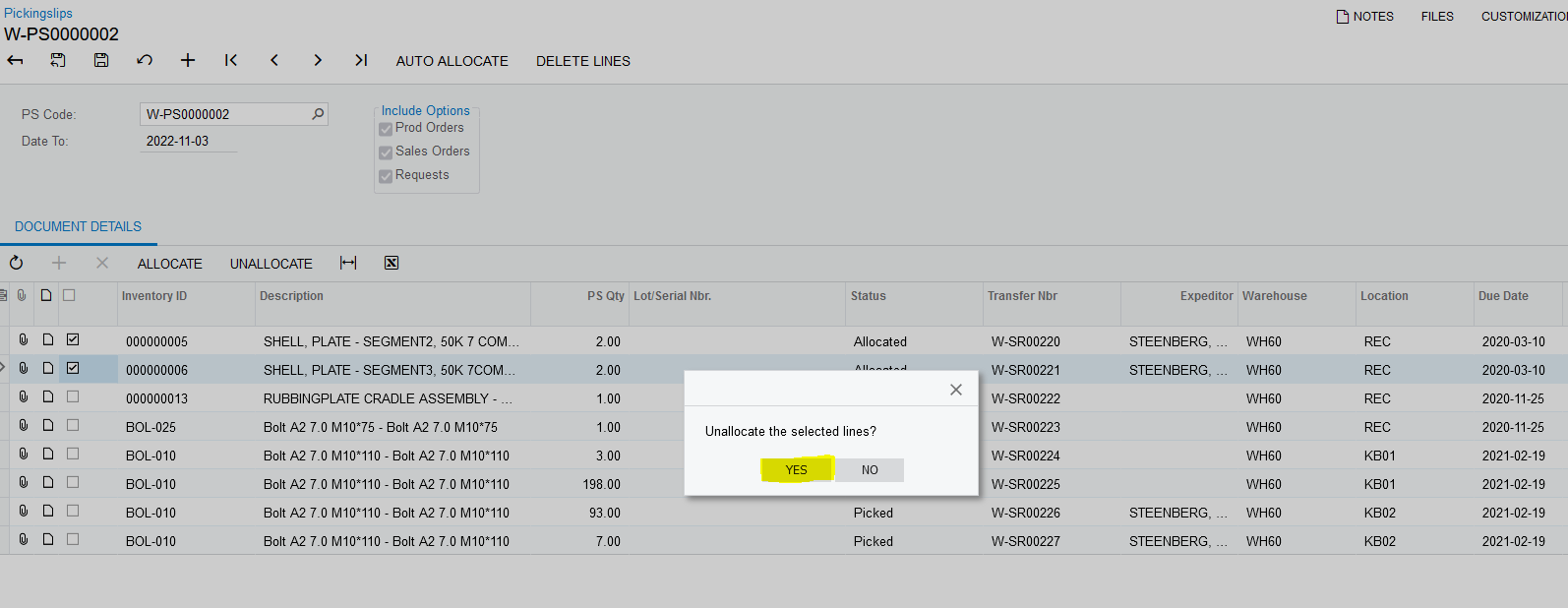
10. If the End User clicks on "UNALLOCATE" a Dialog Box Pops Up asking the End User to confirm if he wants to Unallocate the lines. The Pickingslip Lines that was selected the status changes back to "Unallocated" and the "Expeditor" gets removed. This also removes it on the specific Expeditors Picking screen:
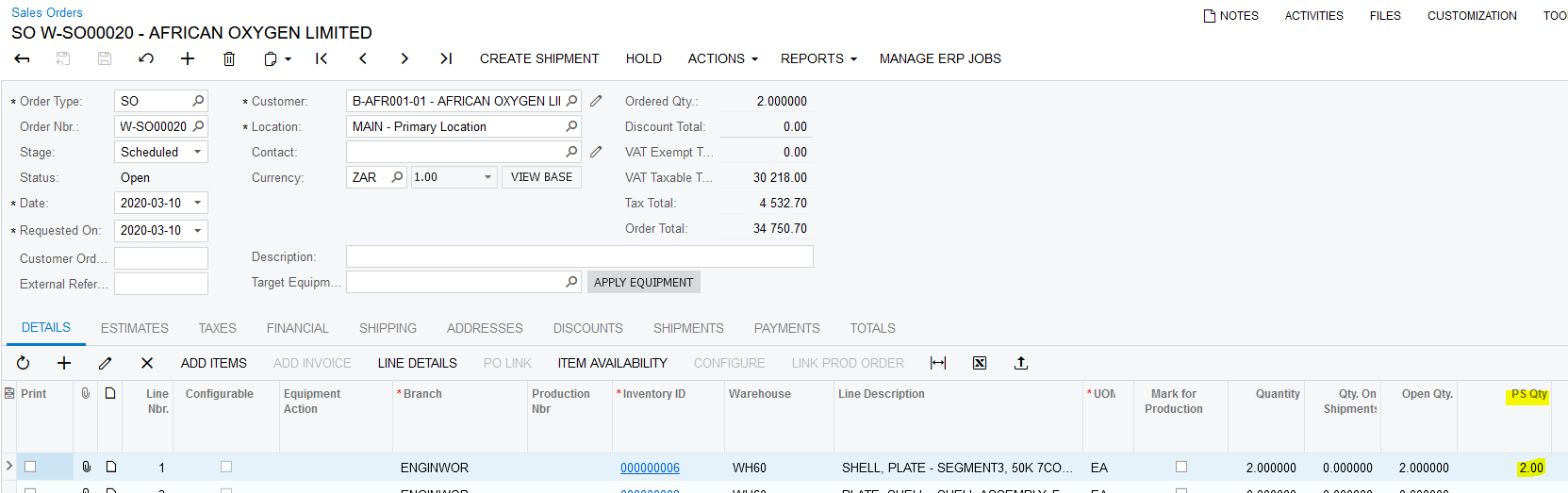
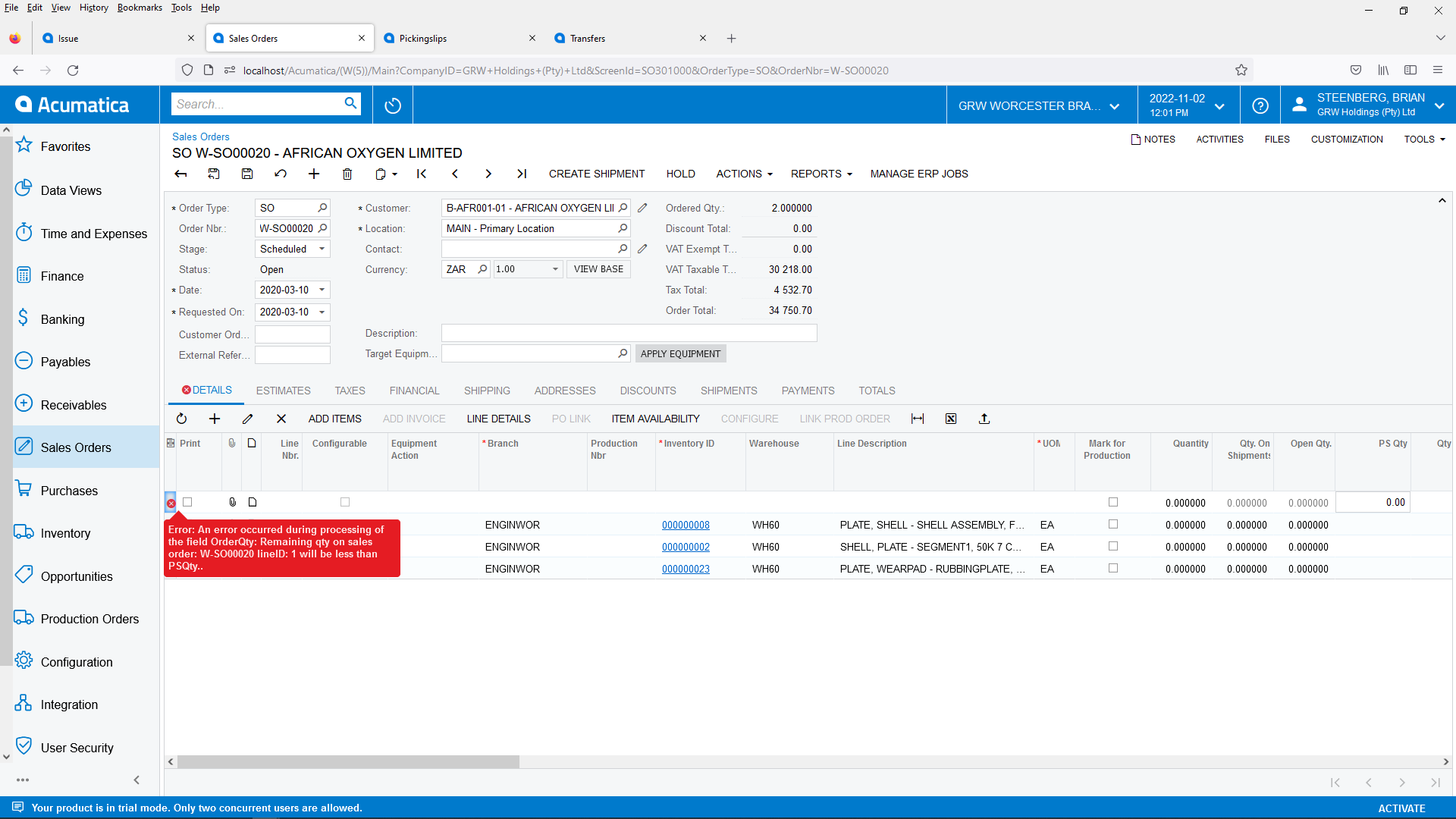
11. When a Pickingslip gets created and the Line Type is a "SalesOrder" the Sales Order that's linked to the relevant Pickingslip Line gets updated. The "PS Qty" field gets updated with the Quantity on the Pickingslip Line. There is also Validations built in so that End Users cannot amend the "Quantity" field to less than is specified on the "PS Qty" field:
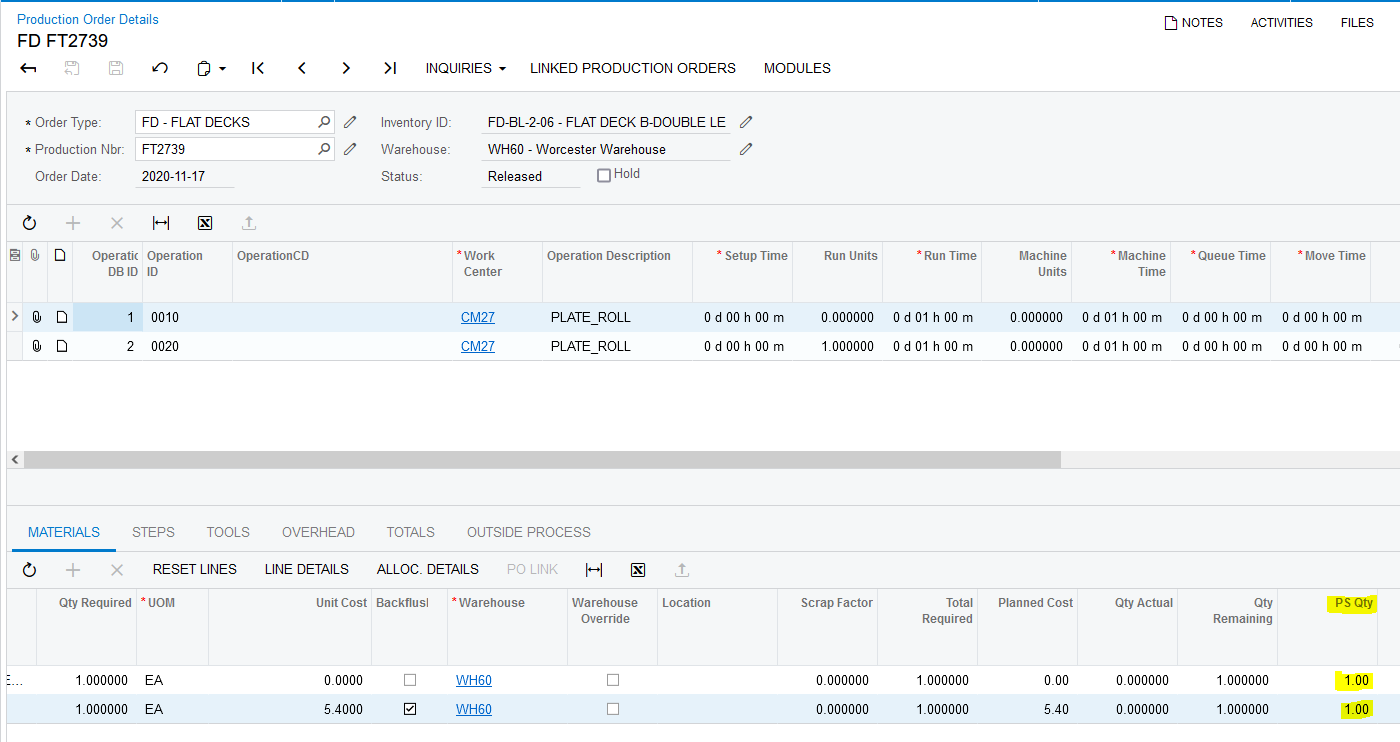
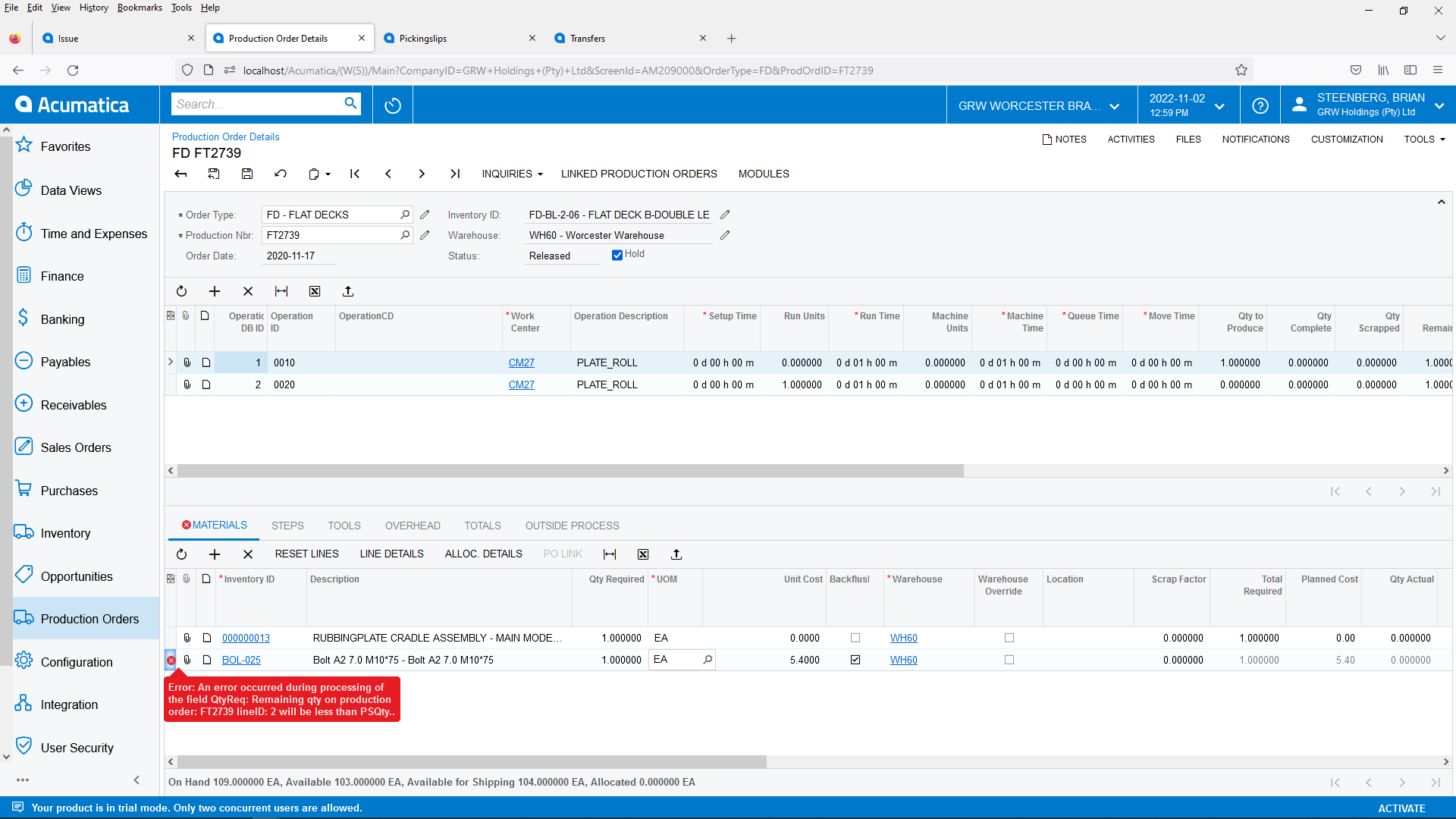
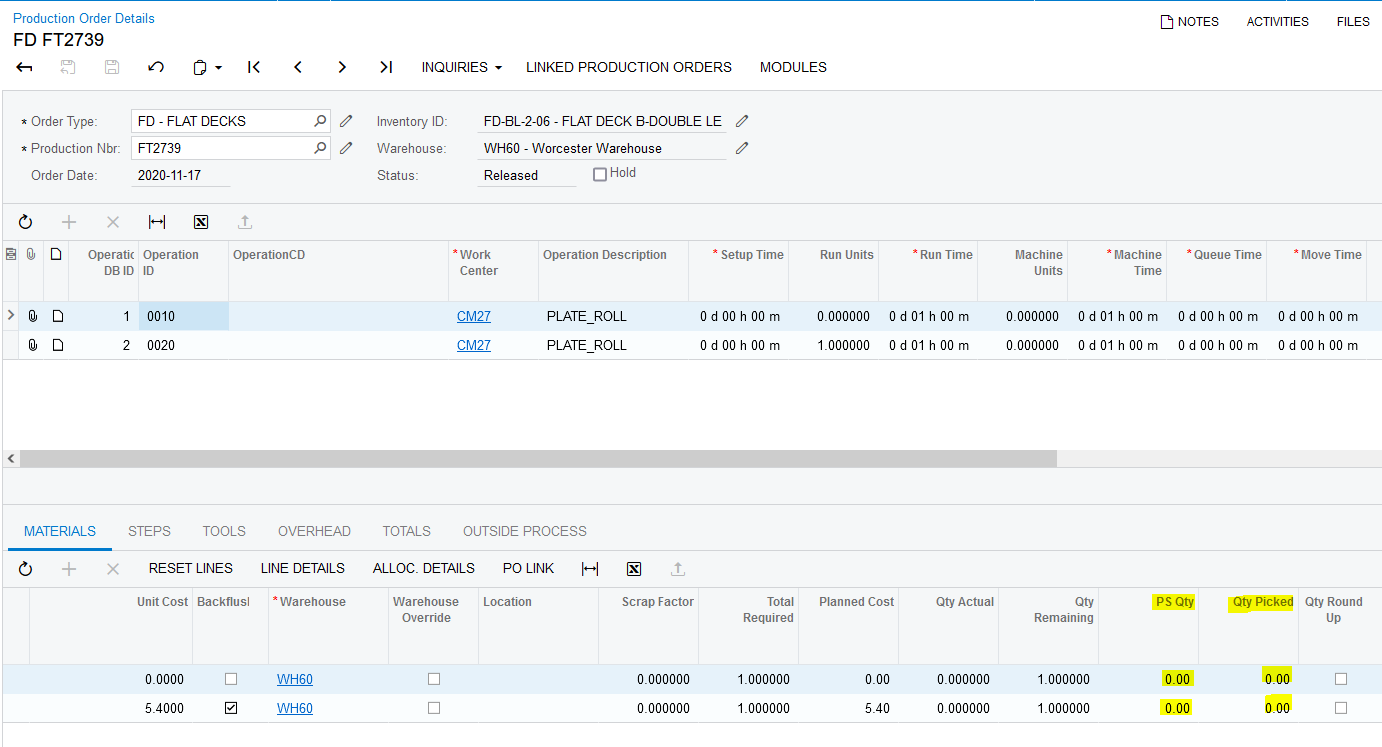
12. When a Pickingslip gets created and the Line Type is a "ProdOrder" the Production Order that's linked to the relevant Pickingslip Line gets updated. The "PS Qty" field gets updated with the Quantity on the Pickingslip Line. There is also Validations built in so that End Users cannot amend the "Qty Required" field to less than is specified on the "PS Qty" field:
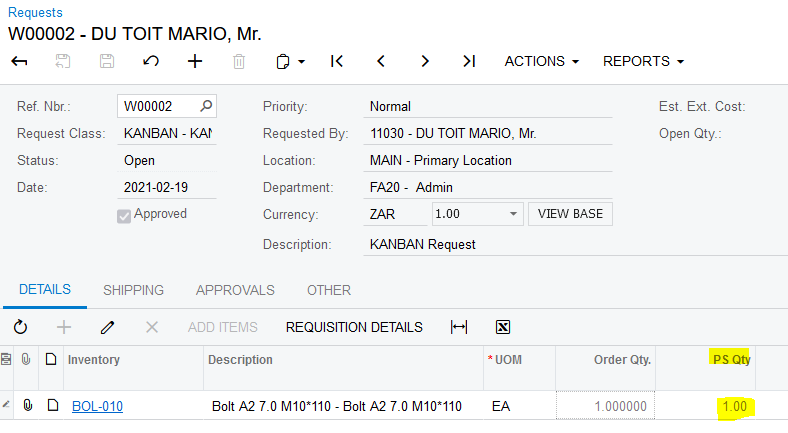
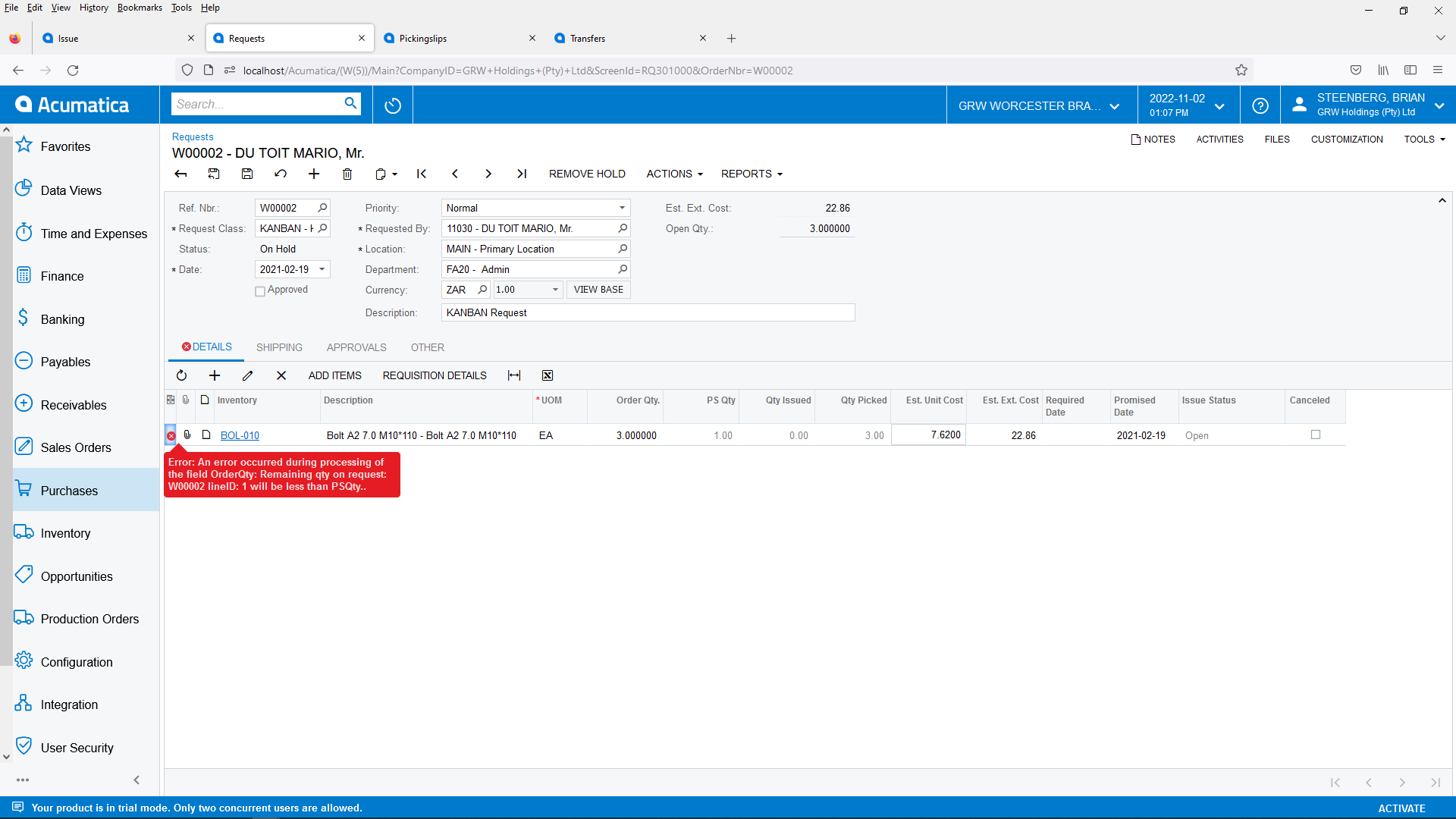
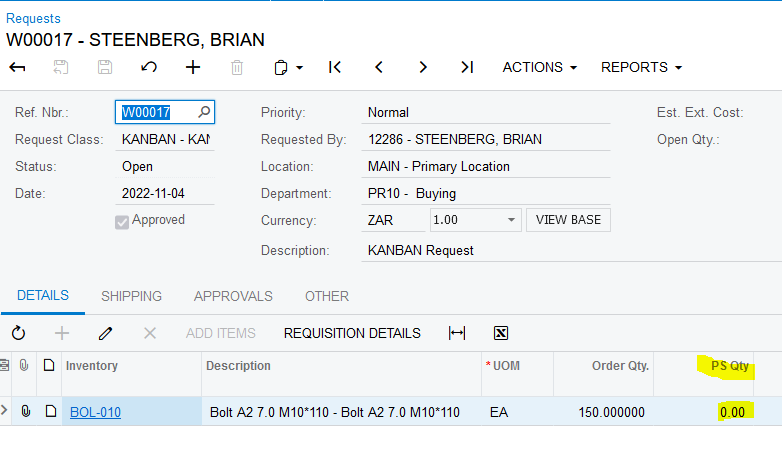
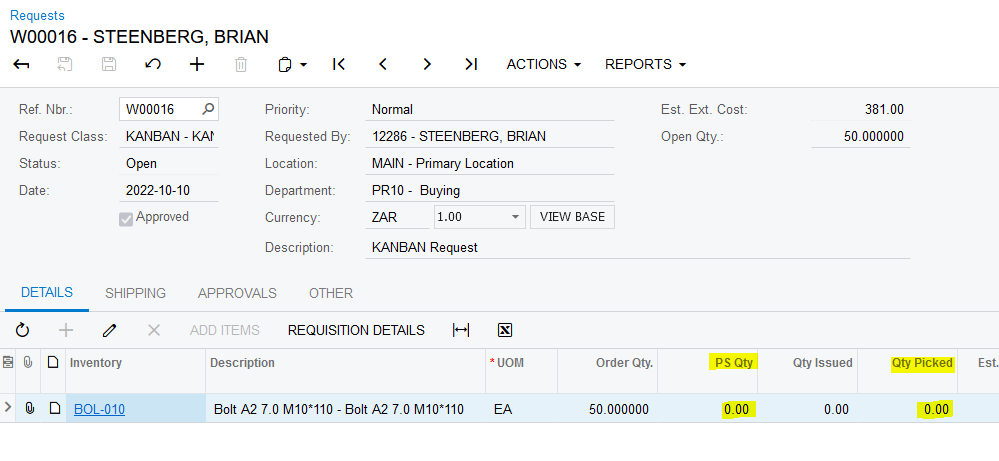
13. When a Pickingslip gets created and the Line Type is a "Request" the Request that's linked to the relevant Pickingslip Line gets updated. The "PS Qty" field gets updated with the Quantity on the Pickingslip Line. There is also Validations built in so that End Users cannot amend the "Order Qty." field to less than is specified on the "PS Qty" field:
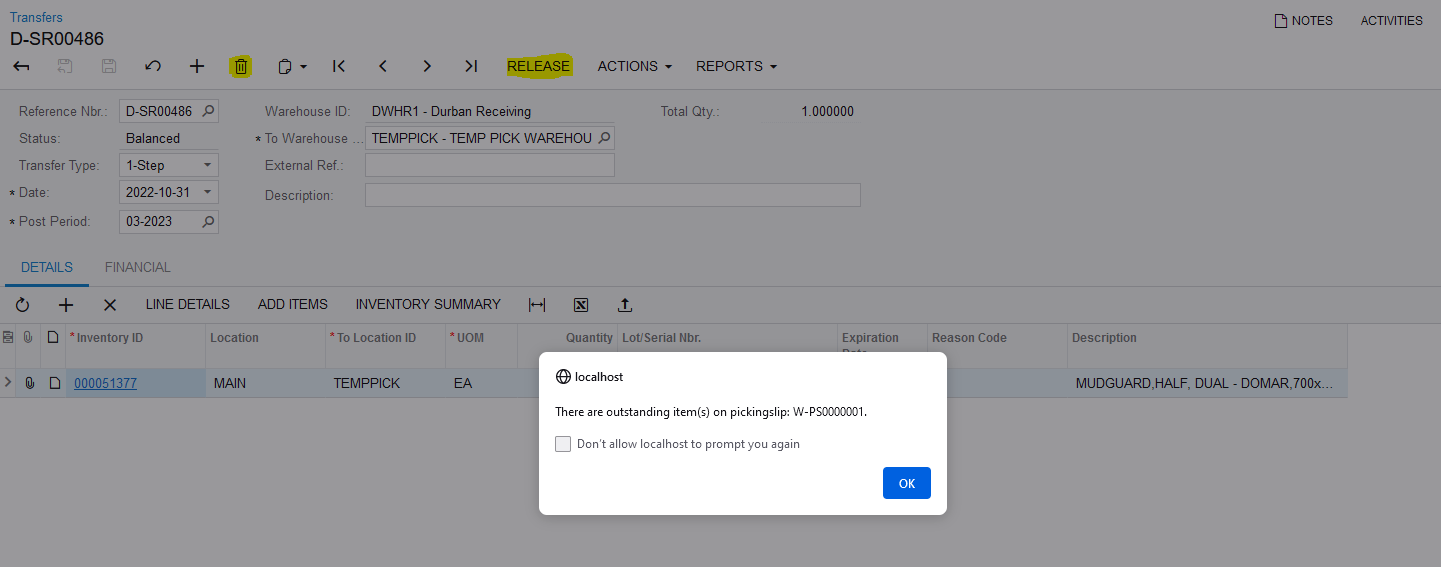
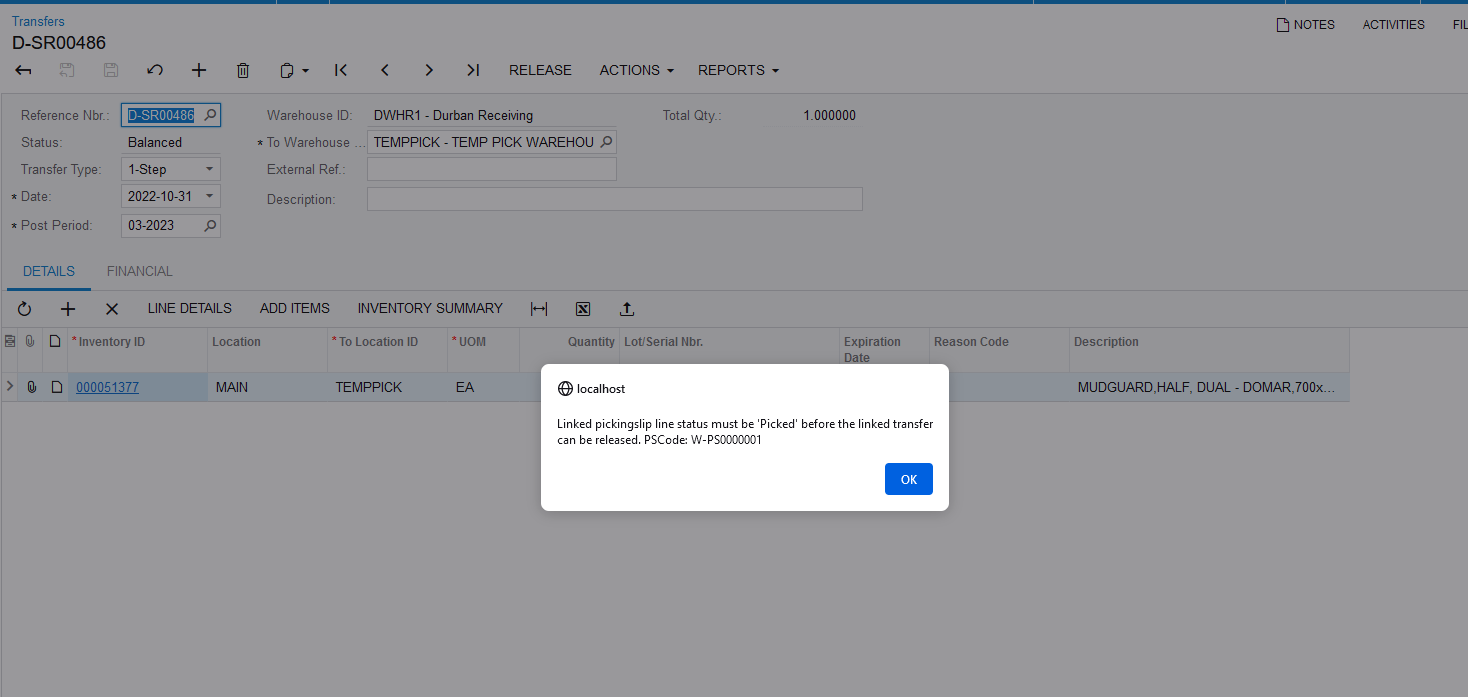
14. There is also Validations built in so that you can't Delete or Release a Balanced Transfer that is linked to a Pickingslip Line:
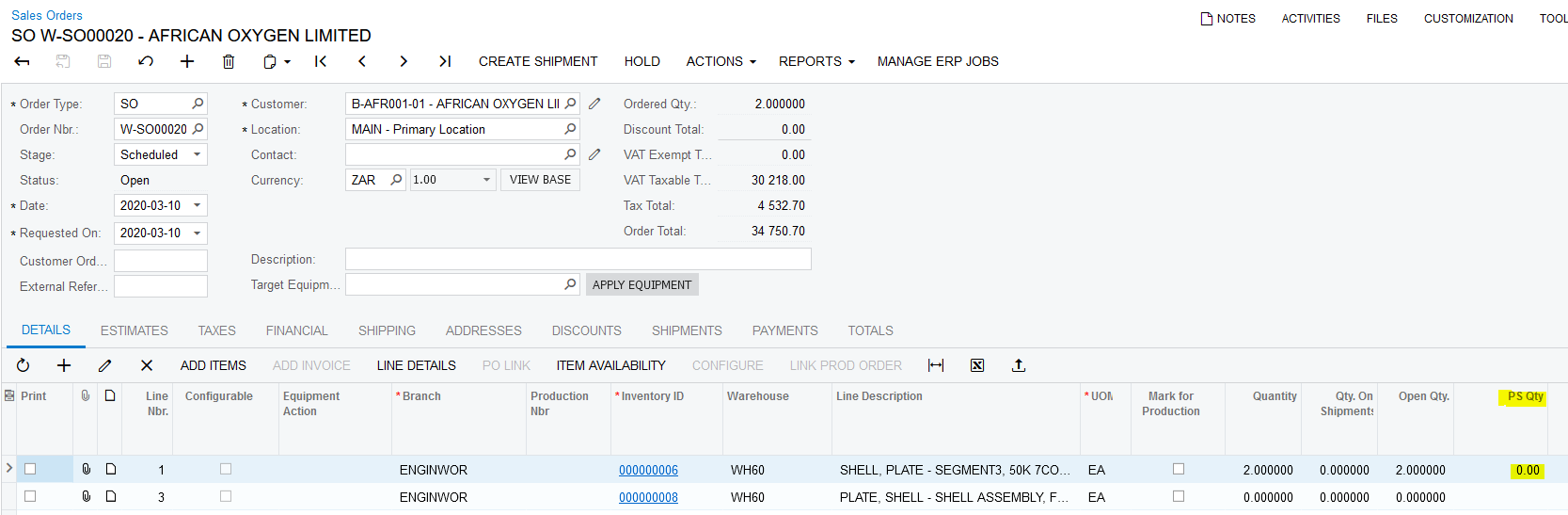
15. When a Pickingslip Line is deleted and the status is "Unallocated" or "Allocated" and the Line Type is a "SalesOrder" the Sales Order that's linked to the relevant Pickingslip Line gets updated. The Quantity on the deleted Pickingslip Line in the "PS Qty" field gets deducted from the "PS Qty" field on the Sales Order:
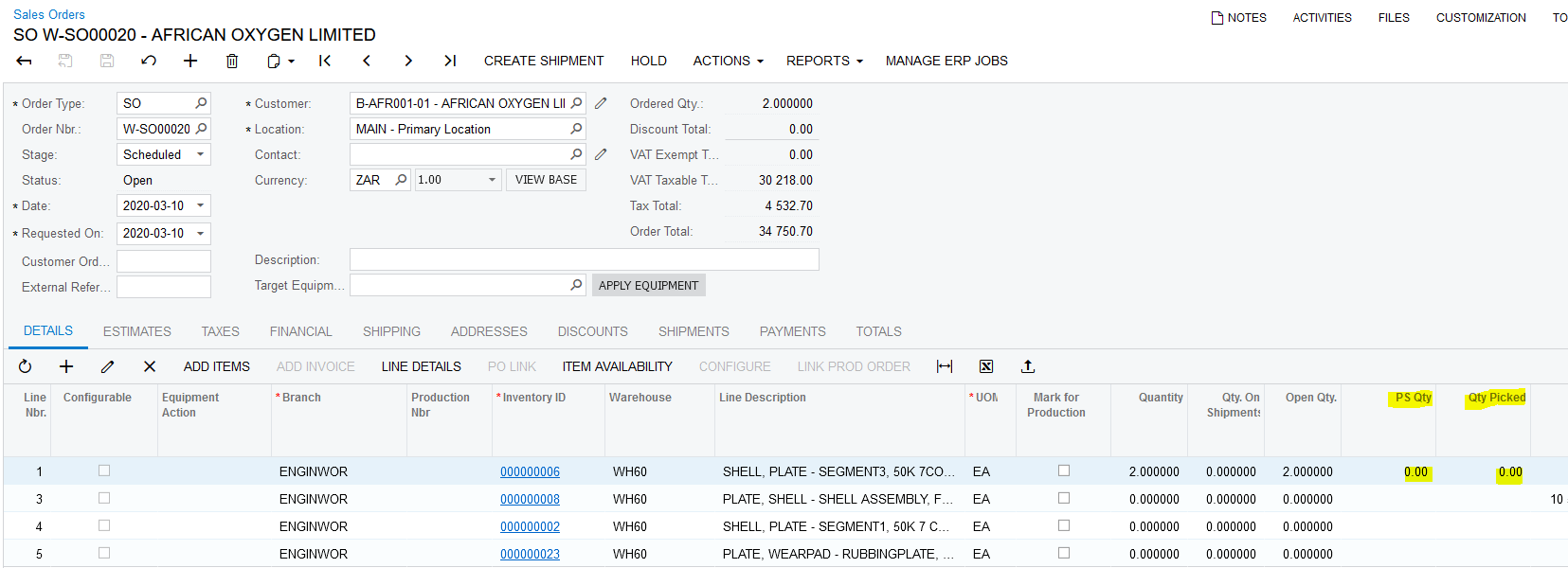
16. When a Pickingslip Line is deleted and the status is "Picked" and the Line Type is a "SalesOrder" the Sales Order that's linked to the relevant Pickingslip Line gets updated. The Quantities on the deleted Pickingslip Line in the "PS Qty"and "Qty Picked" fields gets deducted from the "PS Qty" and "Qty Picked" fields on the Sales Order:
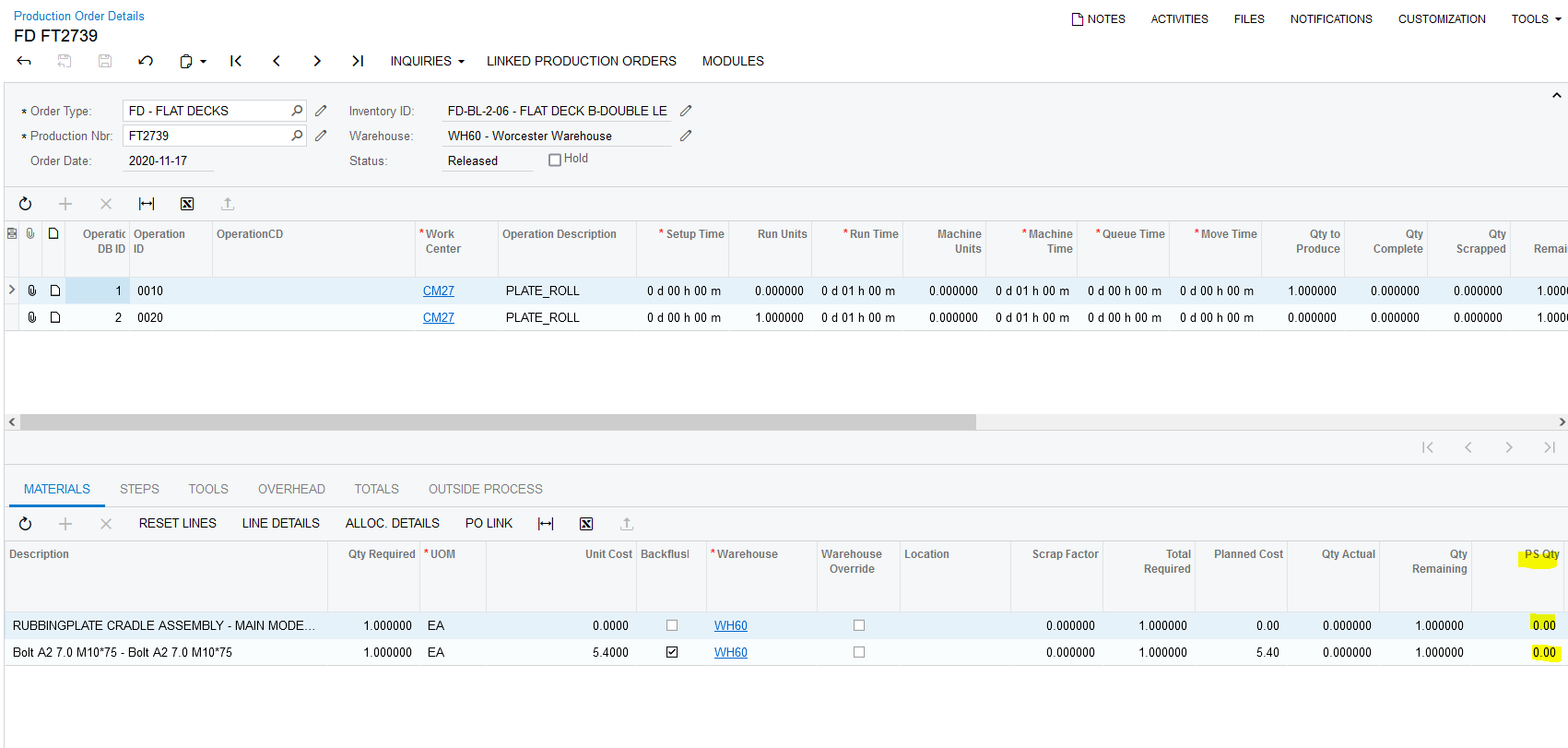
17. When a Pickingslip Line is deleted and the status is "Unallocated" or "Allocated" and the Line Type is a "ProdOrder" the Production Order that's linked to the relevant Pickingslip Line gets updated. The Quantity on the deleted Pickingslip Line in the "PS Qty" field gets deducted from the "PS Qty" field on the Production Order:
18. When a Pickingslip Line is deleted and the status is "Picked" and the Line Type is a "ProdOrder" the Production Order that's linked to the relevant Pickingslip Line gets updated. The Quantities on the deleted Pickingslip Line in the "PS Qty"and "Qty Picked" fields gets deducted from the "PS Qty" and "Qty Picked" fields on the Production Order:
19. When a Pickingslip Line is deleted and the status is "Unallocated" or "Allocated" and the Line Type is a "Request" the Request that's linked to the relevant Pickingslip Line gets updated. The Quantity on the deleted Pickingslip Line in the "PS Qty" field gets deducted from the "PS Qty" field on the Request:
20. When a Pickingslip Line is deleted and the status is "Picked" and the Line Type is a "Request" the Request that's linked to the relevant Pickingslip Line gets updated. The Quantities on the deleted Pickingslip Line in the "PS Qty"and "Qty Picked" fields gets deducted from the "PS Qty" and "Qty Picked" fields on the Request:
Created with the Personal Edition of HelpNDoc: Upgrade your help files and your workflow with HelpNDoc's WinHelp HLP to CHM conversion