Open and release repair job, picking and issuing of stock
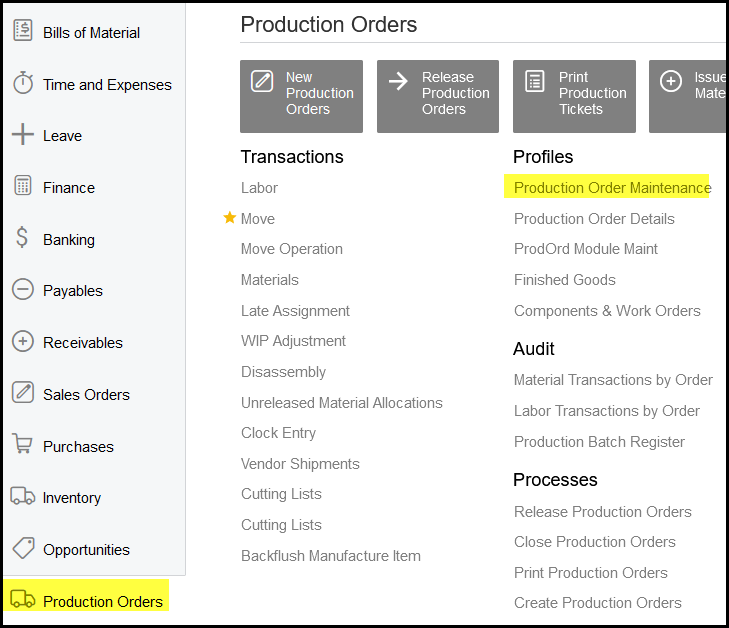
1. Go to production orders> production order maintenance.
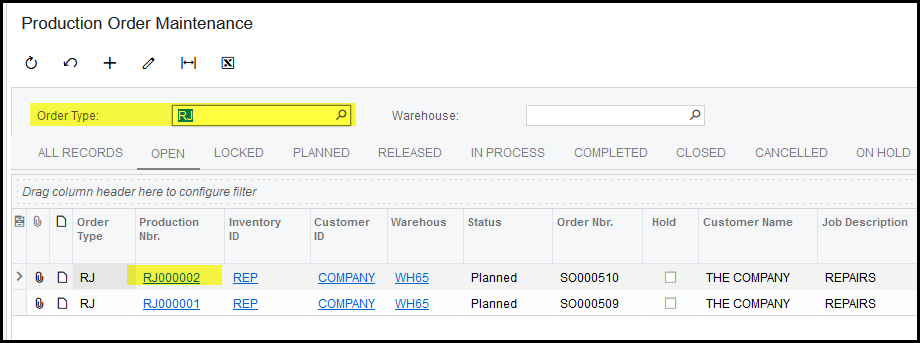
Select order type RJ to make the search easier.
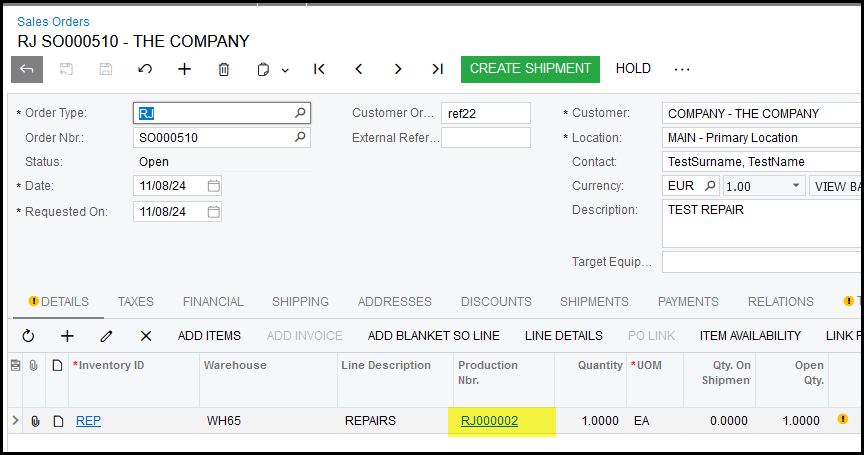
2. From the sales order click on the job link to open the job.
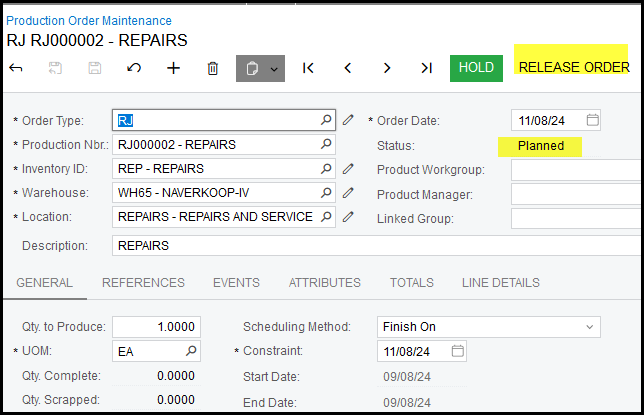
3. Click on release order.
Status will change from 'planned' to 'released'
Only when the job is release it is available for picking and issuing of parts.
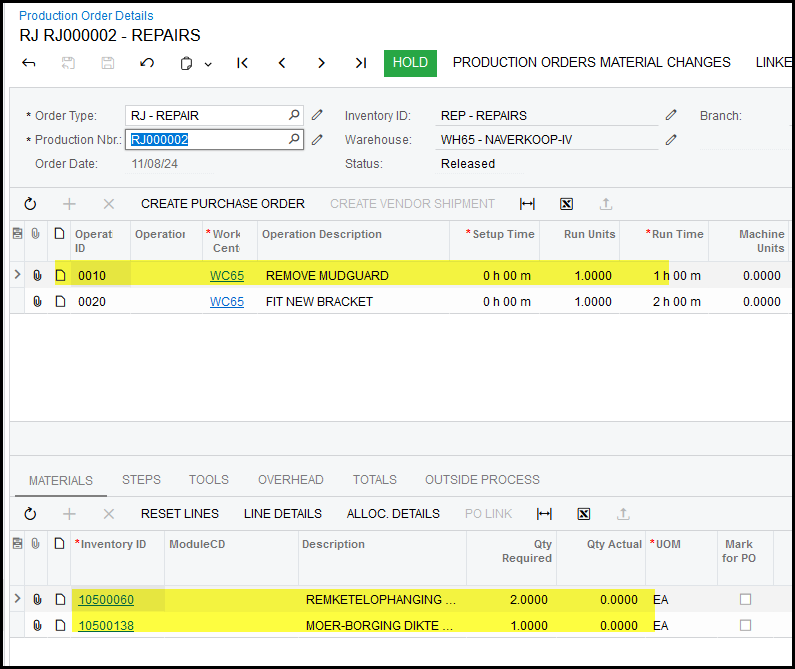
4. Click on production detail to see the detail operations. If you click on the operation line, the stock for that operation will reflect in the window below.
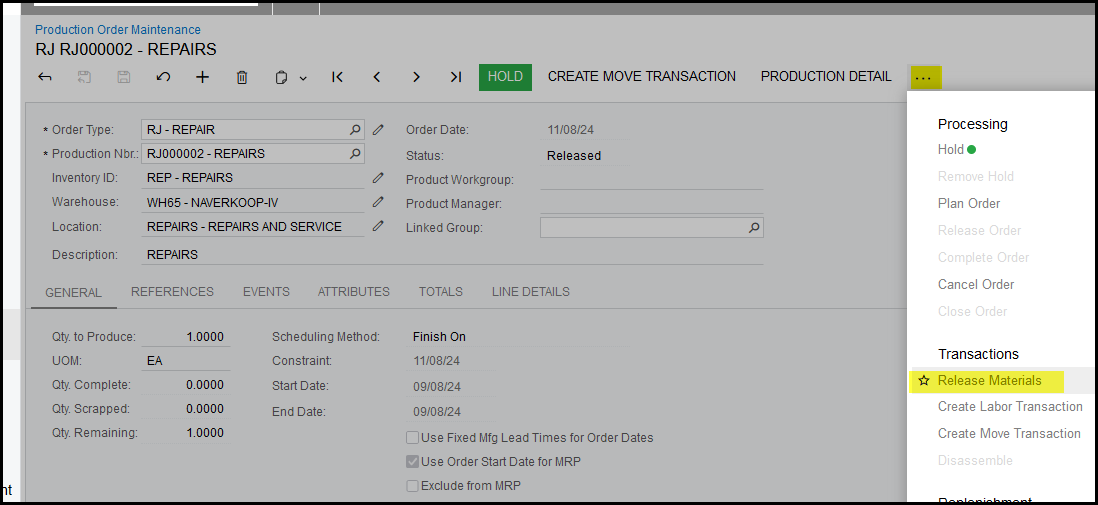
5. To pick the stock for the job click on release materials.
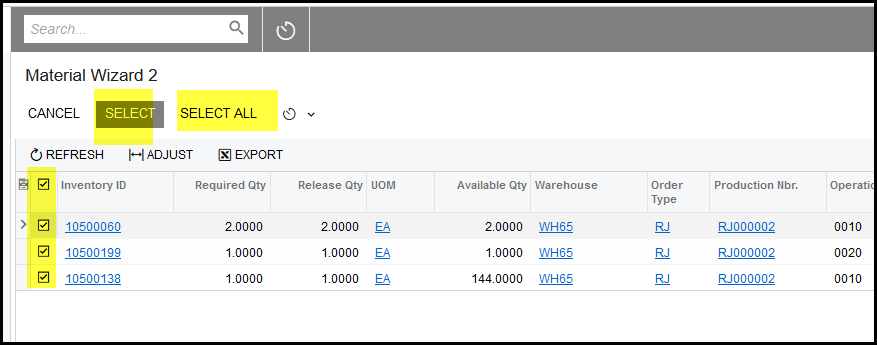
6. Only materials that are on hand will show.
Tick the stock that you want to pick, click on select.
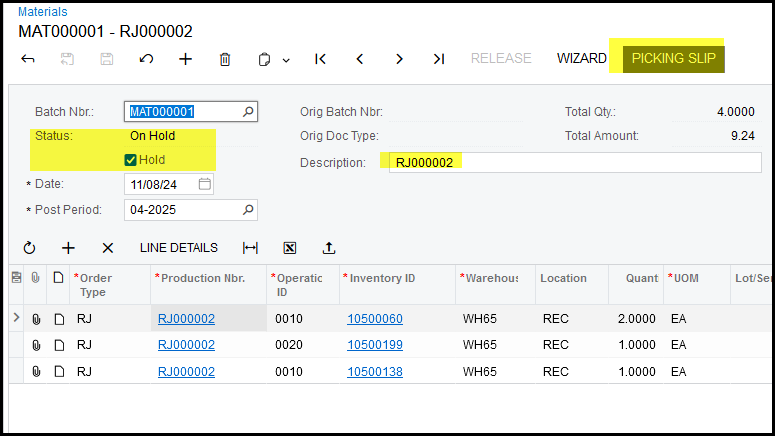
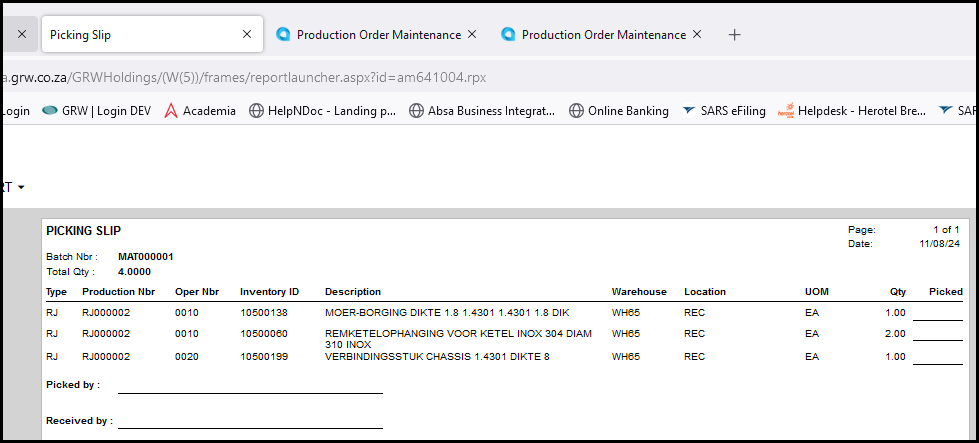
7. This opens the material screen - SAVE. From here you can print your picking slip.
The batch is on hold.
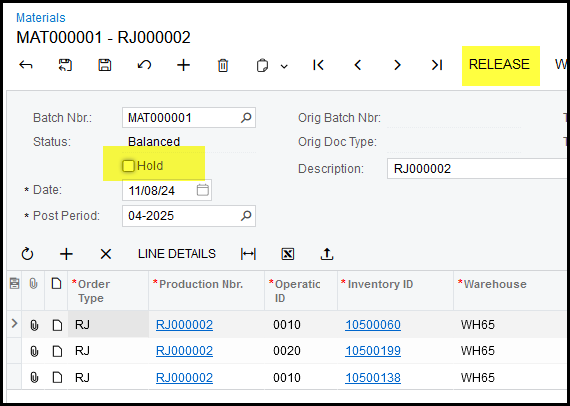
After the signed document is received from the warehouse that picked the stock, you can release batch.
Always monitor 'balanced' batch.
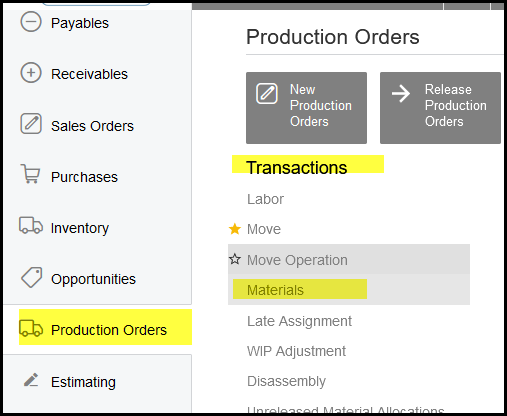
7. You can also view your batches from production>transactions>materials.
8. To release, batch take it off hold and release.
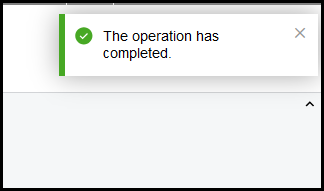
See that the process is completed.
9. Go back to your job to view the totals and events.
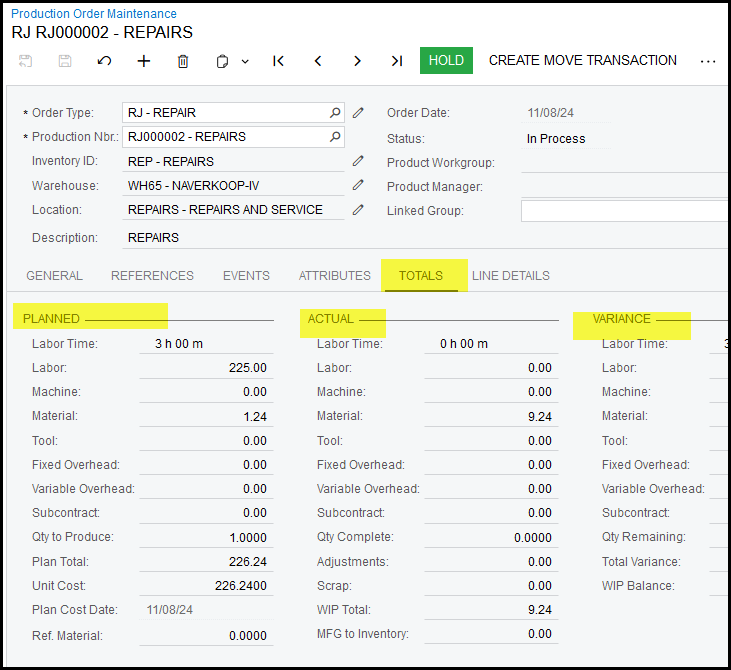
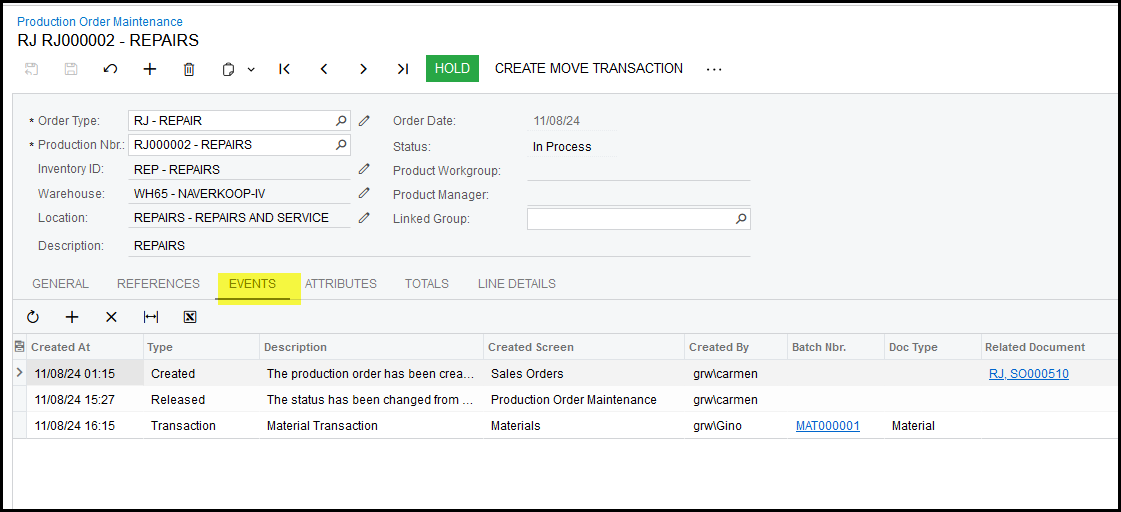
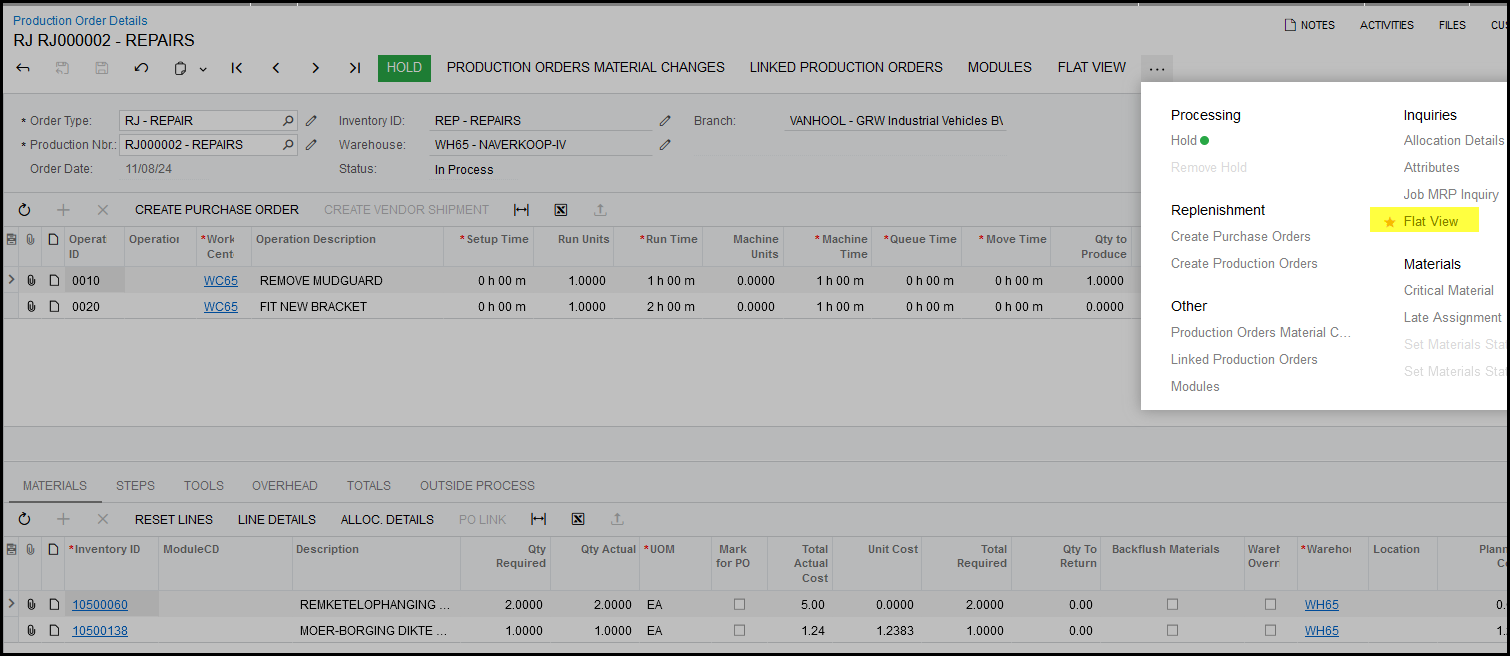
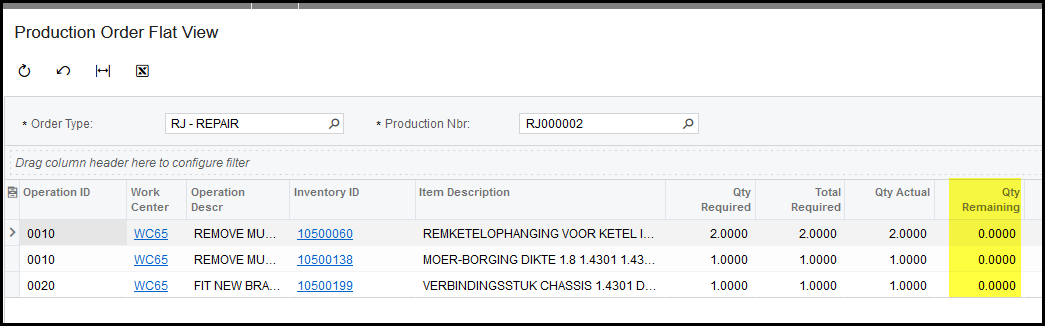
10. You can also view the 'flat view' to see what is outstanding on the job.
Created with the Personal Edition of HelpNDoc: Experience the Power and Simplicity of HelpNDoc's User Interface