How to load sales price work sheets
1. To view the default selling price, see below the 'default price' show under each item's Price/Cost Info tab.
2. Remember that if a price is loaded in a worksheet this 'default price' will not be used.
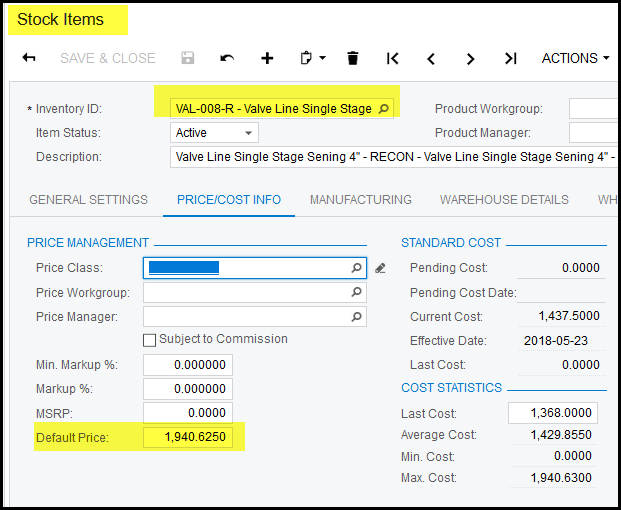
3. You can loaded selling prices under 'Sales Price Worksheets'
4. Go to Receivables>Transactions - 'Sales Price Worksheets'
5. Click on the + to add a new worksheet.
6. Selling prices can be loaded to use the following as basis:
- Base
- Customer Price Class
- Customer
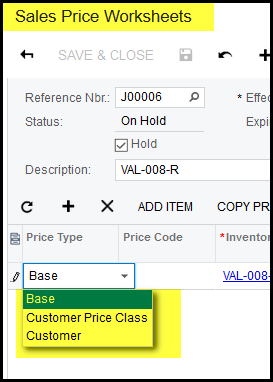
7. You can create a 'Sales Price Worksheets' for items based on the type 'Base', but you can also create another 'Sales Price Worksheets' for specified
customers by select the type 'Customer'.
8. When you open a new 'Sales Price Worksheets' keep it on hold until you loaded all your prices.
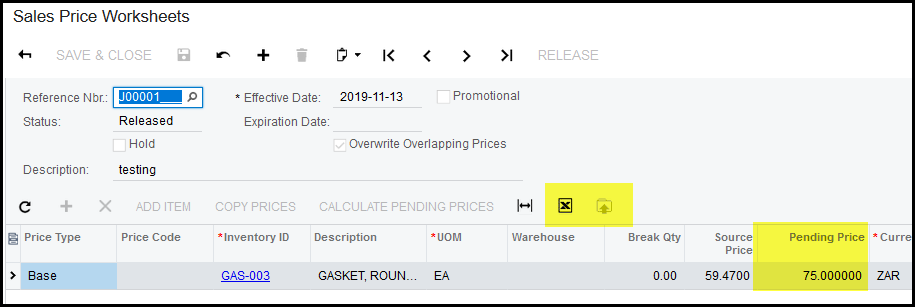
9. To load prices go to the pending prices and fill in your selling price. You can also use the export/import function. See in yellow highlighted below.
10. If you want to work on a fixed mark-up % use 'CALCULATE PEDING PRICES'
11. Click on 'CALCULATE PEDING PRICES', a pop-up will show where you fill in your mark-up % and also from which price basis you work.
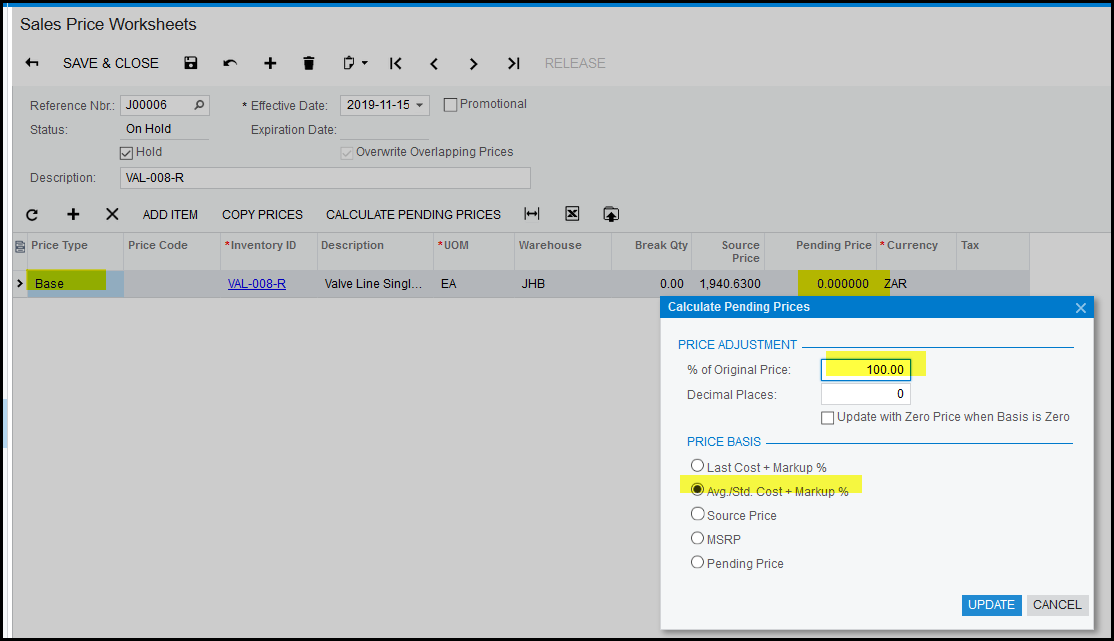
12. Select update.
13. Your pending price will change to the new selling price.
14. See below the pending prices did not update - this is important because it means that there was no warehouse details loaded for JHB. So the average/std cost was zero, therefor the calculation also show zero.
15. Go to the item and the tab warehouse details, add warehouse details
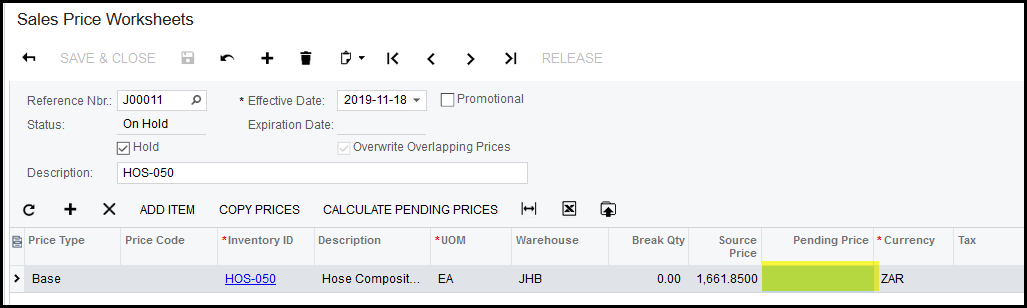
14. Remember that in the example above 'JHB' warehouse was selected so this mean the selling price is only for this specific warehouse.
Created with the Personal Edition of HelpNDoc: Single source CHM, PDF, DOC and HTML Help creation