How to attach files directly from your email to Acumatica
1. You do not have to save an email attachment before attaching it to Acumatica anymore.
2. This only works when using Chrome and not Firefox/Internet explorer.
3. Go to Acumatica where you want to attach the file. See the requisition as example. No file is attached.
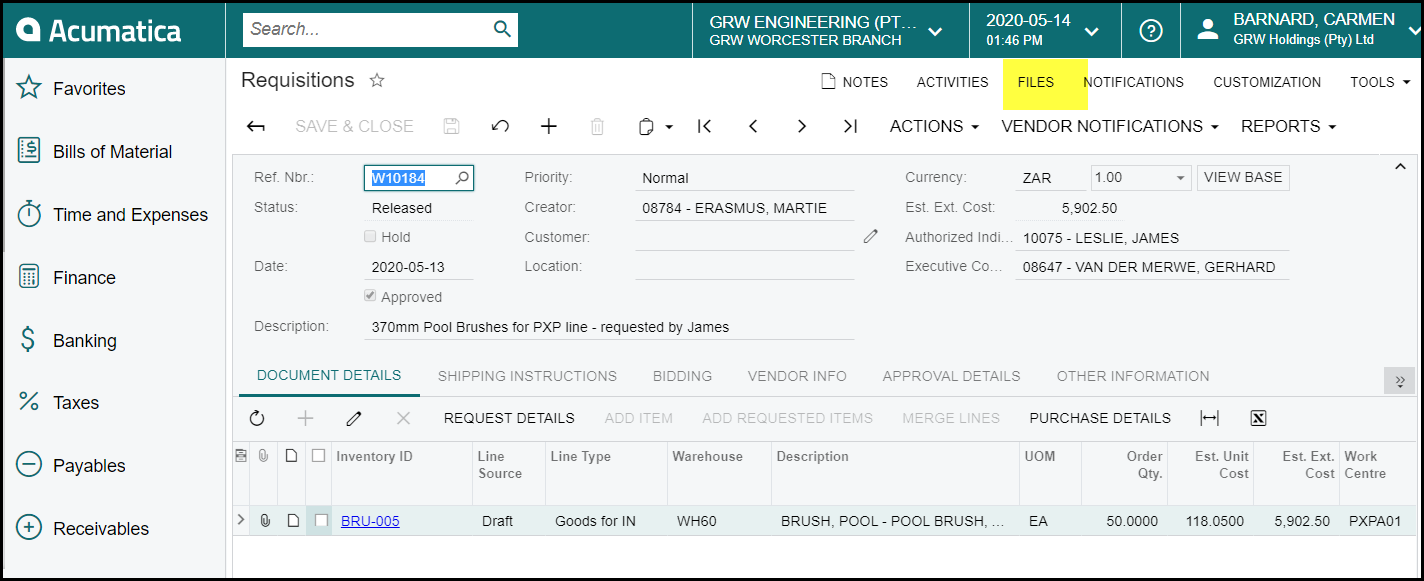
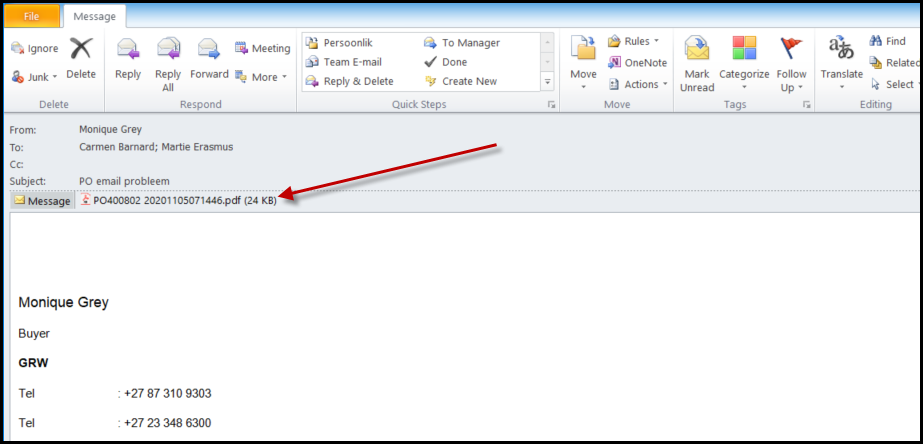
4. Keep the requisition open. Go to your email and simply drag the attachment to your requisition.
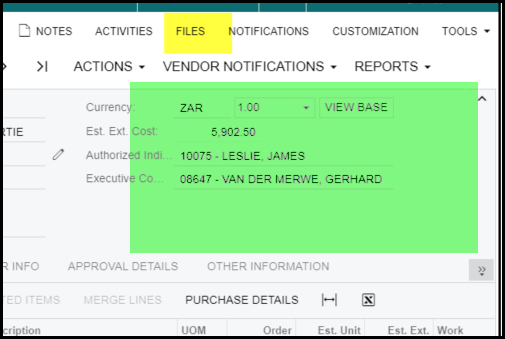
5. You can drag it and drop it in the green block, see section below. Then it attach automatically.
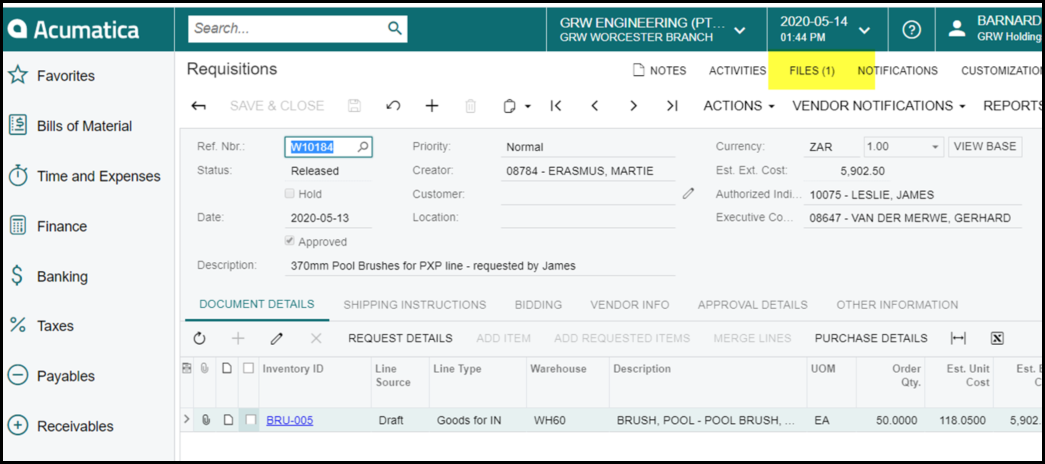
5. The file will show as attached on the requisition.
6. You can also attach more that one document at a time.
7. Right click on on of the attachments in your email, click on select all.
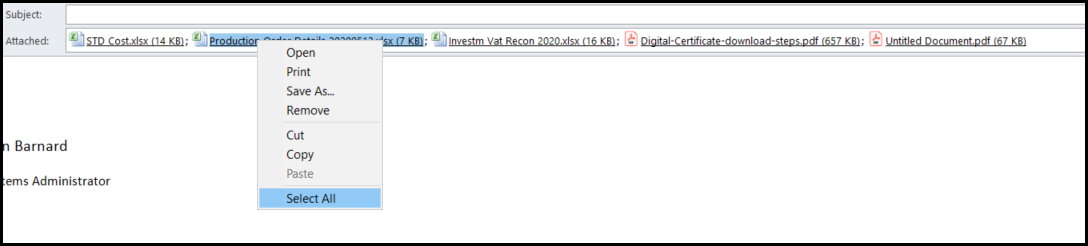
8. All your documents will show as selected.
9. Press Ctrl and left click on your mouse to drag all of them at once.
10. Please remember that if you have a lot of files to attach it can take a few seconds to upload in Acumatica, be patient.
Created with the Personal Edition of HelpNDoc: Create Professional CHM Help Files with HelpNDoc's Easy-to-Use Tool