How to attached a file to any type of transaction
1. When busy in any type of transaction you can quickly attach a file.
- Remember - you can also drag all your files from a folder at once to attach.
2. Example below is an adjustment and you want to attached a document.
3. Go to your file explorer in your taskbar.
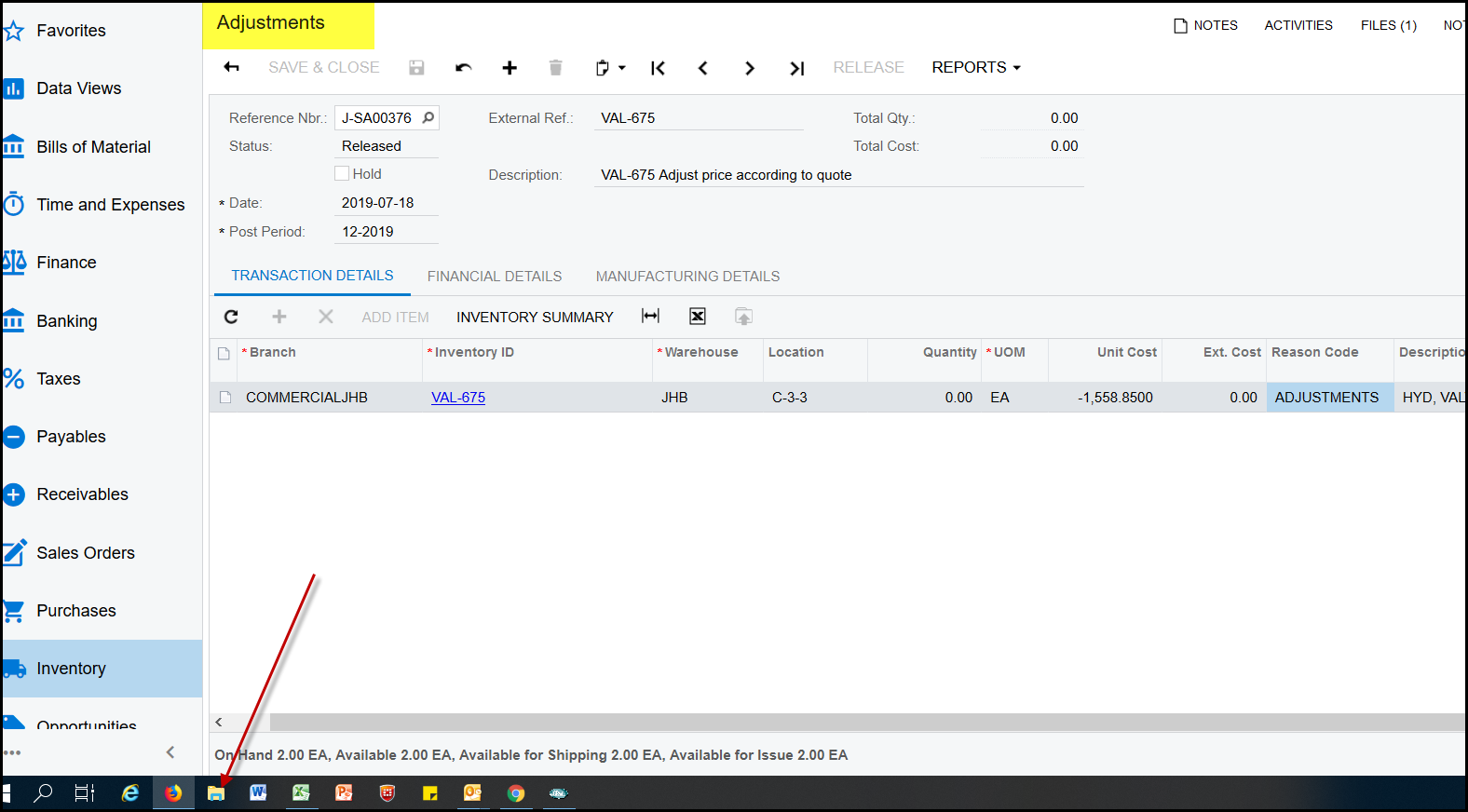
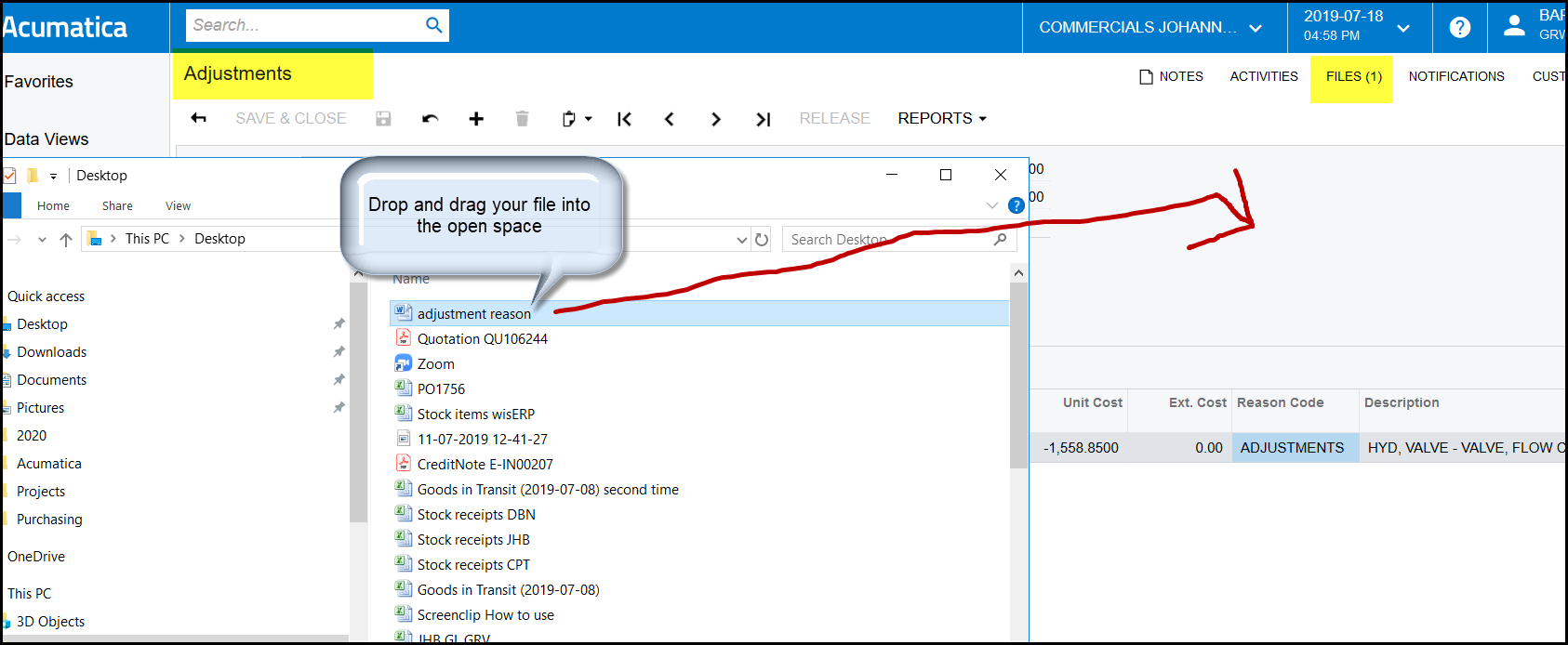
4. Go to your document you want to attach and click on it.
5. Drag and drop the document in the open space in your Acumatica transaction
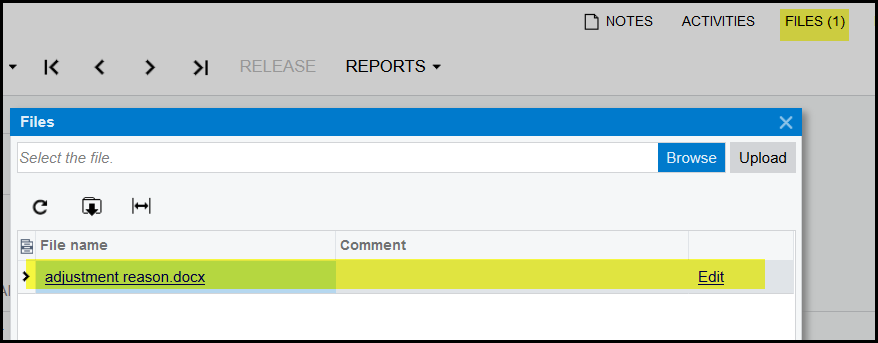
6. After you have attached the document it will show the file is attached - FILES(1)
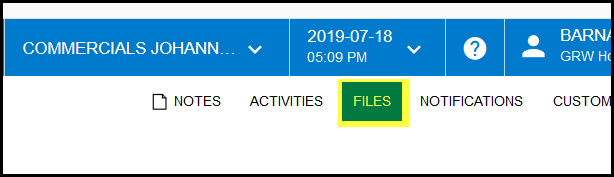
7. Another way to attach a file is click in the transaction on FILES.
8. Browse your file.
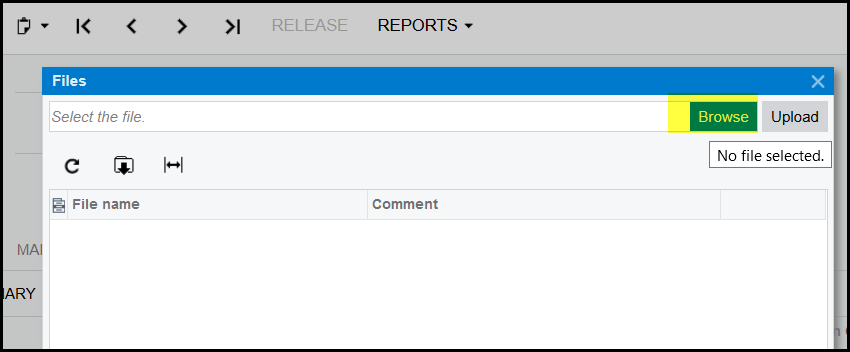
9. Click on the file and open.
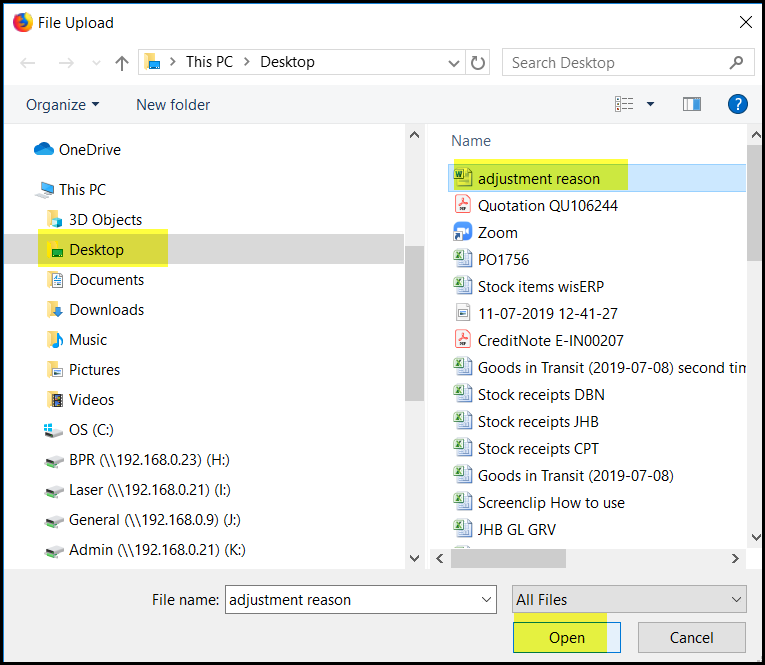
10. You file will appear as below.
11. Click on upload.
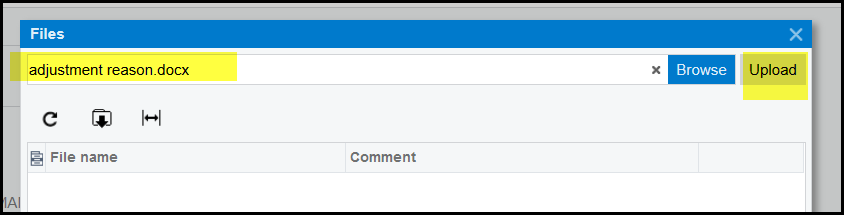
12. Your file is uploaded.
PS:
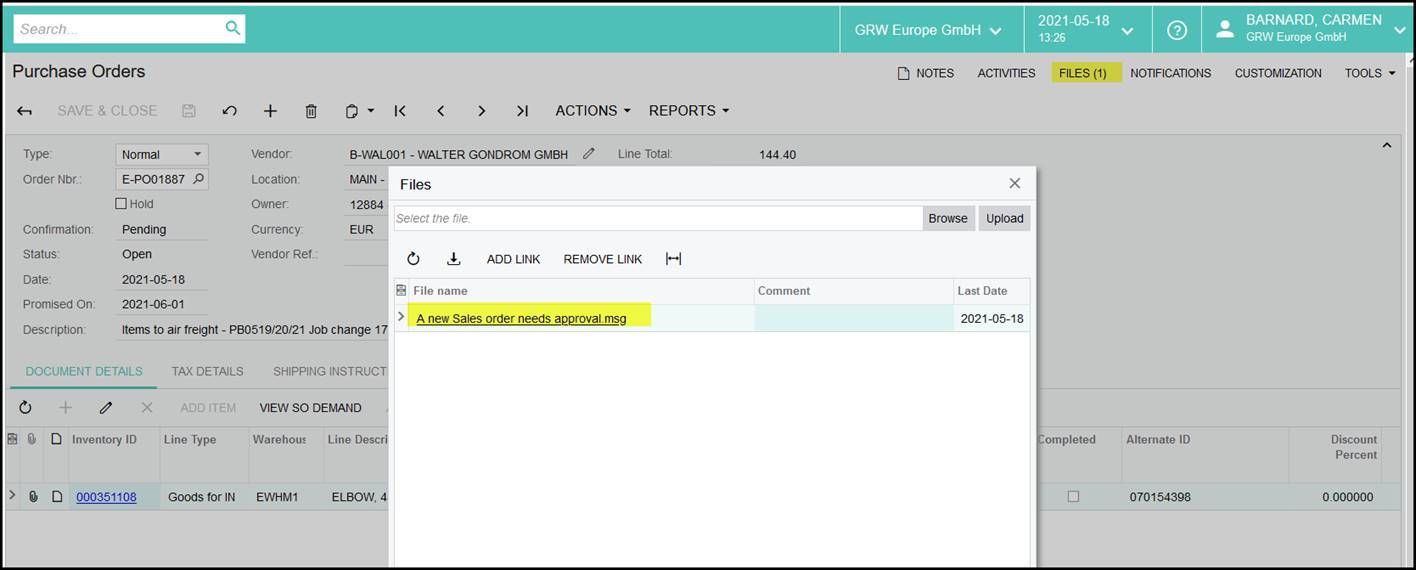
It is now possible to attach an email message(file type msg.) in Acumatica. See below.
Also remember when you use Chrome you can drag your files directly from outlook and do not have to save it first. This is not only for the mail message but any attached files on the email itself.
Created with the Personal Edition of HelpNDoc: Streamline Your CHM Help File Creation with HelpNDoc